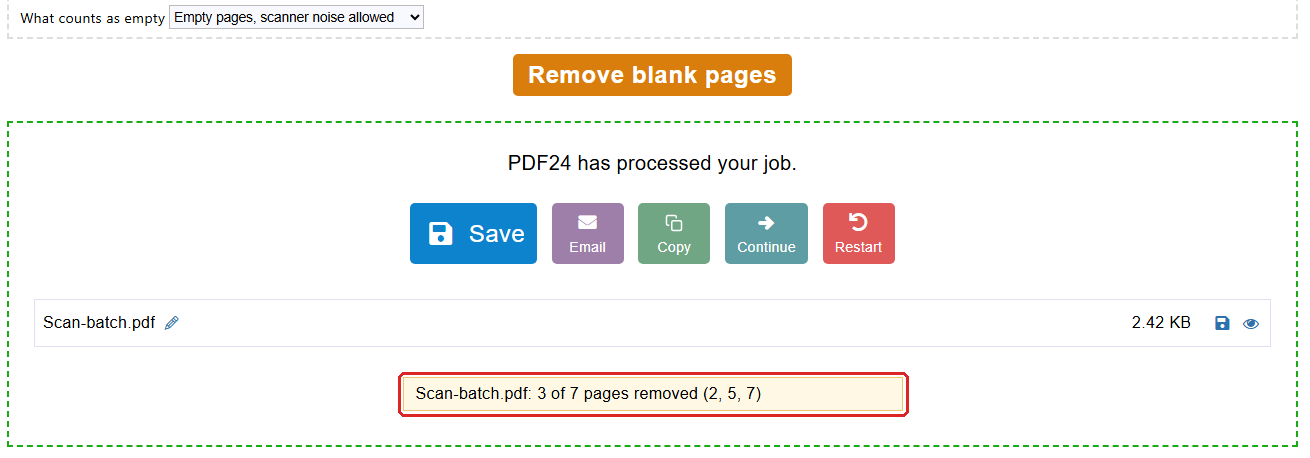
If you scan on both sides, you know it: blank back sides end up between the pages, get in the way when reading and make the file bigger than it needs to be. The new tool "Remove blank pages" of the PDF24 Toolbox clears them out with one click. Under "What counts as empty" you decide how strict it is:
- "Only completely empty pages"
- "Empty pages, scanner noise allowed", for the typical back sides from a scanner with a few light specks
- "Also pages with specks or punch holes"
Pages with text always stay. And so that you can be sure nothing important is gone, the result lists the removed pages, for example "3 of 7 pages removed (2, 5, 7)".
One stack, many documents: Do you like to scan many documents at once and put a blank sheet between them? "Split PDF" has the new mode "At blank pages (separator sheets)" for this. PDF24 cuts the stack into single files at every blank sheet, and with the check box "Remove blank pages" the separator sheets are dropped at the same time. Here too you choose what counts as empty, and the result lists the removed pages.
Like the whole Toolbox, both tools work locally on your PC, your scans never leave the computer.