E-invoicing is becoming mandatory for more and more businesses, and our free e-invoice generator keeps growing (on the Create electronic invoice page, choose “Switch to the new version” at the top; PDF24 remembers your choice). The latest version brings features you would otherwise look for in accounting software. Here is what's new.
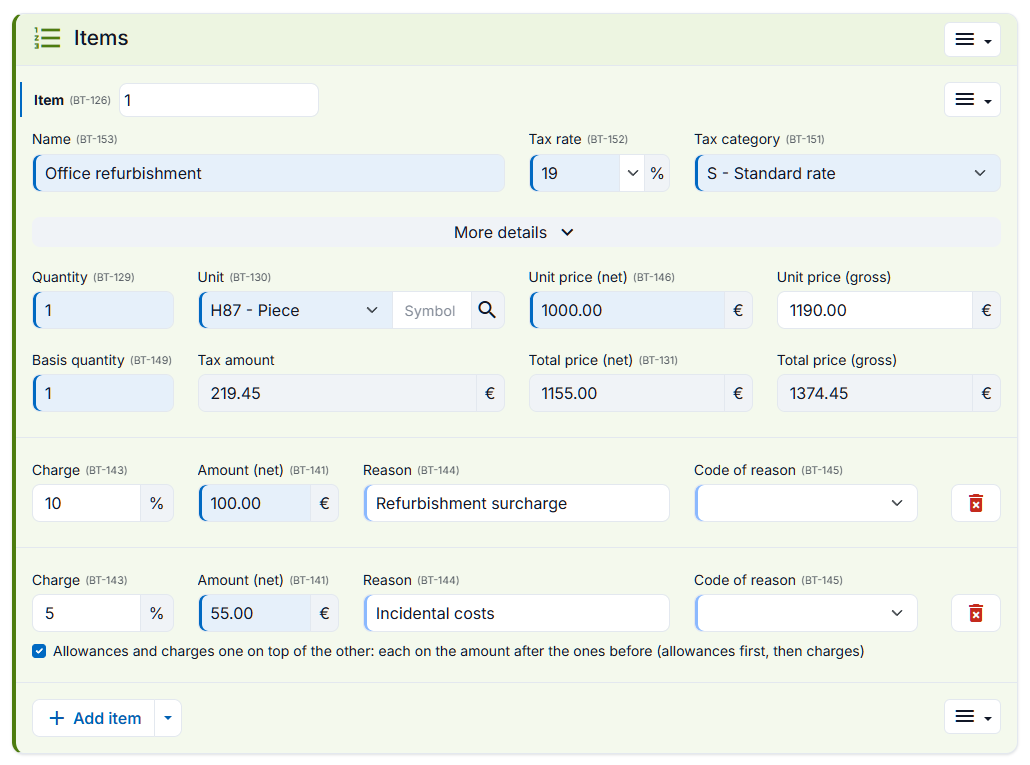
Allowances and charges one on top of the other
Until now, all percentage allowances and charges on a line were calculated from the unit price. Many trades calculate cumulatively, though: first a surcharge, then additional costs on the new subtotal. That now works. As soon as a line has two or more allowances or charges, the option “Allowances and charges one on top of the other” appears. An example: 1,000.00 plus a 10 % surcharge (100.00) plus 5 % additional costs on 1,100.00 (55.00) makes 1,155.00 net. The e-invoice carries the correct base amount for each, exactly as the EN 16931 standard defines it, valid for XRechnung, ZUGFeRD and Peppol.
Self-billed invoices to many suppliers from one table
Do you bill on behalf of your suppliers, for example commissions, grower settlements or fees (self-billing)? With “Serial invoices” you can now create dozens of self-billed invoices at once from an Excel or CSV table, even if each one goes to a different supplier. Name, address, VAT ID, bank details and even the small-business flag come from the table, row by row. For small businesses under the German § 19 UStG rule, the generator adds the correct tax note automatically. You can download a matching example table right in the dialog.
Item attributes per line
Colour, size, material or serial number: with “Add item attribute” you attach as many name-and-value attributes to each line as you need. They are written into the e-invoice as the standard defines and are valid in every format, from XRechnung and ZUGFeRD to Peppol.
Print directly
Next to downloading and sharing there is now “Print”: your finished invoice as a PDF (for example ZUGFeRD) goes to the printer with one click, without a detour via the downloads folder.
Only the required fields your format really needs
The “Electronic address” is now only required where the chosen format asks for it, namely XRechnung and Peppol. For ZUGFeRD, Factur-X and EN 16931 you can leave it out. If you switch the format, the required-field marks follow.
Small-amount invoices without the customer's address
When you sell over the counter, you often don't know your customer's address at all. For invoices up to 250 euros gross (small-amount invoices under the German § 33 UStDV), the buyer's street, postcode and city are therefore no longer required fields. Where the German rules apply, i.e. XRechnung and Peppol with a German seller, postcode and city stay required.
Payment reference in the payment terms
The “Payment terms” now know the new placeholder [payment_reference]. It inserts the text of the “Payment reference” field, with all placeholders in it already replaced, such as the invoice and customer number. A sentence like “Please transfer the amount quoting [payment_reference].” then always matches the payment reference in the e-invoice exactly, and you maintain the text in one place only.
Describe attachments easily
Attach delivery notes, timesheets or measurements as usual. After adding a file, the cursor is right in the description field, and a note explains where to find the embedded attachments in the finished PDF.
Already have a PDF invoice?
Then you don't have to type anything again: PDF to e-invoice turns your existing invoice into an e-invoice. The link is now right on the generator page, too.
Your invoice now keeps its look right in the generator as well: open a normal PDF invoice with “Import invoice”, and PDF24 reads the invoice data and enters your PDF under “Use the PDF” straight away. The e-invoice then shows your familiar invoice instead of the generator's layout. If you change data afterwards, a note points out that the PDF does not show these changes, and “Use the generator's layout” switches over with one click.