With PDF24 you can edit a PDF for free: add text and images, redact or white out parts, highlight text, add comments, shapes and stamps, and rotate or delete pages – online in your browser or offline with PDF24 Creator. This guide shows step by step which tool to use for what and explains one important difference: what is only covered is still in the file. What is redacted is really gone.
Contents
- Which tool for what?
- How the PDF24 editor works
- Replace existing text: the workaround via redaction
- Add text to a PDF
- Fonts, custom fonts and special characters
- Remove text or images: redact or white out
- Redact or just cover? The important difference
- Highlight, underline or strike out text
- Comments and notes
- Insert images
- Shapes, arrows, stamps and QR codes
- Add a signature
- Rotate, delete or reorder pages
- Saving: where is my edited PDF?
- Edit PDFs offline in the PDF24 Toolbox
- Frequently asked questions and problems
Which tool for what?
The central place is the PDF24 editor on Edit PDF. For single tasks there are tool pages of their own that open the same editor with just the matching tools.
- Add text, images, shapes, stamps: Edit PDF, mode “Insert”.
- Highlight text, comments, notes: Annotate PDF or mode “Annotate”. Offline also in PDF24 Reader.
- Remove, redact or white out text or images: Redact PDF or mode “Redact”.
- Replace existing text: only with the workaround of redacting in white plus new text, see Replace existing text.
- Sign: Sign PDF, see Add a signature.
- Fill out a form: Fill out PDF.
- Rotate, delete, reorder pages: mode “Organize” or the separate tools, see Pages.
- Offline, without internet: the PDF24 Toolbox in the free PDF24 Creator with “Edit PDF”, “Blacken PDF” and “Annotate PDF”, see PDF24 Toolbox.
Online there is nothing to install and no sign-up. Your file is transferred encrypted and deleted automatically from the PDF24 servers one hour after the upload.
How the PDF24 editor works
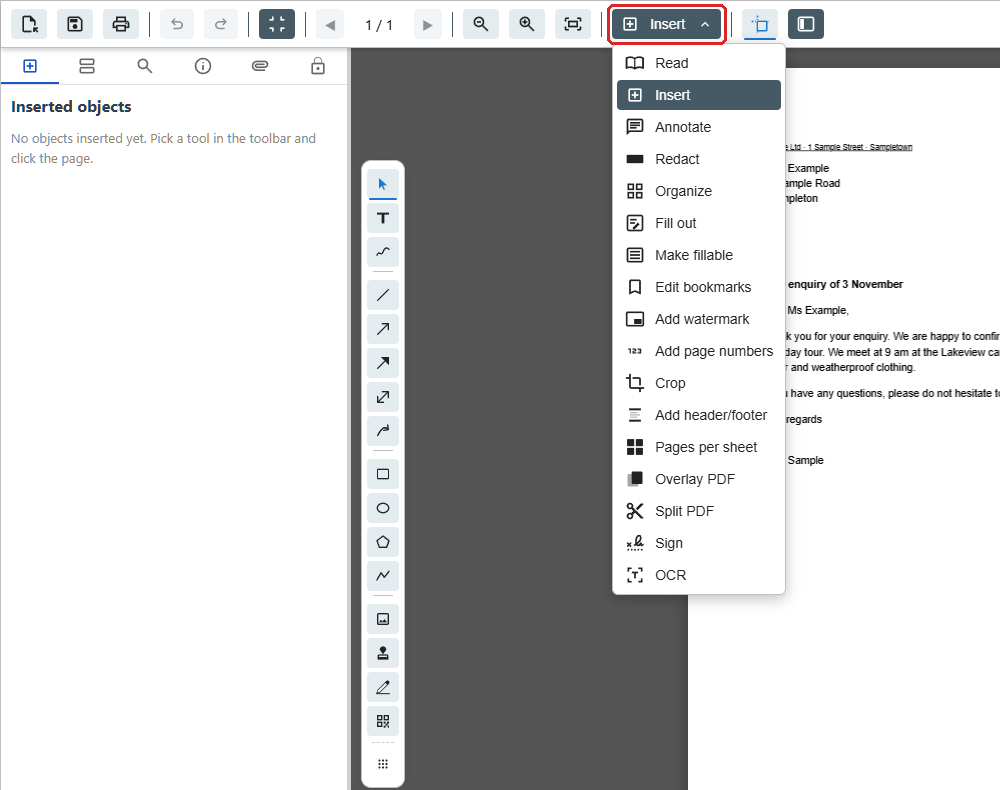
The editor is divided into modes. You choose the mode at the top of the bar with the button showing the name of the current mode (“Insert” when the editor opens, with a small arrow). There you find “Insert”, “Annotate”, “Redact”, “Organize”, “Fill out”, “Add watermark”, “Add page numbers”, “Sign” and more.
The toolbar always shows the tools of the chosen mode. Point at an icon with the mouse to see its name. Where the toolbar sits (at the side or at the top) you change with the icon “Toolbar position” at the end of the toolbar. On a phone the tools sit in a bar at the bottom of the screen.
At the top you also find “Load PDF” (open another file), “Save PDF” (disk icon), “Print”, “Undo” and “Redo”. The sidebar on the left (“Show or hide the sidebar”) holds page thumbnails and the search. Text recognition is opened via the button with the name of the mode: its last entry, “OCR”, opens the “OCR” panel on the left.
Nothing you change in the modes goes into the PDF until you save. Your original file stays unchanged.
Replace existing text: the workaround via redaction
Clicking text that is already in the PDF and retyping it – PDF24 can't do that yet. This function is in the works and will be released with one of the upcoming versions once it is finished.
Today you replace a word or a line like this: you redact the old spot in white and write the new text on top – both in one pass.
- Open Edit PDF and choose your PDF.
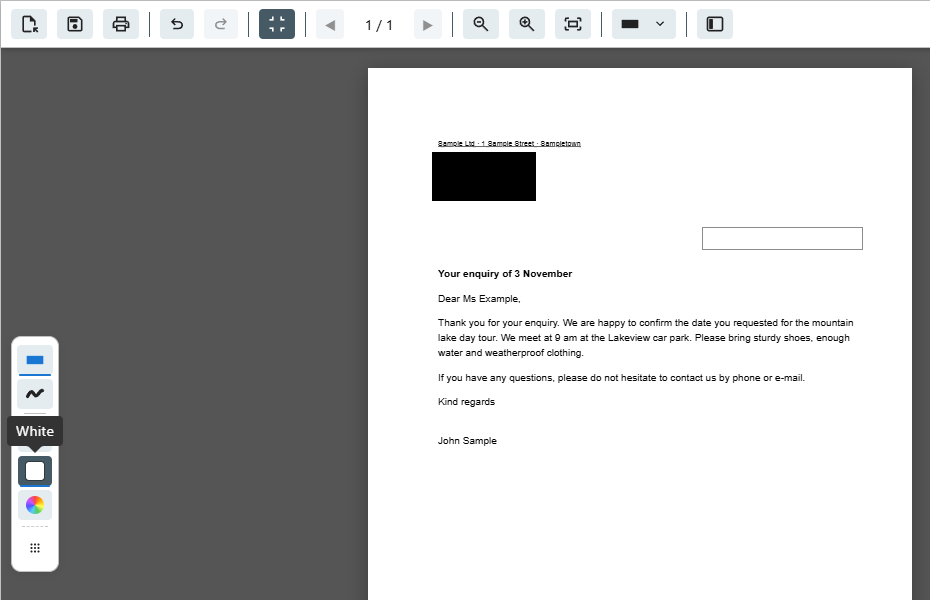
- Switch to the mode “Redact” with the button showing the mode name and choose the color “White” in the toolbar (on a colored background “Custom color…”).
- With “Rectangle”, drag a box over the word or line that should go.
- Switch to the mode “Insert”, choose “Insert text” (the “T” icon) and click the white box.
- Type the new text and match font, size and color to the original (see Add text).
- Save with “Save PDF”. The old text is then no longer in the file; the new text sits on the white box and is real, searchable text.
Good to know:
- A page you redact is saved as an image (150 dpi). The rest of the text on that page looks the same but can no longer be selected, copied or searched. Other pages stay unchanged. If you need searchable text again, run the file through PDF OCR afterwards.
- Redacting also removes the bookmarks, document properties and file attachments of the PDF. If you need them, untick “Remove bookmarks, metadata and attachments” when saving (more under Redact).
- If you need to change a lot of text, PDF to Word is often faster: change the text in Word and save it as a PDF again. The layout may shift.
- A white rectangle or a text box with a white background over the old text is not enough: it only hides the text, which stays in the file and can be copied and found. See The important difference.
Add text to a PDF
- Open Edit PDF and choose your PDF. The editor starts in the mode “Insert”.
- In the toolbar choose “Insert text” (the “T” icon).
- Click the spot on the page where the text should go and start typing. Enter starts a new line.
- Click next to the text box to finish typing.
- Save with “Save PDF”.
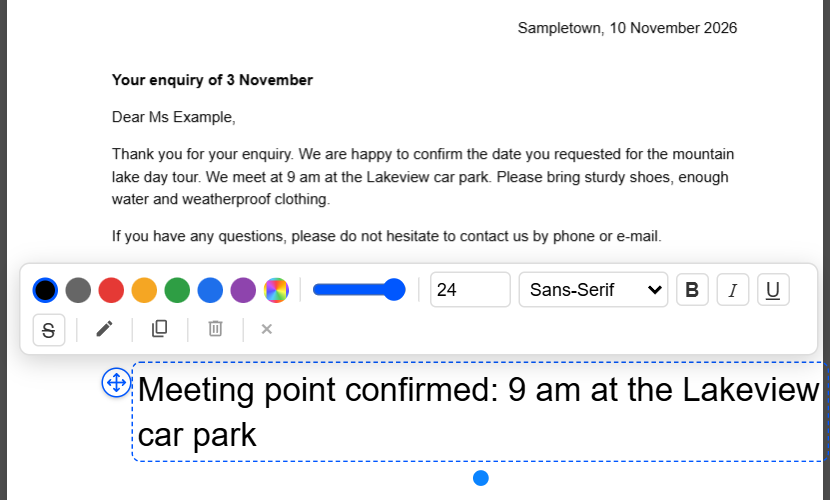
Change font, size and color: Click the text box once. A small bar appears above it with font size, font, “Bold”, “Italic”, “Underline”, “Strikethrough” and “Font Color”. If you select single words while typing, the formatting applies to them only. The size and font you chose last are used for the next text box. Undo with Ctrl+Z.
Move and rotate: Drag the selected text box to the right spot. The rotation handle on the box turns it.
Change the text later: As long as the editor is open, double-click your text box to edit it again. To remove a selected text box, press Del. Once saved, the added text is a fixed part of the page and, like other existing text, can no longer be changed directly. So keep your original file and make corrections before you save, if you can.
The same text on several pages: Click the text box and choose “Copy to pages” in the small bar (only shown for PDFs with more than one page). Enter the pages, e.g. 2-5.
Text in a form: If the PDF has form fields, Fill out PDF is the better choice. Without form fields, simply write on the lines with “Insert text”.
Fonts, custom fonts and special characters
In the online editor the font list of a text box offers “Sans-Serif”, “Serif” and “Monospace”. You add your own fonts like this:
- “+ Load custom font…” – choose a font file (.ttf or .otf) from your device. It then appears in the list and is embedded in the PDF.
- “Installed fonts…” – lists the fonts installed on your computer. This entry exists in Chrome and Edge; the browser asks the first time whether the page may access your fonts.
Not every font can be used: font collections (.ttc) don't work, and some fonts forbid embedding in PDFs in their licence – then the editor shows “This font does not allow embedding”. If a font lacks characters you typed, you see “Characters not included in the font”.
Special characters and other scripts: With the three standard fonts, text in Latin, Greek and Cyrillic script stays real text – including €, curly quotes “ ”, the dash –, and Polish, Czech, Turkish or Vietnamese letters. Other scripts such as Arabic, Hebrew or Chinese and some symbols (e.g. ✓) are placed on the page as an image: the text box looks as typed but can't be searched or copied. To keep it real text, load a font that contains these characters with “+ Load custom font…” or “Installed fonts…”.
In the PDF24 Toolbox (offline) you pick the font with “Select font” from the fonts installed in Windows. A newly installed font appears after restarting the Toolbox. The Toolbox currently doesn't show fonts in the .otf format – use the online editor for those.
Remove text or images: redact or white out
Redacting removes content from the PDF for good – names, addresses, account numbers, but also a word, a logo or an image that should simply disappear. You choose the color of the box: black for visibly redacted spots, white when the spot should simply be empty.
- Open Redact PDF and choose your PDF. (In the editor on Edit PDF it is the mode “Redact”.)
- In the toolbar choose the color: “Black”, “White” or “Custom color…”.
- With “Rectangle”, drag boxes over the areas that should go. With “Freehand” you paint over the spots like with a brush, e.g. for slanted or handwritten text; choose the brush width in the toolbar.
- The list in the sidebar shows all boxes of the page. Delete a wrong box there with the trash icon or with “Undo”.
- Click “Save PDF”. Only now is the content under the boxes removed.
Redact a word everywhere: Open “Search” in the sidebar, enter the word, name or number and click “Redact all matches”. Every match in the whole document gets a box in the chosen color. Check the boxes before saving. On scanned pages the search only finds something after you recognized the text via the button with the name of the mode › “OCR” › “Recognize text”.
What happens when you save:
- Every page with a box is saved as an image (150 dpi). What was under the box is no longer in the file – not even in hidden text layers. Text on these pages can no longer be selected or searched; pages without a box stay as they are.
- Comments and form fields on these pages are merged into the page image.
- From the whole file PDF24 also removes what could still give away the redacted content: bookmarks, document properties (title, author …), metadata, file attachments and scripts. For an e-invoice (ZUGFeRD/Factur-X) this also removes the attached XML. In the “Save PDF” window, “Remove bookmarks, metadata and attachments” is ticked for this. Only untick it if you need this information – and then check yourself that nothing you redacted appears in the bookmarks, document properties or attachments.
- A redaction cannot be undone. Save the redacted version under a new name and keep the original.
Check the result: open the saved PDF and search (Ctrl+F) for a redacted word – it must not be found any more.
Redact or just cover? The important difference
Many people put a black or white rectangle over a spot or mark it thickly with color. On screen and on paper it is then gone – but not in the file:
- Rectangle, shape, freehand or text box with a white background (modes “Insert” and “Annotate”): only covers. The text underneath stays in the PDF and can be copied, searched and made visible again with other programs. If you fill a shape with white, the editor tells you: “This only covers it up: the content underneath stays in the PDF and can still be copied.”
- “Highlight” only colors text, even in black – it stays readable and copyable.
- “Redact” (mode or the tool Redact PDF, in any color): removes the content for good when saving.
For anything nobody may read any more – personal data, trade secrets, a replaced amount – always use Redact. Covering is only enough when it is about the look, e.g. a note over an image.
Highlight, underline or strike out text
Online:
- Open Annotate PDF (or the mode “Annotate” in the editor).
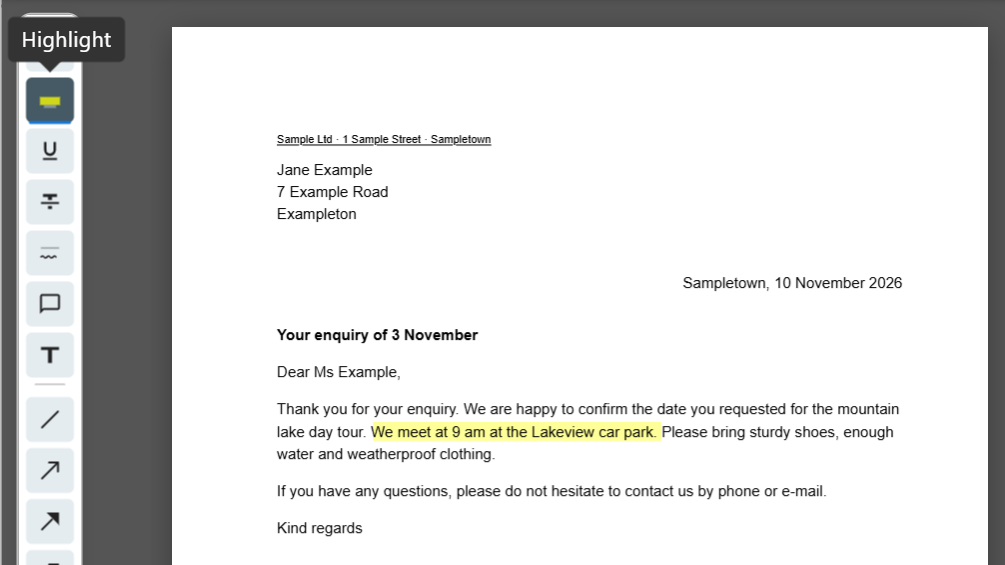
- Choose “Highlight”, “Underline”, “Strikethrough” or “Squiggly underline”.
- Drag the mouse over the text. Change the color with the last icon of the toolbar, “Color and line width” – e.g. yellow.
- Save with “Save PDF”.
Highlights are saved as annotations: they stay selectable in the PDF, can be changed or deleted later in PDF24 and other PDF programs, and the text underneath stays readable. Click a wrong highlight with “Select” and remove it with Del. To highlight every occurrence of a word, use “Search” in the sidebar and “Highlight all matches”.
Scanned PDF: If the page has no text (a scan or photo), “Highlight” simply marks the area you drag. For highlights that sit exactly on the text, first run “OCR” › “Recognize text” via the button with the name of the mode.
Offline in PDF24 Reader: Open the PDF in PDF24 Reader, select the text with the mouse and click “Highlight” in the small bar. The arrow next to it offers the color and “Underline”, “Squiggly underline” or “Strike out”. Right-click an existing highlight to change its color, add a comment or remove it (“Delete”). Save with Ctrl+S.
Comments and notes
Online in the mode “Annotate” or on Annotate PDF:
- “Note” places a small note icon on the page; its text shows when clicked (like a sticky note).
- “Insert text” writes a comment visibly on the page.
- “Link” and “File attachment” add a link or an attached file.
- The sidebar lists all comments of the file under “Comments”. There you can reply to comments and output them as an overview with “Export comments”.
Comments stay editable annotations – others can read, answer or delete them in their PDF program. If they should become a fixed part of the page so nobody can change them, use Flatten PDF afterwards.
Offline in PDF24 Reader: right-click a highlight › “Add comment”. Reply with “Reply…”.
Insert images
- Open Edit PDF, mode “Insert”.
- Choose “Image” in the toolbar and then the image file (e.g. JPG or PNG). You can also drag an image from Explorer onto the page and choose “Insert into the page”.
- Drag the image into place. The corners change its size and keep the aspect ratio. Hold Shift to stretch it freely.
- The small bar at the image offers “Opacity”, “Duplicate” and “Copy to pages” (e.g. a logo on every page).
- Save with “Save PDF”.
An image as a page of its own: the mode “Organize” has “Insert image as page”. For many images, Images to PDF followed by merging is easier.
Remove or replace an existing image: images already in the PDF can't be clicked and deleted directly. Remove them by redacting in white and insert the new image if needed.
Shapes, arrows, stamps and QR codes
The mode “Insert” also offers:
- “Line”, “Arrow”, “Arrow (filled)”, “Double arrow”, “Curved arrow” – to point at spots.
- “Rectangle”, “Ellipse”, “Polygon”, “Polyline” – frames and areas. Fill color, border (“No border”), line width and “Opacity” are in the small bar at the selected shape.
- “Freehand” – draw with mouse, finger or pen.
- “Stamp” – ready-made stamps under “Standard” (e.g. “Approved”, “Reviewed”, “Paid”, “Draft”, “Confidential”), “Symbols” (check mark, cross, star, arrow, warning) and “My stamps”. “Add stamp” creates your own text stamp, optionally with “Date” and “Name”; your browser remembers your stamps.
- “Insert QR code” – from a text or a web address.
To put a stamp on many pages, use “Copy to pages”. If it should sit in the same spot on every page, the mode “Add watermark” is an alternative. The PDF24 Toolbox has shapes but no stamps – use the online editor for those.
Add a signature
You draw, type or insert a signature as an image online with “Insert signature” in the mode “Insert” or on Sign PDF, offline with “Sign PDF” in the Toolbox. How that works and how to add a digital signature as well is explained on the page Sign PDF; why a digital signature becomes invalid after a later change, under Why does a signature become invalid?
Rotate, delete or reorder pages
In the editor open the mode “Organize” or the “Thumbnails” in the sidebar: there you rotate pages (“Rotate 90° clockwise”), delete them (“Delete page”), move them by dragging or insert blank pages, images and pages of other PDFs. For these tasks alone there are separate tools, online and in the Toolbox: Rotate PDF pages and Remove PDF pages.
Saving: where is my edited PDF?
Online:
- Click “Save PDF” (disk icon) at the top.
- In the window “Save PDF” you can change the “File name”; the original name with “_edited” is suggested.
- Click “Save PDF”. The file is downloaded and lands in your browser's download folder (usually “Downloads”).
The file on your computer is not overwritten. On the PDF24 servers everything is deleted after one hour; with “Delete the files from the server now” in the save window right away.
In the PDF24 Toolbox: click the disk icon “Create PDF”. The result appears; with “Save” you choose folder and name.
Edit PDFs offline in the PDF24 Toolbox
Without internet you edit PDFs with the PDF24 Toolbox, which is part of the free PDF24 Creator for Windows. Your files never leave your computer. The Toolbox has its own, simpler editor:
- “Edit PDF”: “Add text”, “Add picture”, “Add shape” (rectangle, circle, line, arrow, star …), “Free drawing”. Remove a selected element with “Remove element”, copy it with “Clone element”. Choose the font with “Select font”. Set the color of text with “Select fill color” – “Select stroke color” only colors the outline of the letters.
- “Blacken PDF”: put a rectangle or “Free drawing” over the spot; for white, click the element and choose white with “Select fill color”. As online, the affected pages are saved as images (150 dpi by default; administrators can change the resolution with the registry value
blackenSecurity.dpi, see the PDF24 Creator manual). The result file gets the ending “_redacted”. - “Annotate PDF”: put text, images, shapes and freehand drawings on the page. Real highlights with comments you add offline in PDF24 Reader (see Highlight).
- “Sign PDF”, “Rotate PDF pages”, “Remove PDF pages” for signatures and pages.
Open the Toolbox with the desktop icon “PDF24 Toolbox” or with “PDF24” in the Start menu. Type e.g. “redact” or “text” into the search field at the top to find the tool quickly. Stamps, the search with “Redact all matches”, custom font files and the modes of the online editor are not in the Toolbox.
Frequently asked questions and problems
I can't find the tools – where is “add text”?
The toolbar only shows the tools of the chosen mode. Check at the top that “Insert” is selected and otherwise switch with the button showing the mode name. Add text with “Insert text” (the “T” icon). If the toolbar is in an awkward place, move it with “Toolbar position” at the end of the toolbar.
Can I still change added text after saving?
No, saved added text is part of the page. Open the original file again and add the text anew, or remove it as described under Replace existing text. Comments and highlights from the mode “Annotate”, on the other hand, stay editable.
The font color doesn't change
Online: click the text box once (don't click into it) and choose “Font Color” in the small bar. To color single words only, select them while typing. In the Toolbox “Select fill color” colors the letters, “Select stroke color” only their outline. In the Toolbox color picker the hue slider alone is not enough: as long as the point in the large color field sits on black, the color stays black. Drag the point in the field to the top right.
After redacting I can't select or search text any more
That is intended: pages with redactions are saved as images so nothing of the removed content is left. With PDF OCR you make the pages searchable again.
Can I remove a redaction again?
No. After saving, the content is no longer in the file. Go back to the original if you need a spot after all.
The text of a scanned PDF can't be edited or highlighted
A scan is a picture of the page and contains no text. First run PDF OCR (or in the editor via the button with the name of the mode › “OCR” › “Recognize text”); then you can search, highlight and redact text precisely. You can replace the text of a scan only with the workaround of redacting in white and adding new text (see Replace existing text).
The PDF is password-protected
If the file has a password to open it, the editor asks for it (“Password-protected PDF”). If the author only locked editing, the editor shows a note; with “Unlock…” and the owner password you can use all tools.
The PDF is digitally signed
Any change makes an existing digital signature invalid. Edit the file before signing it. More: Why does a signature become invalid after a change?
The PDF won't open or only partly shows
The file is then often damaged, for example by an interrupted download or by a program that created it incorrectly. Repair it first with Repair PDF or with "Repair PDF" in the PDF24 Toolbox, then open the repaired file. PDF24 Creator also offers the repair itself when you open such a file. If that doesn't help, download the file again or ask the sender to send it once more.
Is a function missing?
Write to us at team@pdf24.org and tell us what you want to edit and with which file. We are glad to take up your suggestions.