This page shows how to set up PDF24 Creator for Windows the way you need it: whether it starts with Windows, which language it uses, what it shows in the right-click menu of File Explorer and which program opens your PDFs. At the end you find how to uninstall PDF24 cleanly. Everything works through the user interface, without the registry. If you deploy PDF24 to many computers in a company, the setup and registry switches are on the page PDF24 Creator in companies.
Contents
- Open the PDF24 Settings
- Disable the autostart: don't start PDF24 with Windows
- What is pdf24.exe ("PDF24 Backend") and why does it run in the background?
- Hide the PDF24 icon in the notification area (tray icon)
- Change the language
- PDF24 in the right-click menu of File Explorer
- Set or undo PDF24 Reader as the default app for PDFs
- More settings: theme, features, File Explorer preview
- Updates
- Options during installation
- Uninstall PDF24 Creator
- Frequently asked questions
Open the PDF24 Settings
Almost everything on this page is set in the "Settings" window. There are several ways to open it:
- Right-click the PDF24 icon in the notification area of the taskbar (bottom right, possibly behind the small arrow) > "Settings".
- In PDF24 Toolbox, click "Settings" at the bottom.
- In PDF24 Creator, use the menu "Tools" > "Preferences".
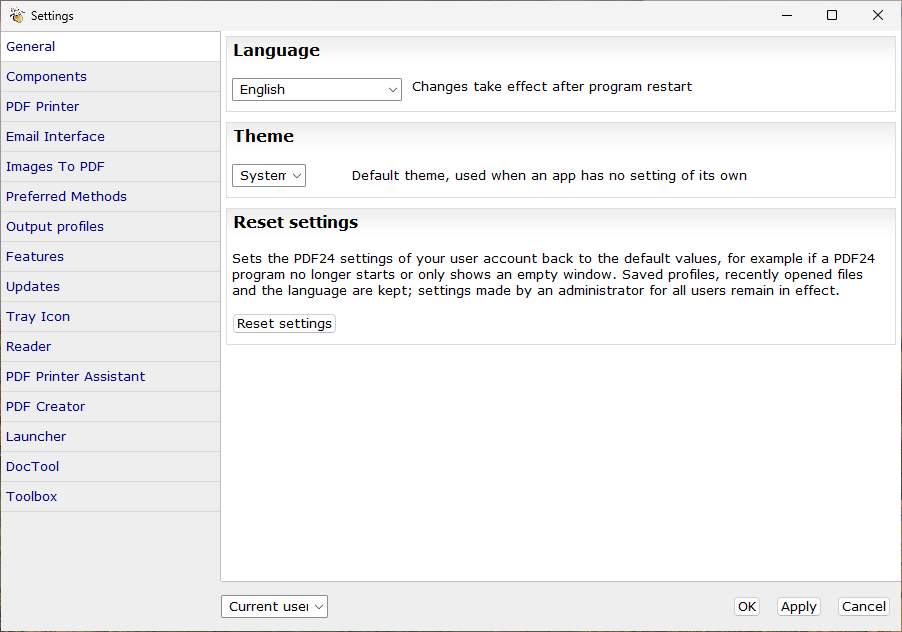
The sections are listed on the left ("General", "Features", "Updates", "Tray Icon", "Reader" and more). At the bottom you choose whether the change applies to the "Current user" or to "All users" of the computer. "OK" or "Apply" saves it.
Disable the autostart: don't start PDF24 with Windows
When you sign in to Windows, PDF24 starts its background program pdf24.exe. It receives the print jobs of the PDF printer and shows the PDF24 icon in the notification area. The autostart is not required: if you print on the PDF printer "PDF24" while pdf24.exe is not running, the print job still arrives: with the classic PDF printer the PDF24 service starts the program automatically, with the driverless PDF printer (Windows 11 24H2 and later) Windows hands the job directly to PDF24 (see below). Updates are still found, because every PDF24 app checks for updates when it is closed.
To disable the autostart:
- Open the Task Manager with Ctrl+Shift+Esc.
- Select the page "Startup apps" on the left (Windows 10: tab "Startup").
- Right-click the entry "pdf24" (depending on Windows also "PDF24" or "PDF24 Backend"; Windows 11 groups the PDF24 entries, e.g. as "pdf24 (4)") and select "Disable".
On Windows 11 the same switch is also available in the Windows Settings under "Apps" > "Startup". Because the entry is registered for all users of the computer, Windows may ask for administrator rights.
Please don't delete the entry in the registry (value PDF24 under ...\CurrentVersion\Run) or with cleanup tools: every update of PDF24 creates it again, so the autostart would be back after the next update. The disabled state set in the Task Manager is stored separately by Windows and is kept by updates.
For administrators the manual has a command that disables the autostart for all users: How to stop the PDF24 autostart entry (manual).
What is pdf24.exe ("PDF24 Backend") and why does it run in the background?
With PDF24 installed, the Task Manager usually shows these parts:
pdf24.exeas "PDF24 Backend" in your user account: the background program. It receives the print jobs of the PDF printer and then opens the PDF24 Assistant, where you save the PDF. It also shows the PDF24 icon in the notification area.- The Windows service "PDF24" (description "PDF24 Printer Service"): it waits for print jobs and passes them on to the background program of the user who printed; if it is not running, the service starts it. That is why you often see
pdf24.exetwice: once as the service and once in your session. Leave the service enabled, otherwise the classic PDF printer does not print. - With the driverless PDF printer (Windows 11 24H2 and Windows Server 2025 and later), Windows starts the app "PDF24 Virtual Printer" in the background for every print job. It hands the finished PDF directly to PDF24, which then opens the Assistant. This printer needs neither the service nor the autostart, but Windows must let the app run in the background. If that is blocked, see Error 0x00000bbb or 3003 with the driverless printer. Which kind of PDF printer you have is explained under Driverless or classic PDF printer.
Why does pdf24.exe run although I disabled the autostart? Every PDF24 app (Reader, Toolbox, Creator, Assistant, File Tools) starts the background program if it is not running yet, because some functions need it. It then keeps running without a window until you sign out of Windows. There is no setting that closes it together with the last PDF24 window. You don't need to close it.
Close it yourself: right-click the PDF24 icon in the notification area > "Close PDF24". When you print or open a PDF24 app afterwards, it starts again by itself.
Hide the PDF24 icon in the notification area (tray icon)
The icon in the notification area offers a menu with "Open PDF24", "Settings", "Search for update", "About PDF24 Creator", "Close PDF24" and further functions such as screen capture. If it bothers you, hide it:
- Open the Settings and select "Tray Icon" on the left.
- Remove the tick at "Show PDF24 Creator Tray Icon" and confirm with "OK".
The same switch is also available under "Features" as "Tray icon". The background program keeps running, only without the icon; the PDF printer works as before. Note the hint in the settings: the functions in the menu of the icon are no longer accessible then. Open the settings from the Toolbox instead.
In the same section you choose which app "Open PDF24" in the menu of the icon starts.
Change the language
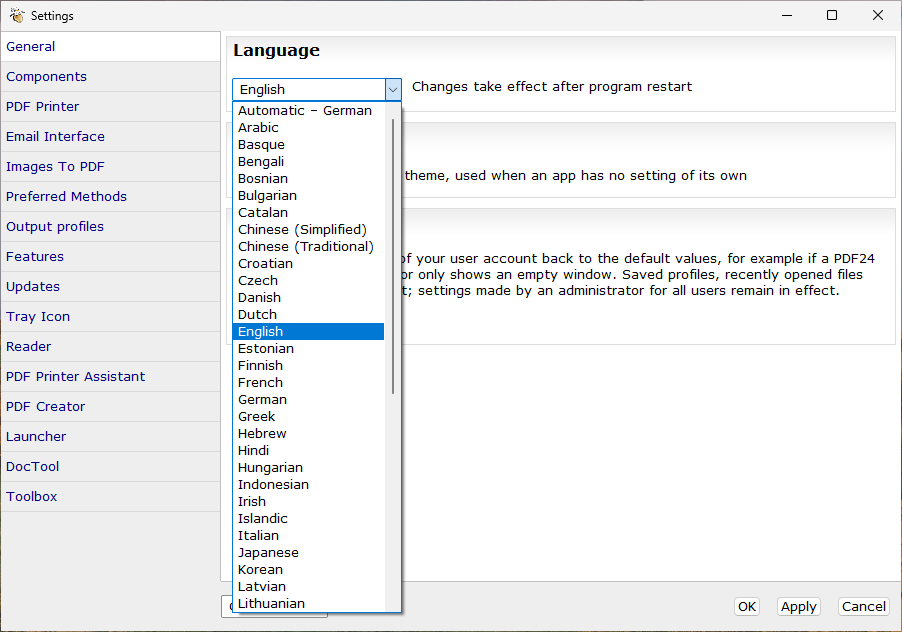
PDF24 Creator comes with 51 languages, among them English, German, French, Italian, Spanish, Portuguese, Polish, Turkish, Russian, Chinese, Arabic and Hebrew. You no longer need separate language files: all languages are part of the normal installation and are delivered complete with every update. The language packs for download linked in old forum posts are no longer needed.
Without a setting of its own, PDF24 follows the display language of Windows. If Windows is set to German, PDF24 appears in German, even if you downloaded it from an English page. To choose the language yourself:
- Open the Settings. The section "General" is already selected (in German: "Einstellungen" > "Allgemein").
- Select the language under "Language" (German: "Sprache"). The languages are listed with their English names, e.g. "English" or "Italian". The first entry "Automatic" follows the language of Windows again.
- Confirm with "OK".
- Close all PDF24 apps and start them again. Changes take effect after a program restart. If the menu of the PDF24 icon in the notification area still shows the old language, choose "Close PDF24" there or sign out of Windows and sign in again.
The language still doesn't change? On company computers the administrator can set the language. Then that setting applies; please contact your IT department.
The language of the setup only applies to the installation, not to the program.
Found a mistake in a translation? The language files are in the folder lang of the program folder (usually C:\Program Files\PDF24\lang). Their format is described in the manual. Please send your correction to team@pdf24.org.
PDF24 in the right-click menu of File Explorer
After the installation, the right-click menu of files, folders and the background of a folder has the entry "PDF24". It comes in two kinds, which you choose in the setup:
- One entry (default): "PDF24" opens the PDF24 File Tools window with the selected files. There you choose, for example, joining, compressing or converting to PDF.
- Submenu with all functions: "PDF24" is a submenu with the functions themselves, e.g. "Join", "Compress", "Convert to PDF", "Extract pages", "Recognize text", "Open with" and "Settings".
On Windows 11, "PDF24" appears directly in the new context menu since version 11.33.0, not only under "Show more options". How to convert files to PDF with a right-click is described in the guide Create PDF.
Remove the entry or switch the kind
The reliable way to change the context menu is the setup:
- Download the current version from the PDF24 Creator page and run the setup. You simply install over the existing version; your settings are kept.
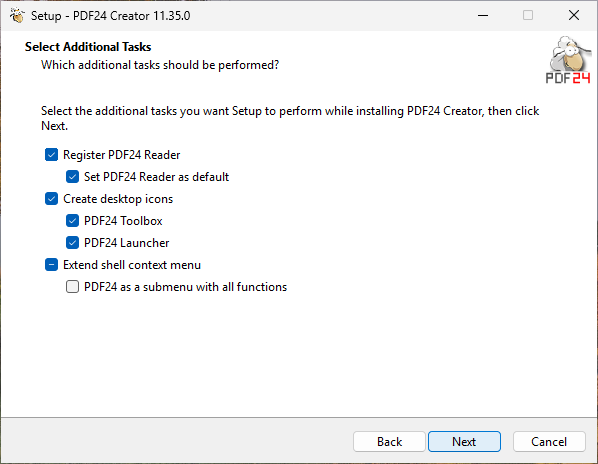
- On the page with the additional tasks:
- Remove the tick at "Extend shell context menu": the setup removes the PDF24 entries from the context menu, including leftovers of older PDF24 versions.
- Or keep "Extend shell context menu" ticked and select or deselect "PDF24 as a submenu with all functions", depending on the kind you want.
- Finish the installation. On Windows 11 the change applies to the new context menu as well.
In the settings, the section "Features" has the tick "Extend Shell context menu". It hides the submenu with all functions and, on Windows 11, the entry in the new context menu. It does not remove the simple default entry "PDF24", which then appears under "Show more options". To get rid of "PDF24" completely, use the setup.
Set or undo PDF24 Reader as the default app for PDFs
PDF24 Reader is installed together with PDF24 Creator. Which program opens PDFs on a double-click is your choice in Windows; PDF24 cannot change it.
- Make PDF24 Reader the default: as long as another app opens PDFs, the start screen of PDF24 Reader shows the link "Set PDF24 Reader as the default app for PDF files". It opens the default apps in the Windows Settings; select "PDF24 Reader" for
.pdfthere. Or: right-click a PDF > "Open with" > "Choose another app" > "PDF24 Reader" > "Always". - Make another program the default again: the same way with the other program, e.g. right-click a PDF > "Open with" > "Choose another app" > your PDF program > "Always".
In the setup you can deselect "Register PDF24 Reader" and, below it, "Set PDF24 Reader as default". This only applies as long as you have not chosen a default app for PDFs in Windows. More about the Reader in the guide PDF24 Reader.
More settings: theme, features, File Explorer preview
- Light or dark: "General" > "Theme" with "System", "Light" or "Dark". This is the default theme, used when an app has no setting of its own.
- Hide features you don't need: under "Features" you switch off whole functions, e.g. "Fax", "Email", "Online PDF tools", "OCR text recognition" or "Buttons to update the app". The ticked features stay active.
- Switch off the PDF24 preview in File Explorer: "Reader" > "File Explorer" with "Show PDF files in the preview pane" and "Show thumbnails of PDF files". These options only take effect while PDF24 Reader is the default app for PDF files. If the preview is missing, see No preview in File Explorer.
Updates
PDF24 Creator checks for new versions itself and tells you when one is available. To check manually, right-click the PDF24 icon in the notification area > "Search for update". The newest version is always available on the PDF24 Creator page; simply install it over the existing installation.
The update check is set under "Updates" > "Update mode": "Notify when updates available" or "Disable checking and installing updates". This needs administrator rights; without them the section shows "Need administrator rights" with the link "Run as administrator".
If the update does not come or asks for an administrator, see the section Updates of the troubleshooting page.
Options during installation
The setup shows a page with additional tasks. You can change the ticks with every installation over the existing version:
- "Register PDF24 Reader": the Reader is listed under "Open with" for PDF files.
- "Set PDF24 Reader as default": the Reader becomes the program for PDFs, as long as you have not made another choice in Windows.
- "Create desktop icons" with "PDF24 Toolbox" and "PDF24 Launcher".
- "Extend shell context menu": the entry "PDF24" in the right-click menu of File Explorer.
- "PDF24 as a submenu with all functions": a submenu instead of one entry (see above).
The installation needs administrator rights. The setup always creates a Start menu entry.
Uninstall PDF24 Creator
- Close all PDF24 windows (Reader, Toolbox, Creator, Assistant).
- Open the Windows Settings > "Apps" > "Installed apps" (Windows 10: "Apps & features").
- Find "PDF24 Creator", click the three dots or the entry, then "Uninstall".
- Confirm the prompt. This needs administrator rights.
The uninstaller closes the background program pdf24.exe itself and removes the program folder, the PDF printers "PDF24" and "PDF24 Fax", the service "PDF24", the printer driver (once no other printer uses it), the entries in the right-click menu, the autostart entry, the PDF24 association for PDF files and the temporary files of PDF24.
The uninstaller asks for a restart: if File Explorer still had PDF24 files loaded (e.g. from the right-click menu or the preview), they are deleted at the next restart. Since version 11.33.0 the program folder disappears right away anyway. A message that some elements could not be removed came from older versions.
"PDF24 Creator is running" when uninstalling
If the uninstaller reports that PDF24 Creator is running, a PDF24 app is still open. Since version 11.31.0 the setup closes the background program itself, also in other user sessions.
- Close all PDF24 windows, including a PDF24 Reader that has a file open in the background.
- If other users are signed in to the computer (fast user switching), sign them out.
- If that doesn't help: open the Task Manager (Ctrl+Shift+Esc), end all entries starting with "pdf24" under "Processes" or "Details", then click "OK" in the message or start the uninstall again.
The uninstall does not start or stops
If files of the program folder are missing, e.g. after a cleanup with a tuning tool, the uninstaller cannot start. Install the current version from the PDF24 Creator page over the old one, then uninstall as described above. If a message says at every Windows start that PDF24 cannot be started, the same way removes it.
What remains, and reinstalling
The uninstaller does not delete your personal PDF24 settings. If you install PDF24 again later, they apply again. Your PDF files of course stay where they are.
You don't need to uninstall to repair PDF24: simply install the current version over the existing one. If that doesn't fix an error, see PDF24 Creator: common problems and solutions. To uninstall without prompts by script: PDF24 Creator in companies.
Frequently asked questions
Do I need the autostart for the PDF printer?
No. Without the autostart, the PDF24 service starts the background program as soon as you print on the PDF printer. Leave the service "PDF24" itself enabled. See Disable the autostart.
Can PDF24 run only when needed?
Disable the autostart. Then pdf24.exe only starts when you print or open a PDF24 app, and keeps running until you sign out. "Close PDF24" in the menu of the icon closes it earlier.
PDF24 is in German, how do I get English?
Right-click the PDF24 icon in the notification area > "Einstellungen" > "Allgemein" > select "English" under "Sprache" > "OK", then restart all PDF24 apps. Details under Change the language.
Is PDF24 available in my language?
PDF24 Creator contains 51 languages. If yours is not in the list, write to us at team@pdf24.org.
How do I remove PDF24 from File Explorer?
Remove the entry "PDF24" in the right-click menu with the setup (see Remove the entry). If PDFs open in PDF24 Reader on a double-click and you don't want that, choose another default app. The PDF24 preview in File Explorer is switched off under More settings.
The right-click menu only shows "PDF24" without functions
That is the default: "PDF24" opens the File Tools, where you choose the function. If you want the functions directly in the menu, select "PDF24 as a submenu with all functions" in the setup (see above).
I can't find the PDF24 icon
Windows hides many icons behind the small arrow in the notification area. If it is not there either, the autostart is disabled (the icon appears as soon as a PDF24 app runs) or the tray icon is hidden in the settings (see Tray icon).