At the end of October we completely renewed the editor of PDF24 Tools, the foundation for everything still to come. Since then we have put many wishes from your feedback into practice. You'll find the most important changes in Edit PDF, Annotate PDF, Sign PDF, Redact PDF and Bookmark PDF.
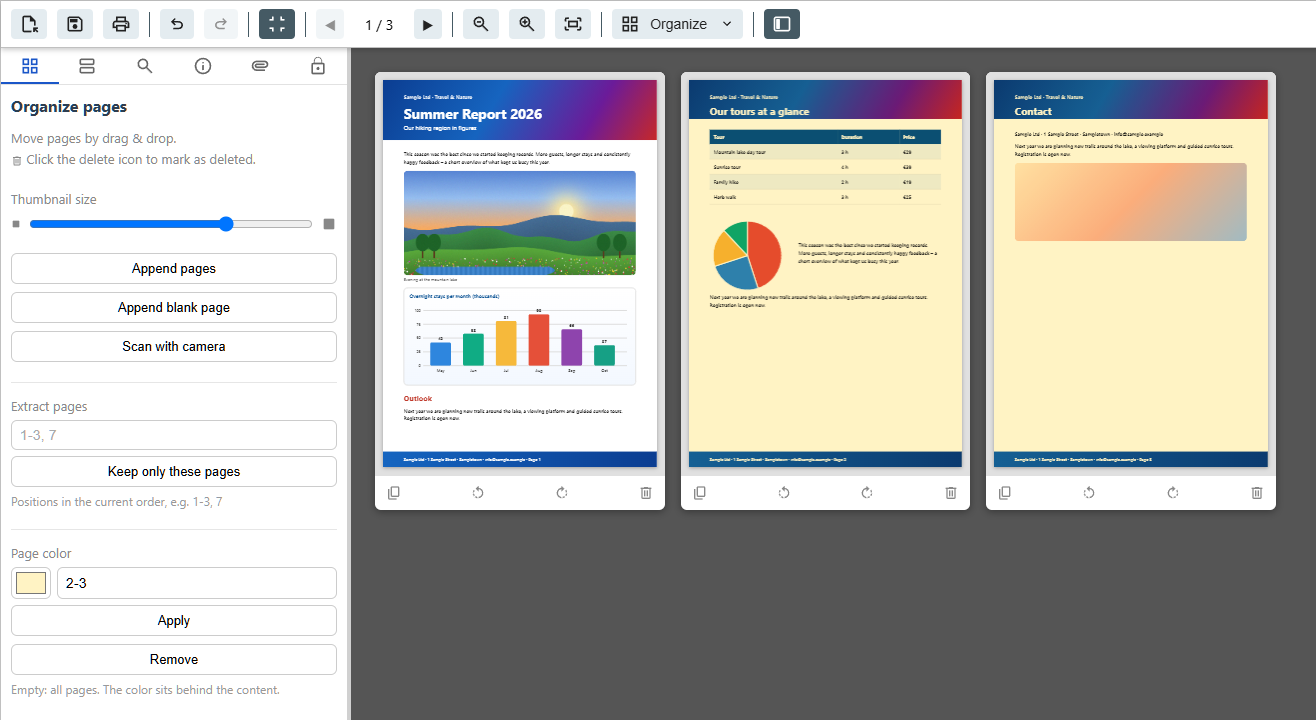
Page colour
A coloured background for cover pages, chapter pages or invitations: in “Organize” mode, choose a colour under “Page color” and the pages, for example “1-3, 7”, or leave the field empty for all pages. The colour sits behind the content, so text and images stay fully visible.
Rotate rectangles and ellipses
Rectangles and ellipses now have the blue rotation handle you know from images. They snap to 0°, 90°, 180° and 270°, and with Shift held down they move in 15° steps. Put angled frames and marks exactly where they belong, when inserting as well as when annotating.
Rotate text
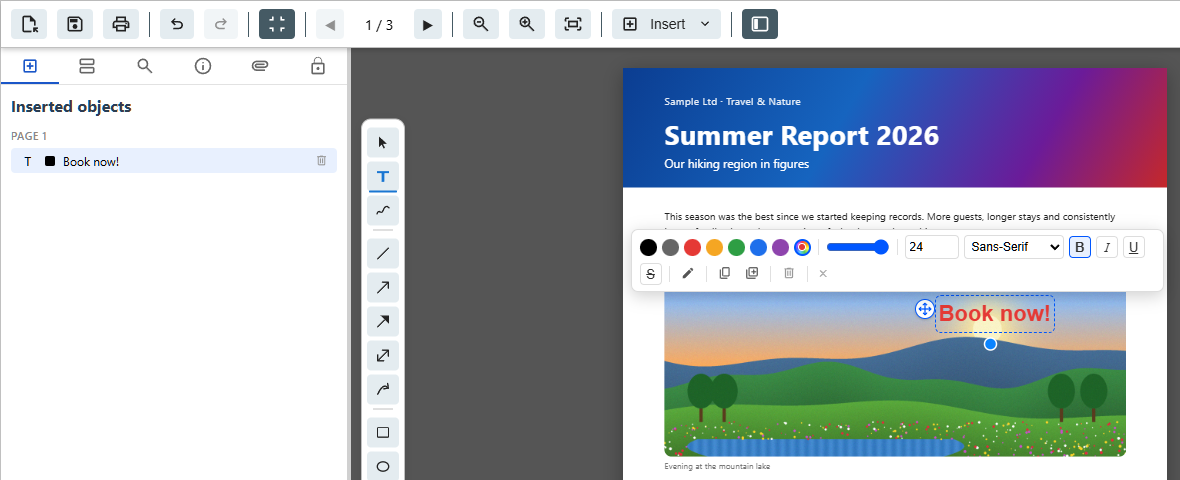
A “Book now!” slanted across the photo, a note along the page margin, or a label that follows a line in a plan exactly: text can now be rotated freely as well. In “Insert” mode, a text box you add with “Insert text” has the blue rotation handle too. Drag it, and the text turns around its centre, right where it is. It snaps to 0°, 90°, 180° and 270°, and with Shift held down it moves in 15° steps. In the saved PDF the text is rotated exactly as in the editor.
Freehand redaction
Redact PDF has the “Freehand” tool again next to the rectangle: paint over everything that has to go with a brush in one of three widths, including slanted lines, signatures or stamps. The content underneath is irreversibly removed when you save.
Replace a word in one go
A typo in a name, an outdated price: to swap a word, redact it in Edit PDF in the colour “White” and write the new word on top with “Insert text”. Until now the redaction box also covered the new text when saving, so you had to save twice. Now it works in one go: the old word is removed from the file, and the new one sits on top as real text.
Highlight where there is no text
When annotating, “Highlight” now also marks areas without text, such as part of a drawing, a table in a scan or a text box you inserted yourself. You get an area in marker colour, just like a highlighter on paper.
Insert images without detours
A click on “Insert image” opens the file picker straight away. The image lands in the middle of the current page at a sensible size, and you can then move and scale it freely. Besides PNG and JPEG, the editor now also accepts GIF, WebP, BMP and SVG.
Sign faster, on your phone too
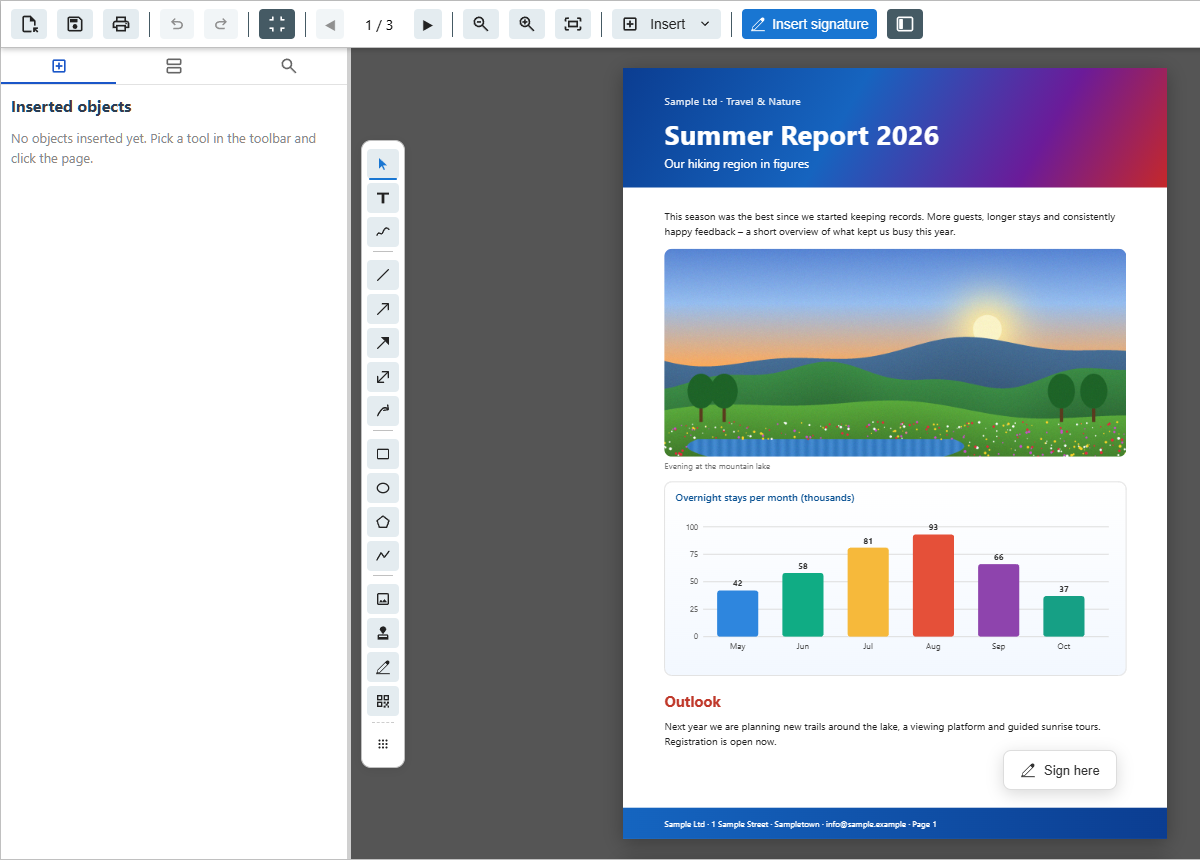
Sign PDF shows you your document first instead of jumping straight into the signature dialog. The blue “Insert signature” button sits clearly in the toolbar, and on a smartphone it comes first. Even faster: right-click the page and “Sign here” puts your signature exactly at that spot. On iPhone and iPad you can now swipe through the document with your finger, and a newly drawn signature goes straight onto the page.
More improvements
- Text comments without a border: when annotating, “No border” switches off the frame around a text box. PDF24 remembers this for your next comments.
- Open another file: the “Load PDF” icon on the far left of the toolbar opens the next document right in the editor, without reloading the page. If you haven't saved yet, PDF24 asks first.
- Delete files right away: after saving, “Delete the files from the server now” removes all files of the job from our servers immediately.
- Bookmarks: text from Word or Outlook can be pasted into a bookmark without trouble, and you can add several bookmarks one after the other with a click each. On laptop screens, too, the bookmark panel now sits next to the page instead of over it, and clicking a bookmark reliably jumps to its page, ideal for long documents and books.
- Alignment your way: when you move objects, they snap to the edges and centres of other objects. Switch this off with “Align to objects” in the toolbar, or simply hold Alt and place freely.
- Duplicate again and again: after “Duplicate” the toolbar stays open, and every further click makes the next copy.
- Special characters stay text: inserted text with a € sign, curly quotes, dashes or Polish, Greek and Cyrillic letters stays real text in the saved PDF that you can search and copy. Until now such a text box became an image.
- Redact and keep bookmarks: when you save a redacted file, you decide yourself with “Remove bookmarks, metadata and attachments”. The option is ticked and recommended, because redacted content can still appear there. If you need the bookmarks of a long document, for example, untick it and check yourself that nothing redacted appears there.
Still missing something you need? Tell us here in the forum, the editor keeps growing.