Hello,
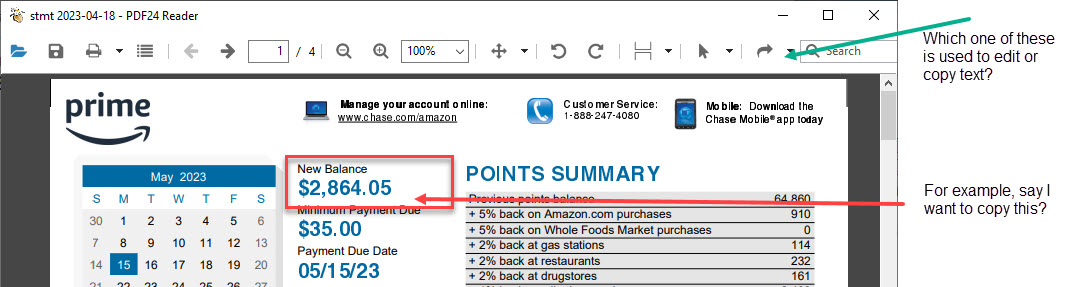
Copying text works directly in the PDF24 Reader:
- Drag the mouse over the text you want, e.g. the amount. Over text the mouse pointer becomes a text cursor. If dragging moves the page instead, choose Select text in the Interactive tools dropdown in the toolbar first.
- Press Ctrl+C, or right-click the selection and choose Copy text. The small bar that appears next to the selection also has Copy text.
If no text can be selected, the page is an image (e.g. a scan). Then make the text selectable with OCR first: https://tools.pdf24.org/en/ocr-pdf
Changing existing text: Editing existing content is in the works and will be released with one of the upcoming versions once it is finished. Until then you can replace text like this:
- Open the PDF in https://tools.pdf24.org/en/redact-pdf, choose White as the color and drag a box over the text. The text under the box is removed when saving, the area stays white.
- Open the saved PDF in https://tools.pdf24.org/en/edit-pdf (in the PDF24 Toolbox: Edit PDF) and add your new text at the same place.