Your supplier sent an XRechnung as an XML file and all you see is code? With PDF24 you make any e-invoice readable for free, validate it against the official rules and print or archive it – online or offline with PDF24 Creator.
Contents
- How do I recognise an e-invoice?
- Open an XML invoice and make it readable
- ZUGFeRD PDF: visible pages and XML
- Extract the XML from a ZUGFeRD PDF
- Validating an e-invoice: what is checked?
- Reading the validation report: errors and warnings
- Printing an e-invoice
- Archiving an e-invoice
- Privacy: what happens to my invoices?
How do I recognise an e-invoice?
In Germany, businesses have had to be able to receive e-invoices since 1 January 2025; the obligation to issue them follows step by step in 2027 and 2028. Other countries have their own rules and timelines. An e-invoice is an invoice in a structured data format according to the European standard EN 16931 that software can read automatically. It reaches you in one of two forms:
- As an XML file, for example
invoice.xml. This is an XRechnung (common for invoices to public authorities in Germany), a Peppol BIS Billing invoice or a plain EN 16931 invoice. The file contains only data, no page layout – which is why double-clicking it usually shows only code or a long list of fields. - As a PDF with embedded XML, i.e. ZUGFeRD or Factur-X. The file looks like an ordinary PDF invoice but also carries the invoice data as an XML attachment.
Under the German rules, a PDF invoice without embedded XML, a scan or a paper invoice is not an e-invoice for the purposes of the e-invoicing obligation, but an "other invoice". The same applies to ZUGFeRD files in the MINIMUM and BASIC WL profiles: they contain no invoice lines and not all mandatory details, and do not count as e-invoices in Germany. Your tax advisor can tell you whether you may still accept such an invoice in your case.
Not sure what you have received? Drag the file into Validate e-invoice. The tool names the format (e.g. XRechnung or ZUGFeRD EN 16931) or reports "No e-invoice was found in this file."
Open an XML invoice and make it readable
You do not need any special program for an XML invoice. PDF24 offers three ways – choose the one that suits you.
Online: XML e-invoice to PDF
The result is an ordinary invoice PDF that you can save, forward and print.
- Open XML e-invoice to PDF.
- Click "Choose files" or drag the XML files into the file box. You can convert several invoices at once.
- Click "Convert to PDF".
- Download the PDFs with "Download".
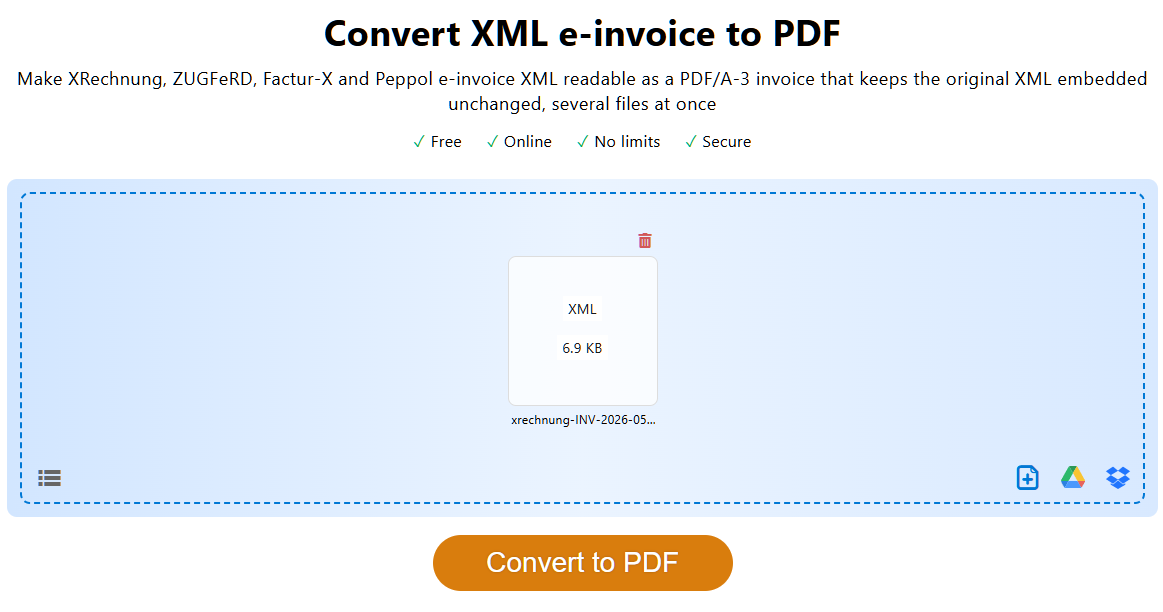
The PDF is a PDF/A-3 document. Amounts, tax rates and totals come straight from the XML, and the original XML is embedded in it unchanged as an attachment. The tool reads both XML syntaxes of EN 16931, CII and UBL – and with them XRechnung (CII and UBL), Peppol BIS Billing and the XML from ZUGFeRD and Factur-X.
Online, without uploading: Validate e-invoice
Validate e-invoice shows the invoice as a readable document under "Content of the e-invoice" and validates it at the same time. Validation and display run entirely in your browser; the file is not uploaded. From there, you can print it or save a PDF with "Print / save as PDF". More on this under Validating an e-invoice.
Offline in PDF24 Creator
If your invoices must not leave your computer, use the PDF24 Toolbox from the free PDF24 Creator (version 11.32.0 or later):
- "Validate e-invoice" in the Toolbox ("Invoices" category) shows and validates XML and ZUGFeRD invoices like the online tool, but on your PC. "Create PDF" saves a readable PDF of the invoice.
- PDF24 Creator: If you open an XML e-invoice in PDF24 Creator, it converts it into a PDF.
Tip: In the Toolbox you can find any tool with the search field at the top (Ctrl+K). To convert XML e-invoices, PDF24 Creator needs its Java component; if you deselected components during installation, reinstall the Creator with this component.
"This XML file is not an e-invoice"
This message appears if the file is not an invoice in UBL or CII syntax – for example an order confirmation, a delivery note, an XML export from another program or a damaged file. PDF24 cannot display other XML files as an invoice, because no layout is defined for them. If you are sure it is an e-invoice, ask the sender to send the file again; it often gets damaged when it is forwarded or saved.
ZUGFeRD PDF: visible pages and XML
A ZUGFeRD or Factur-X invoice consists of two parts in one file: the PDF pages for people and the embedded XML for the accounting software. Normally both show the same. However, the sender may have created the pages with a different program than the XML, and then they can differ.
If the pages and the XML differ, the German tax authorities generally treat the XML as the invoice. Your tax advisor can tell you whether that applies to your invoice and how to deal with a discrepancy.
How to compare the two parts: open the ZUGFeRD PDF in Validate e-invoice. Under "Content of the e-invoice" you see what is in the XML – not the PDF pages. Put this next to the pages of the PDF and compare the invoice number, amounts, tax rates and bank details.
Extract the XML from a ZUGFeRD PDF
Some accounting programs only want the XML. Inside the PDF, the XML file is usually called factur-x.xml, xrechnung.xml or zugferd-invoice.xml.
In PDF24 Reader:
- Open the invoice in PDF24 Reader.
- Click the paper clip icon ("Attachments") in the sidebar. The list shows all attachments of the PDF, including the XML file.
- Select the XML and click "Save", or save all attachments at once with "Save all".
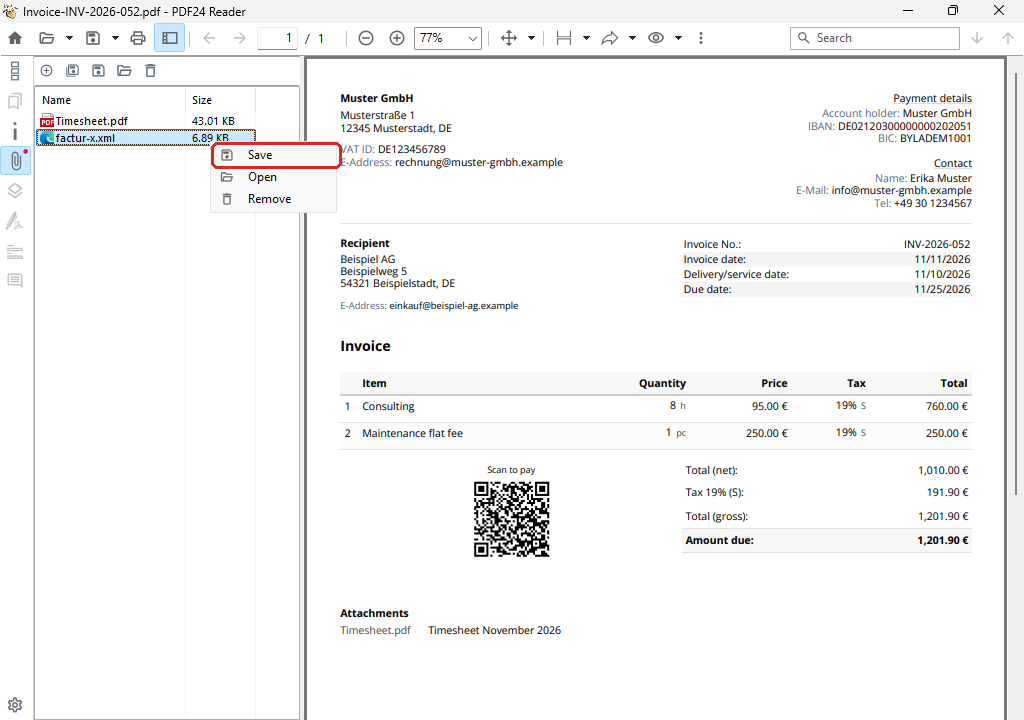
In the PDF24 Toolbox, also for many invoices:
- Open "Extract PDF attachments" in the Toolbox.
- Select one or more PDF invoices.
- Click "Extract attachments". Each attachment is saved under its own name; if that name already exists, a number is added, e.g.
factur-x (1).xml.
Note: Besides the XML, an e-invoice can contain further attachments, such as a delivery note or a timesheet. With ZUGFeRD, these are further attachments of the PDF (same way as above). With an XRechnung, they are inside the XML itself – Validate e-invoice lists them under "Attachments of the e-invoice", with "Open" and "Download".
Opening the invoice in the e-invoice generator
You can also load an e-invoice you received (XML or ZUGFeRD PDF) into the e-invoice generator, for example to look through the data in the form or to create a self-billed invoice based on it: via "Import invoice" in the menu, or in the new version of the generator (choose "Switch to the new version" at the top of the page; your browser remembers your choice) via "Open an invoice" on the start page. What you create there is a new file, not your supplier's invoice – for viewing and validating, Validate e-invoice is the more direct way.
Validating an e-invoice: what is checked?
Before you book and pay an invoice, it is worth checking whether it is formally correct. How to validate an e-invoice for free:
- Open Validate e-invoice, or "Validate e-invoice" in the PDF24 Creator Toolbox.
- Select the files or drag them onto the page. XML, PDF and ZIP archives are possible, several at once too.
- After a few seconds you see the result, and below it the invoice as a readable document.
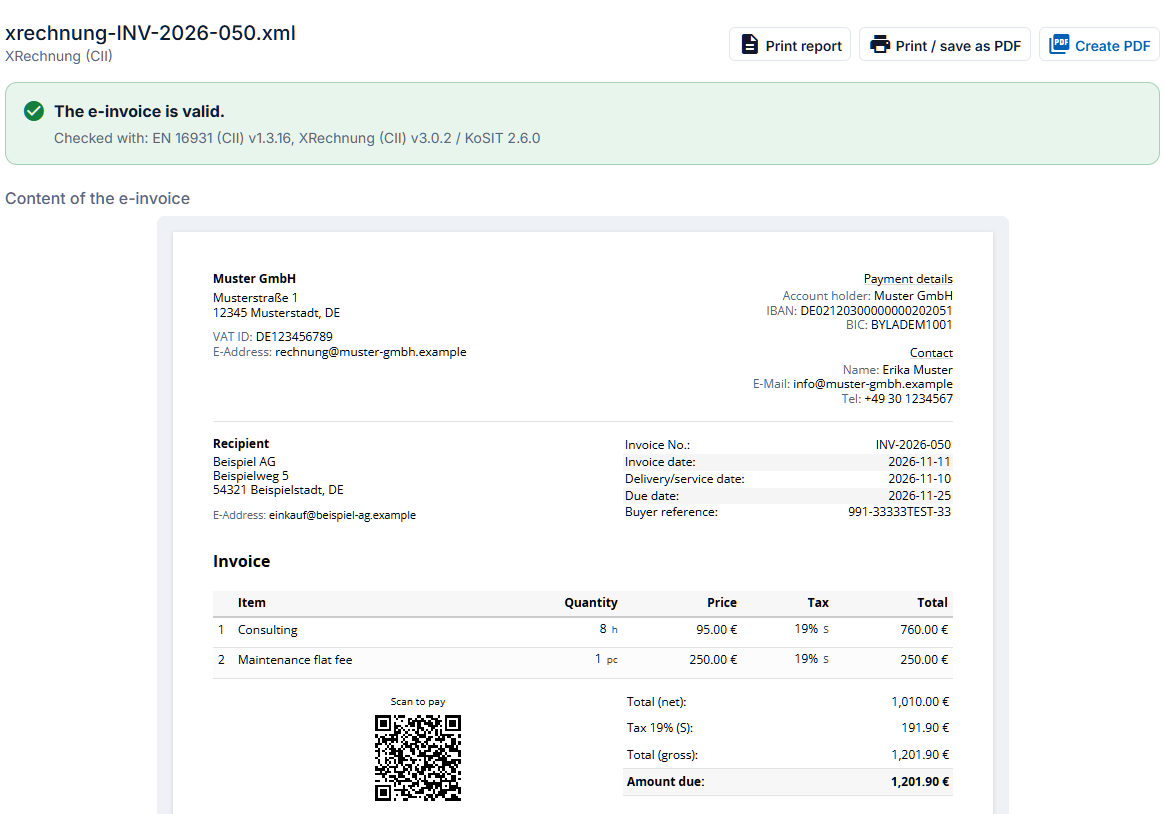
What is checked: the XML of the invoice against the official rule sets that recipients and invoice portals also use – EN 16931, XRechnung, Peppol BIS Billing and Factur-X/ZUGFeRD. The tool recognises from the invoice itself which rules apply; "Checked with" shows which rule sets were used, in which version. For a ZUGFeRD PDF, the embedded XML is checked, along with the information the PDF gives about the e-invoice (metadata). In the Toolbox, the list also shows whether the PDF complies with the archive format PDF/A.
What is not checked: whether the content of the invoice is correct – whether the service was provided, the prices are right and the tax rate is correct for your case. The tool also does not check whether the PDF pages of a ZUGFeRD invoice match the XML; compare them as described above.
Reading the validation report: errors and warnings
The result is shown at the top:
- "The e-invoice is valid." – No rule is broken. If there are warnings anyway, it is followed by e.g. "2 note(s) below."
- "The e-invoice breaks 3 rule(s) of its format." – The invoice does not comply with its standard.
- "The e-invoice could not be checked." – The file contains no recognisable e-invoice, or a rule set could not be run.
Below that, each finding is listed with the number of the rule, e.g. BR-CO-15 or BR-S-08, and an explanation. For common rules, it says in plain words what is missing or wrong, with the original text of the rule in small print below. If a finding refers to an invoice line, the line number is shown. "Show in the document" takes you to the affected place in the displayed invoice, where it is highlighted.
- Errors (red) mean that a mandatory rule is broken. Recipients and invoice portals can reject such an invoice.
- Warnings (yellow) are recommendations or irregularities, for example incomplete details in the PDF metadata of a ZUGFeRD invoice. The invoice still counts as valid.
With "Print report" you print or save the report with the result, errors and warnings – also for a single invoice (in the PDF24 Toolbox since version 11.34.0, before that only for several invoices).
What the codes tell you (BR-…, BR-DE-…, PEPPOL-…) and what the individual messages mean is explained on the page E-invoice validation errors and common problems.
Validating many invoices at once
Select several files or a ZIP archive. A list shows the number, date, biller, amount, format and result of each invoice ("Valid", "Invalid", "No e-invoice") with the number of errors and warnings. Click a row to see its report; "All reports" shows all of them one below the other. With "List as CSV" you take the list into Excel or your accounting software, and with "Print report" you print or save a report on all invoices.
The invoice has errors – what now?
Do not change the invoice yourself. Only the issuer can correct an invoice. Send them the error message (e.g. as a screenshot or printed report) and ask for a corrected version. Your tax advisor can tell you whether you can still book and pay an invoice with errors.
Printing an e-invoice
- XML invoice: Convert it into a PDF with XML e-invoice to PDF and print that. Or open it in Validate e-invoice and click "Print / save as PDF".
- ZUGFeRD PDF: Print it like any PDF, for example in PDF24 Reader. This prints the PDF pages. If you want to print what is in the XML, use "Print / save as PDF" in Validate e-invoice.
A printout is a copy for reading. The e-invoice itself is the file – see the next section.
Archiving an e-invoice
As a general rule: keep an e-invoice in the form in which you received it – the XML file or the ZUGFeRD PDF, unchanged. A printout or a reading PDF created from it does not replace the original.
- Save the original file before you convert, compress or edit it. Tools that change a PDF create a new file.
- The PDF from XML e-invoice to PDF is a PDF/A-3 suitable for archiving and contains your original XML unchanged, byte for byte. It works well as a convenient reading copy next to the original.
- Whether a file is PDF/A is shown by Check PDF/A or the tool of the same name in the Toolbox.
Your tax advisor can tell you how long and in what form you have to keep invoices.
Privacy: what happens to my invoices?
- Validate e-invoice (online): Validation and display run entirely in your browser. The invoice is not uploaded. Only if you choose "Create PDF" there is the invoice data sent to the PDF24 service that creates the PDF.
- XML e-invoice to PDF (online): The file is transferred encrypted and converted on our servers in Germany. Files and results are deleted automatically after one hour. The invoice data is not analysed and not passed on.
- PDF24 Creator (offline): "Validate e-invoice", "Extract PDF attachments", converting in PDF24 Creator and PDF24 Reader all work on your computer. The invoices do not leave your PC.
For invoices with particularly confidential data, or for companies with strict requirements, PDF24 Creator is therefore the first choice.
More help pages
- Create e-invoices with PDF24 – overview of all e-invoice tools
- E-invoice validation errors and common problems – validation messages such as BR-…, BR-DE-… and PEPPOL-… with cause and solution
- Convert an existing PDF invoice into an e-invoice – if you write invoices yourself
Is there a feature you are missing when receiving e-invoices? Write to us at team@pdf24.org.