With PDF24 you can create more than normal invoices as e-invoices: down payment and final invoices, credit notes, self-billed invoices, corrections and whole series from an Excel spreadsheet – free of charge and without registration. This page explains which invoice type you need for what and how to create it in the generator. How to create an e-invoice in the first place and which format to choose is explained on the main page Create e-invoices with PDF24.
Contents
- Which invoice type do I need?
- Credit note (381) or self-billed invoice (389)?
- Which invoice types does each format allow?
- Referring to an earlier invoice (BT-25, BT-26)
- Create a down payment invoice
- Create a final invoice and deduct down payments
- Self-billed invoice (type 389): who goes where?
- Cancel or correct an invoice
- Small amount invoices up to 250 EUR (Germany)
- Serial invoices from Excel or CSV
- Self-billed invoices to many suppliers from one table
Which invoice type do I need?
Every e-invoice carries a code for the invoice type (BT-3, "Invoice type code", from the code list UNTDID 1001). Your customer's software uses it to tell whether it is a normal invoice, a down payment or a self-billed invoice. In the generator the field is called "Invoice type" (in the "Form" view under "Invoice data"). The most important codes:
- 380 – Invoice: the normal invoice. A final invoice outside construction and a small amount invoice are also a 380.
- 326 – Partial invoice: for a down payment invoice (German: Abschlagsrechnung – part of an order is invoiced in advance, e.g. 30 % at the start; the down payments are deducted later in the final invoice) and for partial invoices. XRechnung, the German e-invoice standard, expects this code for down payments; it does not expect "386 - Advance Payment Invoice", which is why PDF24 uses 326 for down payments.
- 875 – Partial invoice for construction work, 876 – Partial final invoice for construction work, 877 – Final invoice for construction work: the same for construction work.
- 384 – Invoice correction: a corrected invoice that refers to the original invoice.
- 381 – Credit note: you take back an invoice of yours in full or in part. In the new generator you create it with "Credit note / cancellation".
- 389 – Self-billed invoice: not you but your customer invoices for your goods or services, e.g. commissions. In the new generator the type is "389 - Self-billed invoice (issued by the customer)", in the old generator "389 - Self billed invoice". In Germany this is called a Gutschrift (§ 14 (2) UStG, German VAT Act). This group also includes 471 – Self-billed invoice correction and 261 – Self-billed credit note (cancels a self-billed invoice).
- Small amount invoice: not a code of its own but an invoice (380) of up to 250 EUR gross under German rules, see below.
Quotes, order confirmations, delivery notes and pro forma invoices (325) are not invoices. The new generator has its own tiles for them on the start page and creates them as a PDF without e-invoice data; later you turn a quote into the invoice with one click ("Turn into an invoice") or into a down payment invoice ("Down payment invoice for it").
Credit note (381) or self-billed invoice (389)?
These two are easy to mix up, especially with German business partners, because in German both are commonly called Gutschrift:
- Credit note (381), in German Storno or kaufmännische Gutschrift: you issued an invoice and take it back in full or in part, e.g. because of a complaint. You remain the biller. In the new generator: "Credit note / cancellation".
- Self-billed invoice (389), in German Gutschrift in the sense of the VAT Act: your customer invoices on your behalf, e.g. commissions to sales agents, milk money to farmers or fees to brokers. The customer issues the document, and you as the supplier receive it.
Using 389 to take back your own invoice creates a wrong document – and vice versa. If a German partner asks you for a "Gutschrift", check which of the two is meant. The new generator explains both under "Terms explained" on the start page ("Cancellation and self-billing").
Which invoice types does each format allow?
- XRechnung (the German standard; CII, UBL and ZUGFeRD in the XRechnung profile): expects only 326, 380, 381, 384, 389 and 875 to 877. For other codes the validation shows a warning (BR-DE-17, see Invoice type flagged in XRechnung).
- Peppol: does not allow the self-billed invoice 389 (error PEPPOL-EN16931-P0100): "This invoice type is not allowed in Peppol (e.g. 389 self-billing). Choose e.g. 380 (invoice) or 326 (partial invoice)." For self-billed invoices, use ZUGFeRD or XRechnung. In addition, Peppol allows 326 (partial invoice) and 384 (invoice correction) only when both seller and buyer are in Germany (PEPPOL-EN16931-P0112). A credit note (381) is sent in Peppol as a separate document type, "Credit Note"; PDF24 takes care of this when creating it.
- ZUGFeRD / Factur-X and EN 16931: the European standard EN 16931 knows all codes of the list. For invoices in Germany it is best to stick to the eight XRechnung codes – every receiving software can process them. If a code does not fit the chosen format, you will see this in the check before creating.
What a validation message means and how to fix it is explained on the page E-invoice validation errors and common problems.
Referring to an earlier invoice (BT-25, BT-26)
Corrections, credit notes and final invoices refer to earlier invoices. This is what the "Invoice reference (BT-25, BT-26)" field is for: "ID" is the number of the earlier invoice (BT-25), "Date" its invoice date (BT-26). In the form you find it under "Invoice data" › "More details"; use the plus to add further references.
- For an invoice correction (384), XRechnung expects the reference (BR-DE-26): "For a corrected invoice (384), enter the number of the original invoice as the invoice reference."
- Every reference needs a number (BR-55): "Enter the number of every preceding invoice referred to."
- If you create a credit note, correction or final invoice with the functions of the new generator, PDF24 fills in the references for you.
Do not confuse: BT-10 is the buyer reference (for German public authorities the Leitweg-ID), BT-12 the "Contract number", BT-113 the "Amount paid" and BT-115 the "Amount due".
Create a down payment invoice
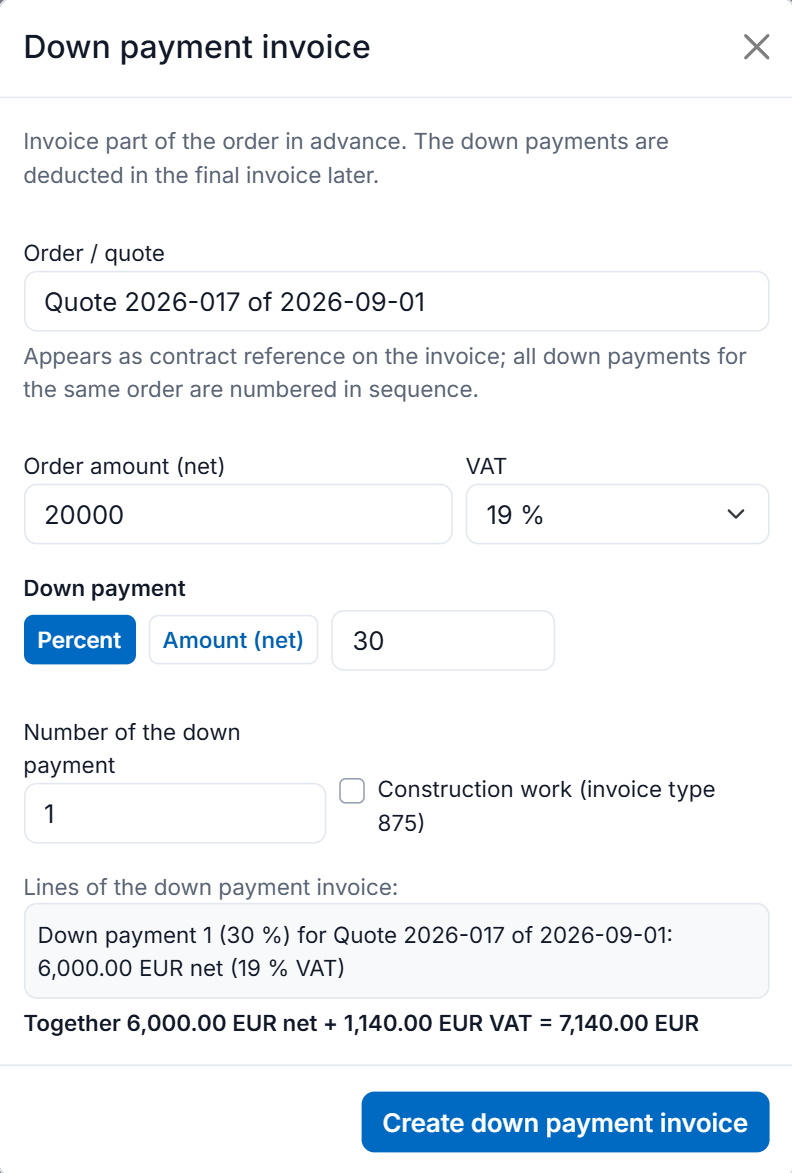
With a down payment invoice (German: Abschlagsrechnung) you invoice part of an order in advance, e.g. 30 % at the start. It is a complete invoice including VAT, has the code 326 (875 in construction) and names the order as the contract reference. You deduct the down payments received later in the final invoice.
In the new generator step by step
- Open the new e-invoice generator: on the Create electronic invoice page, choose "Switch to the new version" at the top; your browser remembers your choice.
- Choose one of two ways:
- Way A – the order exists as a quote or invoice: open the document with all items (e.g. your quote from "My invoices") and choose "Down payment invoice for this order" in the main menu (☰ at the top right). For a quote there is also the "Down payment invoice for it" button. The dialog shows the "Order amount from the open document", split by VAT rate.
- Way B – without a document: on the start page ("What would you like to create?") click the "Down payment invoice" tile and enter "Order amount (net)" and "VAT".
- "Order / quote" states what the down payment refers to, e.g. "Quote 2026-017 of 2026-09-01". It appears on the invoice as the contract reference; all down payments for the same order are numbered in sequence ("Number of the down payment").
- Under "Down payment", choose "Percent" or "Amount (net)" and enter the value.
- For construction work, tick "Construction work (invoice type 875)". If you answered "Do you provide construction work?" with "Yes" under "My profile", it is already ticked.
- Check the preview "Lines of the down payment invoice:", e.g. "Down payment 1 (30 %) for Quote 2026-017", and click "Create down payment invoice".
- Check the customer and service period and click "Create invoice". The down payment invoice then appears in "My invoices" and is offered for deduction in the final invoice.
Tip: in "My invoices", use "Record payment …" to enter when the down payment was paid. The final invoice then takes over the payment date.
In the old generator
The old generator has no down payment dialog. This is how to do it by hand:
- Under "Invoice data", set "Invoice type" to "326 - Partial invoice" (in construction "875 - Partial invoice for construction work") and change the "Invoice title", e.g. to "Down payment invoice 1".
- Under "More details", enter the order or quote in "Contract number".
- Enter only the down payment as an item, e.g. "Down payment 1 (30 %) for Quote 2026-017" with the net amount and the VAT rate. With several VAT rates, one item per rate.
Important: do not enter the full order amount and then reduce the "Amount paid" – the invoice would then not be a down payment invoice but an invoice for the whole order.
When VAT becomes due on down payments and what a down payment invoice must contain is governed by tax law (in Germany, the VAT Act). Whether this applies to your invoice is something to clarify with your tax adviser.
Create a final invoice and deduct down payments
The final invoice contains the whole service with the full VAT. The down payments made are deducted and listed with net amount, VAT and gross amount (in Germany required by § 14 (5) UStG). Code: 380, in construction 877 (final invoice) or 876 (partial final invoice for a completed part).
In the new generator step by step
- If you already have the invoice with the whole service open (e.g. from the quote with "Turn into an invoice"), choose "As final invoice (deduct down payments)" in the main menu. Otherwise click the "Final invoice" tile on the start page.
- The "Final invoice: deduct down payments" dialog lists all down payment invoices from "My invoices" under "Which down payments were paid?". If an invoice for the same order or customer is open, the matching down payments are already ticked, otherwise tick them yourself; check the selection.
- In construction (under "My profile", "Do you provide construction work?" is answered with "Yes"), also choose "Final invoice" or "Partial final invoice".
- Click "Apply". PDF24 sets the invoice type and enters each down payment invoice as an invoice reference (BT-25, BT-26) and under "Advance payments" with net amount, tax category and tax rate. The "Amount paid" (BT-113) results from this, the "Amount due" (BT-115) is the remainder.
- Enter the whole service as items if you have not done so yet, check the customer and delivery date and click "Create invoice".
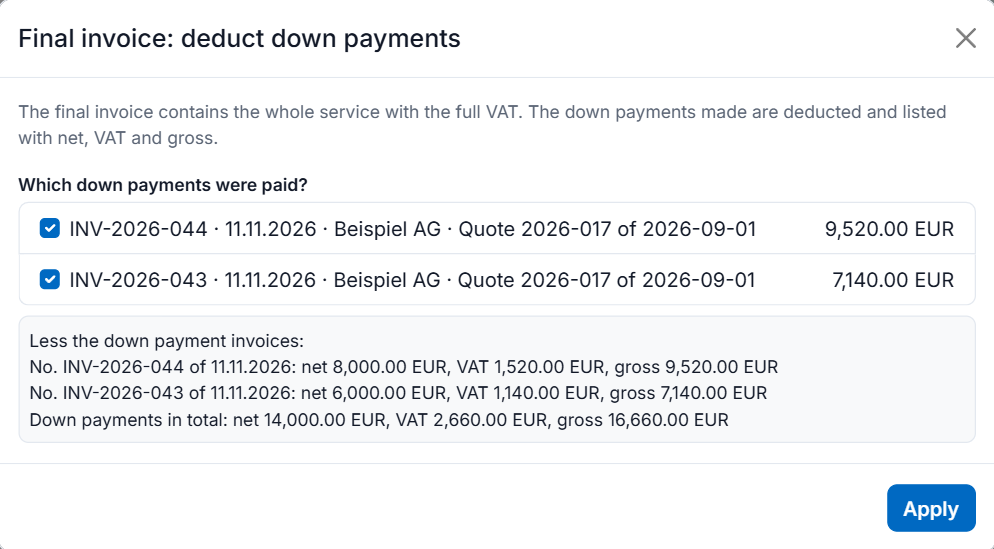
The dialog only finds down payments created in this browser (or in this Toolbox) – that is where "My invoices" is kept. Otherwise the dialog says: "There are no down payment invoices in "My invoices". …" In that case, click "Apply" anyway and enter each down payment by hand under "Totals" › "Advance payments" (as described below for the old generator, step 3). Do not enter it only as a total in the "Amount paid" field – otherwise the VAT of the down payments is not shown. Where "My invoices" is stored and how to back it up is explained on the page E-invoice data: where it is stored, backup and sharing.
What is in the e-invoice?
On the PDF, the down payments are listed under "Advance payments received" with net, VAT and gross. In the XML file it depends on the format: ZUGFeRD in the Extended profile transfers the advance payments with their VAT in structured form. The other formats (e.g. XRechnung, EN 16931) only know the total of the advance payments (BT-113) according to the standard; PDF24 additionally writes the breakdown (net, VAT and gross per down payment, and the total) into the e-invoice as a note. It is best to ask your customer whether they expect a particular format for this.
In the old generator
- "Invoice type": "380 - Invoice" (in construction "877 - Final invoice for construction work" or "876 - Partial final invoice for construction work"), "Invoice title" e.g. "Final invoice". Enter the whole service as items.
- Under "Invoice data" › "More details", enter "ID" and "Date" of each down payment invoice in "Invoice reference (BT-25, BT-26)" (more rows with the plus).
- Under "Totals" › "Advance payments", click "Add advance payment" for each down payment and enter "Invoice number", "Invoice date", "Payment date", "net", "Tax category" and "Tax rate". The "Amount paid" results from this.
Always enter the down payments individually under "Advance payments", not just as a total in the "Amount paid" field: the amount due would be right, but the VAT of the down payments would not be shown. Which details your final invoice needs exactly is something to clarify with your tax adviser.
Self-billed invoice (type 389): who goes where?
With a self-billed invoice you, as the customer, invoice for goods or services you have received – e.g. commissions. Your supplier must have agreed to this way of invoicing. In Germany this procedure is called Gutschriftverfahren and the document a Gutschrift (§ 14 (2) UStG); other countries have their own rules for self-billing. The generator sets the code 389 and the title "Self-billed invoice".
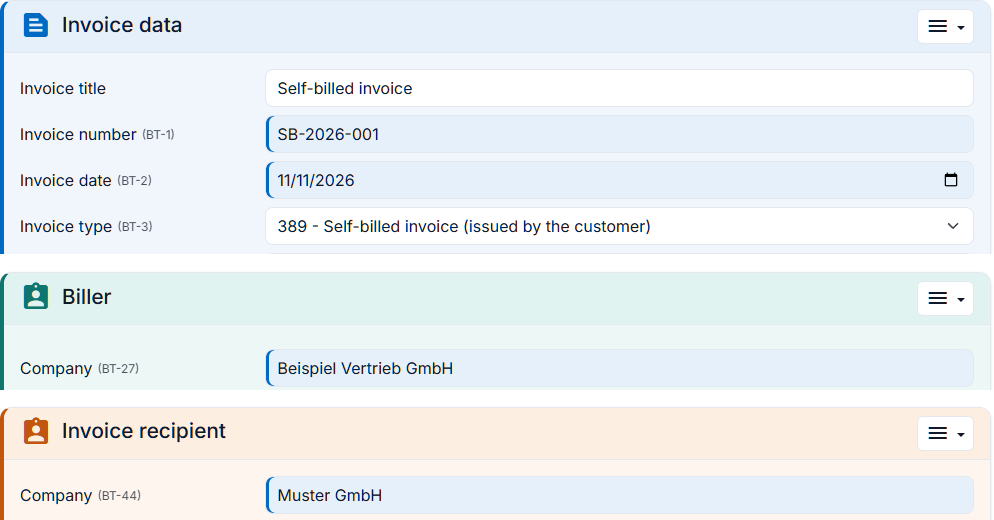
The roles are the most common mistake. In the e-invoice, the seller (BG-4, "Biller" in the generator) is always the party that supplies the goods or services – including in a self-billed invoice. The fact that the customer issued the document is expressed by the code 389 alone.
- "Biller" = your supplier (the one who supplied the goods or services and receives the self-billed invoice): name, address, their "VAT ID" or their "Tax number".
- "Invoice recipient" = your company (you issue the self-billed invoice).
- "Payment details" = your supplier's account, because that is where you transfer the money.
Do not swap the roles, even if it feels unusual: with swapped details the e-invoice would be wrong in content.
Where do I enter the supplier's tax number? In the "Biller" section, in the "Tax number" field (BT-32). An e-invoice also needs an identifier for the seller: the "VAT ID", a registration number or a "Seller ID" – the tax number alone is not enough for this. If your supplier has no VAT ID, enter, for example, their supplier number at your company as "Seller ID".
In the new generator step by step
- On the start page, click the "Self-billing" tile under "More documents".
- Your company is now the recipient of the goods or services in "Invoice recipient". Enter your supplier above under "Biller", with their tax number or VAT ID.
- Under "Payment details", replace the bank details with your supplier's if your own are entered there.
- Enter the items and click "Create invoice". As the format, choose ZUGFeRD or XRechnung (Peppol does not allow 389).
You correct or cancel a self-billed invoice like an invoice (see below); PDF24 automatically turns it into a "Self-billed invoice correction" (471) or a "Self-billed credit note" (261). XRechnung does not provide for these two codes: for an XRechnung, the validation therefore always shows a warning for 471 and 261 (BR-DE-17). In this case, check with your supplier whether they accept the document like this.
What does the PDF show? The title is "Self-billed invoice". As in the XML, your supplier appears as the supplier of the goods or services in the header and your company in the address field.
In the old generator
Set "Invoice type" to "389 - Self billed invoice", change the "Invoice title" (e.g. to "Self-billed invoice"), and enter your supplier as "Biller" and your company as "Invoice recipient" – with the roles as described above.
Which details a self-billed invoice needs under VAT law and whether self-billing is right for your case is something to clarify with your tax adviser.
Cancel or correct an invoice
You do not change an invoice once it has been created; you create a new document for it:
- "Invoice correction" (384): a corrected invoice that refers to the original one.
- "Credit note / cancellation" (381): cancels the invoice in full or in part. The amounts stay positive – you do not enter negative amounts; the code says that it is a credit note.
- "New invoice with the same details" (380): e.g. the correct invoice after a cancellation, or the same service again.
In the new generator step by step
- On the start page, click "Cancellation, correction or copy". "My invoices" opens.
- Click the arrow for more actions next to the invoice and choose "Invoice correction", "Credit note / cancellation" or "New invoice with the same details". If the invoice is already open, you find the same items in the main menu under "Create from this invoice".
- PDF24 prepares the document: new number, today's date, the same payment terms and the original invoice as the invoice reference (BT-25, BT-26).
- For a correction, change what needs correcting. For a full cancellation, leave the items as they are; for a partial cancellation, keep only what is being credited.
- Click "Create invoice". If you made a mistake, go back to the original invoice with "Undo".
The invoice was not created in this browser? Open it on the start page with "Open an invoice" (XML or ZUGFeRD PDF) and then choose "Create from this invoice" in the main menu.
In the old generator
Set "Invoice type" to "384 - Invoice correction" or "381 - Credit note", adjust the "Invoice title" (e.g. "Credit note"), assign a new invoice number and, under "More details", enter the number and date of the original invoice in "Invoice reference (BT-25, BT-26)".
Whether you correct an invoice or cancel it and issue a new one depends on the case. What is right for your invoice is something to clarify with your tax adviser; the e-invoice supports both ways.
Small amount invoices up to 250 EUR (Germany)
In Germany, an invoice of up to 250 EUR gross is a small amount invoice (Kleinbetragsrechnung, § 33 UStDV): simplified details are enough, and an e-invoice is not required. If an invoice is at most 250 EUR gross, the new generator shows the note: "Small amount invoice (up to 250 EUR gross): an e-invoice is not required here, a PDF will do, with simplified details (§ 33 UStDV). An e-invoice does no harm, though." The note is based on the German rules; other countries have their own thresholds and rules.
The customer's street, postcode and city are then no longer mandatory fields, e.g. for a cash sale. Exception: where the German rules apply (XRechnung, Peppol with a German seller), postcode and city remain mandatory. In the PDF24 Toolbox this applies since version 11.34.0; up to version 11.33.0, fill in the address there. Whether an invoice counts as a small amount invoice is something to clarify with your tax adviser.
Serial invoices from Excel or CSV
With "Serial invoices" you create many e-invoices at once from an Excel spreadsheet (.xlsx), a CSV file or a JSON file. This is only available in the new generator – online and in the PDF24 Toolbox (open "Create electronic invoice" there; up to version 11.33.0, first click "Switch to the new version"). The table is only read in your browser or in the Toolbox.
The principle: the invoice in the editor is the template. Seller, payment details, texts, format and the first item (unit, VAT) come from there. Each row of your table becomes an invoice; rows with the same invoice number become one invoice with several items.
Step by step
- Set up the template: open the new generator, enter your company details under "My profile" or fill in an invoice: biller, "Payment details", texts, format (e.g. ZUGFeRD or XRechnung) and a first item with your usual unit and VAT rate. The payment terms of the template apply to all invoices.
- Open the series: the "Serial invoices" tile on the start page or "Serial invoices …" in the main menu. At the top you see which template is used ("Template: … · format …").
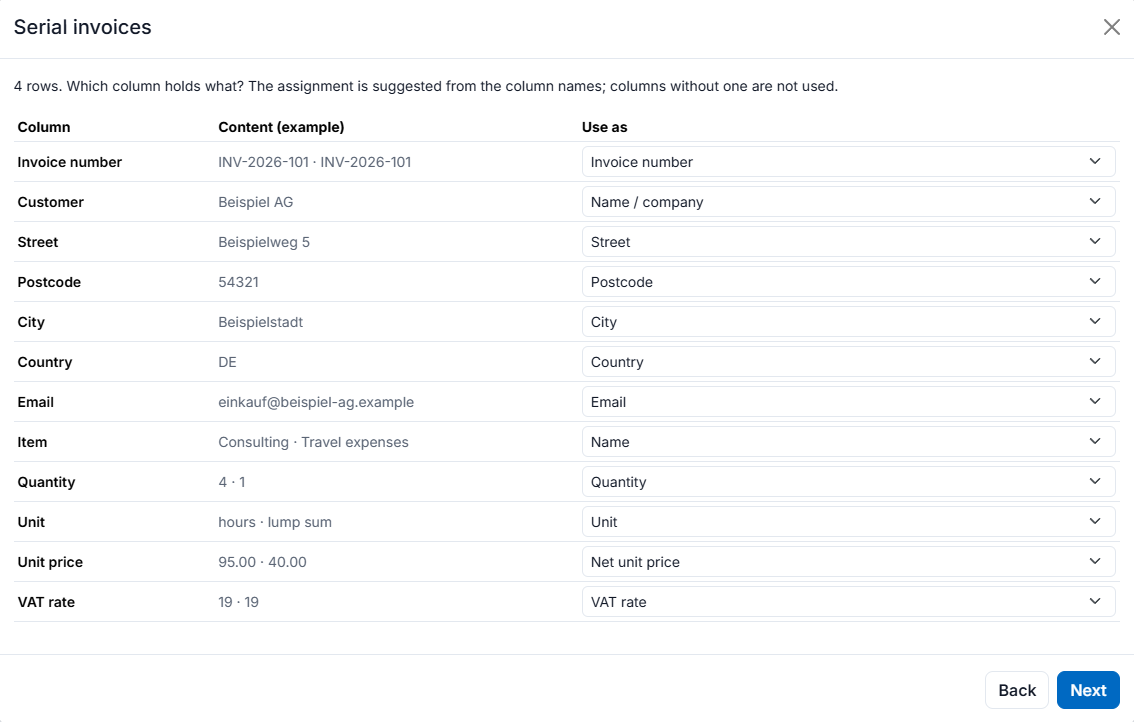
- Get an example: with "Download an example table (CSV)" (Toolbox: "Save an example table (CSV)") you get a table with matching column names. Open it in Excel and enter your invoices. The example table currently has German column names; English column names like those in the example below are recognized as well.
- Choose the file: click "Choose a table or JSON file, or drop it here", or drag the file into the box.
- Assign the columns: the table shows "Column", "Content (example)" and "Use as". PDF24 suggests the assignment based on the column names; columns set to "– do not use –" are ignored. If your table has no invoice numbers, enter the first number under "No invoice number column – numbered from". Then click "Next".
- Check: each invoice is listed with its status: "OK", "note" or "error" (with row and value). Edit individual invoices with "Open in editor". "Check against the official rules" checks all invoices in advance.
- Create: leave "Keep in “My invoices”" ticked if the invoices should later be available for credit notes, corrections or payments, and click "Create … invoices (ZIP)". You get a ZIP file with one file per invoice.
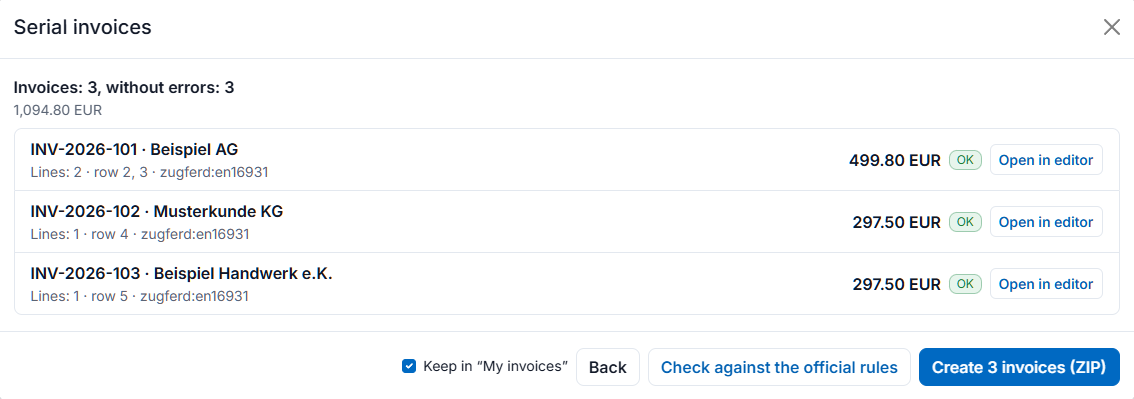
What should the table look like?
The first row contains the column names. An example (CSV with semicolons):
Invoice number;Customer;Street;Postcode;City;Country;Email;Item;Quantity;Unit;Unit price;VAT rate
INV-2026-101;Example Ltd;Main Street 1;10115;Berlin;DE;accounts@example.com;Consulting;4;hours;95.00;19
INV-2026-101;;;;;;;Travel expenses;1;lump sum;40.00;19
INV-2026-102;Sample AG;Ring Road 5;80331;Munich;DE;invoice@sample.com;Maintenance;1;month;250.00;19
Invoice INV-2026-101 gets two items. A row without an invoice number belongs to the invoice above it.
These are the fields you can assign ("Use as"):
- Invoice: "Invoice number", "Invoice date" (if empty: today), "Due date" (if empty: based on the payment terms of the template), "Delivery date", "Billing period from", "Billing period to", "Buyer reference / Leitweg-ID", "Purchase order number", "Currency", "Note".
- Customer: "Name / company", "Customer number", "Street", "Address line 2", "Postcode", "City", "Country", "VAT ID", "Contact person", "Email", "Electronic address". Without a separate electronic address, the email address is used for it (important for XRechnung and Peppol).
- Line: "Name", "Description", "Item number", "Quantity", "Unit", "Net unit price" or "Gross unit price", "VAT rate", "VAT category".
This is how the cells are read:
- Date: 2026-10-31, 31.10.2026, 31/10/2026 or an Excel date. With slashes the day comes first; 10/31/2026 is only recognized because there is no 31st month. Use 2026-10-31 or Excel dates to be safe.
- Amounts: 1,234.56, 1.234,56 or 1234.56; a currency sign in the cell does no harm.
- VAT rate: 19, "19 %" or an Excel percentage cell.
- Country: as a country code (DE, AT, FR …); common names such as "Germany" or "France" are recognized.
- Currency: as a code, e.g. EUR.
- VAT category: S, Z, E, AE, K, G, O, L or M. Without a column, the category of the first template item applies. Which category applies to your goods or services is something to clarify with your tax adviser.
Units in the table
E-invoices require a code from the list UN/ECE Rec. 20/21 for the unit (e.g. H87 = piece, HUR = hour, LS = lump sum). In the table you can also write common names and abbreviations, and PDF24 sets the code:
- piece(s), pcs, pc, ea → H87; hour(s), h, hr, hrs → HUR; minute(s), min → MIN; day(s), d → DAY; week(s), wk, wks → WEE; month(s), mo, mth, mths → MON; year(s), yr, yrs → ANN
- kg, kilogram → KGM; g, gram → GRM; t, tonne → TNE; m, metre, meter → MTR; m² → MTK; m³ → MTQ; l, litre, liter → LTR; kWh → KWH
- lump sum → LS; set → SET; pair → PR; box, roll, bag, bottle, can, bucket, tube, sheet → the matching packaging codes; unit → C62
- the German names (Stück, Stunde, pauschal …) are recognized as well
- or the code directly, e.g. H87, HUR, DAY
An unknown entry (e.g. the abbreviation "sqm") is reported in the list as "Unknown unit – the line gets the unit of the template's first line". In that case, use one of the forms above (m²) or enter the code (MTK). You can find the right code in the generator with the unit search of an item. In the PDF24 Creator Toolbox the short forms d, wk, wks, mo, mth, mths, yr and yrs (and the German Wo, Tg., Mon., Jhr.) are only recognized from the next version; until then, write the word in full there.
Several complete invoices as JSON
Instead of a table, "Serial invoices" also accepts a JSON file with several complete invoices in the generator's format. Anything an invoice does not specify there (seller, payment, output options) comes from the template. What the JSON format looks like and how to create e-invoices from the command line without any user interface is explained on the page Create e-invoices automatically: command line, JSON and XML.
Self-billed invoices to many suppliers from one table
If you invoice many suppliers or agents every month by self-billing, create the self-billed invoices (389) as a series. The supplier then changes with each row, while your company stays from the template.
- On the start page, click "Self-billing". Your company is entered as "Invoice recipient"; this is the template.
- Open "Serial invoices …" in the main menu and get the self-billing example with "Download an example table (CSV)" (two suppliers, one of them under the German small business scheme).
- Assign the columns of the "Seller / supplier (self-billing)" group: "Name / company", "Seller ID" (e.g. the supplier number), "Street", "Postcode", "City", "Country", "VAT ID", "Tax number", "Small business scheme (§ 19 UStG)", "Contact person", "Phone", "Email", "Electronic address", "IBAN" and "BIC".
- Continue as for serial invoices above: check and click "Create … invoices (ZIP)".
Good to know:
- As soon as a supplier column is assigned, each supplier starts empty – nothing is taken from the biller of the template.
- "Small business scheme (§ 19 UStG)" refers to the German small business rule and expects yes or no (also x, 1, 0). With "yes", the items get tax category E (0 %) and the note on § 19 UStG, unless a row has its own tax category.
- IBAN and BIC are the supplier's account; the self-billed invoice states payment by bank transfer to it.
- Without "Seller ID" and without "VAT ID", a self-billed invoice is invalid – the tax number alone is not enough for the e-invoice. For XRechnung, each supplier also needs a contact person, phone and email.
- Peppol does not allow self-billed invoices (389); use ZUGFeRD or XRechnung.
This works online and in the PDF24 Toolbox from version 11.34.0. Up to version 11.33.0, create a separate self-billed invoice for each supplier in the Toolbox.
More pages on e-invoicing
- Create e-invoices with PDF24 – tools, formats and your first invoice step by step
- E-invoice validation errors and common problems
- Create e-invoices automatically: command line, JSON and XML
- E-invoice data: where it is stored, backup and sharing
Missing an invoice type or a feature? Write to us at team@pdf24.org.