With PDF24 you create e-invoices free of charge and without registering: as a PDF with an embedded e-invoice (ZUGFeRD/Factur-X), as an XRechnung for public authorities in Germany or as a Peppol file – online in your browser or offline in the Toolbox of PDF24 Creator. The generator checks your invoice against the official rules of the chosen format so that the recipient does not reject it.
Go to the tool: Create electronic invoice
Contents
- What would you like to do?
- Online or offline: which tool?
- Which format should I choose?
- Your first e-invoice step by step
- Frequently asked questions
- Features at a glance
- Changes and new features
- Questions and suggestions
What would you like to do?
- Write a new e-invoice: on this page under Your first e-invoice step by step.
- Turn an existing PDF invoice into an e-invoice (e.g. from Word or your invoicing software) or attach an XML file to a PDF: Convert an existing PDF invoice into an e-invoice (ZUGFeRD)
- Understand an error message, e.g. "BR-DE-15" when creating an invoice or a rejection by the recipient: E-invoice validation errors and common problems
- Down payment or final invoice, self-billed invoice, credit note, invoice correction or many invoices at once from Excel: Down payments, final invoices, credit notes, corrections and serial invoices
- Create e-invoices automatically from your own software (command line, JSON, XML): Create e-invoices automatically
- Find out where your customers, items and invoices are stored, back them up or move them to a new PC: E-invoice data: storage, backup and sharing
- Open, view, print or validate an e-invoice you received: Receiving e-invoices: open, view, print and validate
Online or offline: which tool?
The e-invoice generator comes in two forms: online on tools.pdf24.org and offline in the Toolbox of PDF24 Creator. Both are free.
Online in your browser
Create electronic invoice runs in any up-to-date browser, without installation and on any operating system. New features appear here first. Only the online tool has the automatic recognition that reads the data for an e-invoice from an ordinary PDF invoice (more on the page Convert a PDF invoice into an e-invoice).
Your saved company details, customers, items and invoices are stored only in your browser on your computer, not at PDF24. The new version creates pure XML invoices (XRechnung, Peppol, EN 16931) directly in your browser; for a PDF with an e-invoice (ZUGFeRD), the PDF24 server creates the file.
Old and new version of the generator
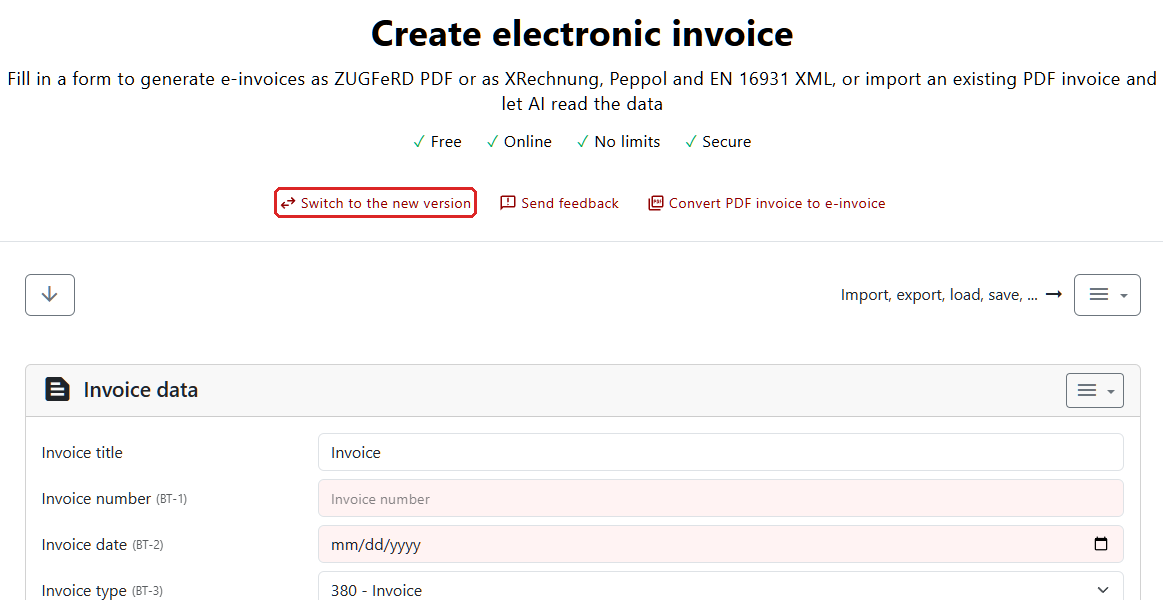
The tool page offers two versions of the generator. Above the generator you switch between them with "Switch to the new version" and "Switch to the old version"; your browser remembers your choice for your next visit.
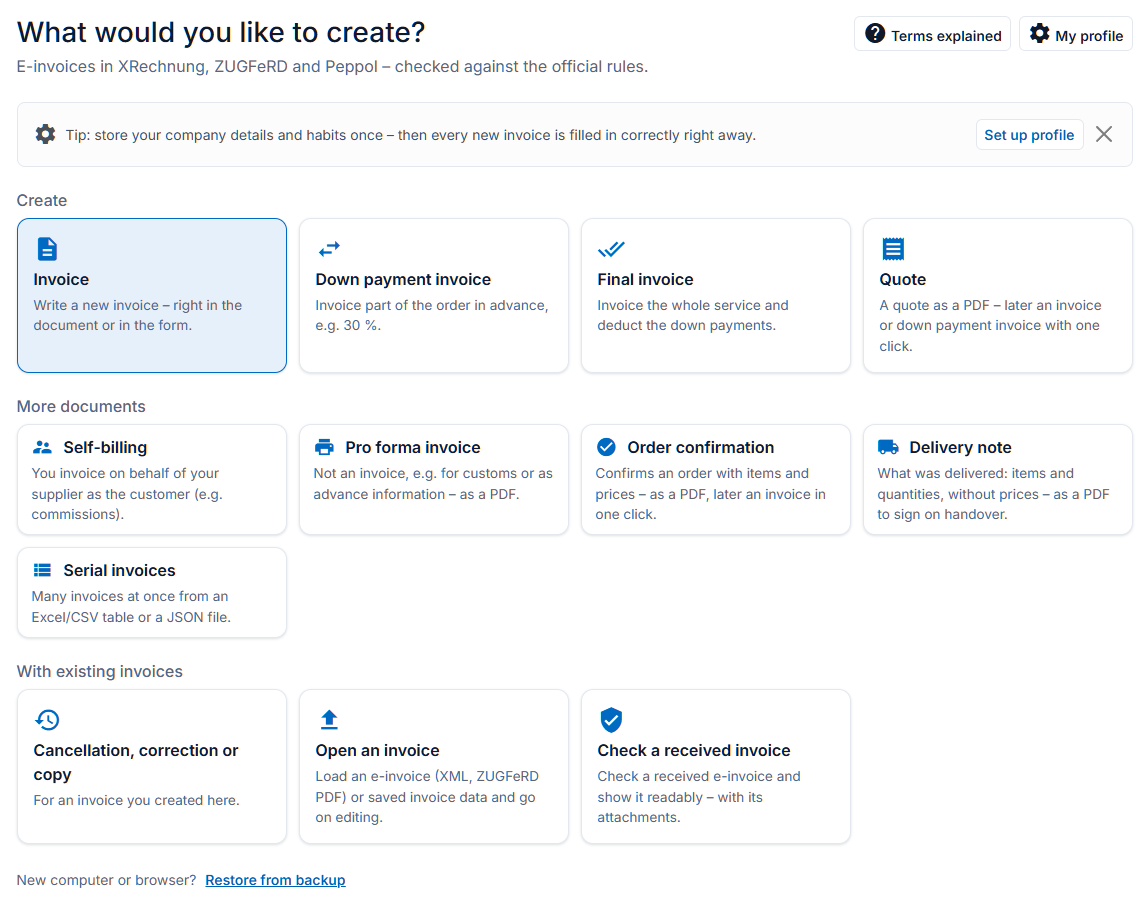
- The new version opens with a start page ("What would you like to create?") and offers three views: "Step by step", "Visual" (write directly in the document) and "Form". It also brings an early payment discount dialog, automatic balancing of gross prices, down payment and final invoices, serial invoices and the "My invoices" list, among other things. We recommend the new version for new invoices.
- The old version is one long form with all fields. It remains available for now.
Both versions use the same saved data. Before you switch, we still recommend a backup (see Data storage and backup).
Offline in the PDF24 Creator Toolbox
Without an internet connection, you create e-invoices with PDF24 Creator for Windows. Open the Toolbox and choose the "Create electronic invoice" tool in the "Invoices" category. The invoice is created entirely on your PC; nothing is sent to a server. You will also find "Validate e-invoice" in the same category.
The Toolbox also contains both versions of the generator. Since version 11.34.0 of PDF24 Creator it starts directly with the new version; if you need the old one, open it with "Switch to the old version" above the generator. The Toolbox does not remember this choice, so the next time you open it, the new version starts again. Up to version 11.33.0 the Toolbox starts with the old version, and you open the new one there with "Switch to the new version"; we recommend updating to 11.34.0 or later. In version 11.34.0, the new version in the Toolbox matches the online version of 11 November 2026, including self-billed invoices as serial invoices, allowances and charges that build on each other, item attributes per line and simplified details for small amount invoices.
The Toolbox data and the data in your browser are stored separately. How to transfer them is explained on the page Data storage and backup.
Which one suits you?
- Get started quickly, newest features: online.
- No internet needed, invoice data stays exclusively on your PC: Toolbox in PDF24 Creator.
- Create invoices automatically from your own software: the Toolbox command line, see Create e-invoices automatically.
Which format should I choose?
An e-invoice is an invoice in a defined, machine-readable format (XML) that the recipient's software can process automatically. An ordinary PDF on its own is not an e-invoice. In Germany, businesses have had to be able to receive e-invoices since 1 January 2025; issuing them becomes mandatory step by step in 2027 and 2028. Other countries have their own rules and timelines. Your tax advisor can tell you exactly what applies to your business.
Choosing the format in the new version
In the "Form", "Output options" shows a sentence such as "Will be created as PDF with e-invoice (ZUGFeRD)." Click "Change" to choose one of four formats; in "Step by step", the last step asks "In which format?".
- "PDF with e-invoice (ZUGFeRD)" – the default. A PDF anyone can open, with the e-invoice data inside (profile EN 16931, the European standard). Suitable for businesses and private customers. ZUGFeRD and Factur-X are the same format: ZUGFeRD is the German name, Factur-X the French one.
- "XRechnung for public authorities" – the data only, as an XML file, with the buyer's Leitweg-ID. Public authorities and public sector customers in Germany usually require this format; what counts is what your contract says.
- "E-invoice as XML only" – the data according to EN 16931 without a PDF, if your customer wants it that way.
- "Peppol" – for sending through the Peppol network (Peppol BIS Billing 3.0). Seller and buyer both need a Peppol identifier as their electronic address. PDF24 creates the file but does not send it through the Peppol network; for that you need a Peppol service provider.
Under "Advanced: file, profile, syntax" you set the format in more detail: File (PDF or XML), Profile (EN 16931, Extended, XRechnung, Peppol BIS 3.0) and Syntax (CII or UBL). This gives you, for example, "PDF with e-invoice (ZUGFeRD Extended)", "PDF with e-invoice (ZUGFeRD, XRechnung profile)" or "XRechnung for public authorities (UBL)".
CII or UBL? Both syntaxes contain the same information. Some invoice portals require UBL; if your contract says nothing about it, keep the default.
Choosing the format in the old version
In the old version, choose the format under "Output options" in the "Format" field:
- "PDF / ZUGFeRD / EN16931" (default), "PDF / ZUGFeRD / Extended", "PDF / ZUGFeRD / XRechnung"
- "XML / EN16931 / CII", "XML / EN16931 / UBL", "XML / XRechnung / CII", "XML / XRechnung / UBL", "XML / PEPPOL / UBL"
Rule of thumb
- Your customer is a business or a private person: PDF with e-invoice (ZUGFeRD). The recipient can read the invoice as usual, and their software reads the data.
- Your customer is a public authority in Germany: usually XRechnung for public authorities with a Leitweg-ID (see below), unless the contract says otherwise.
- Your customer requires Peppol, or you invoice a public authority outside Germany: Peppol, as the buyer requires.
- Your customer explicitly wants only the XML file: E-invoice as XML only.
A pure XML file cannot be read without a suitable program. Anyone who receives such an invoice can make it readable with XML e-invoice to PDF; more on the page Receiving e-invoices.
Invoices to public authorities in Germany: Leitweg-ID
Public authorities in Germany receive invoices under a Leitweg-ID (routing ID), for example 991-33333TEST-33. It is usually stated in the contract or purchase order; the last two digits are check digits.
- In the "Invoice recipient" section, tick "The buyer is a public authority in Germany (public sector customer)". In "Step by step", choose "A public authority in Germany" instead.
- Enter the Leitweg-ID in the "Leitweg-ID" field (otherwise called "Buyer reference", BT-10). It is also used as the electronic address of the authority.
- Choose the format "XRechnung for public authorities". If the invoice contains a Leitweg-ID but a different format is selected, the generator points this out and offers "Use XRechnung".
If the check digits do not match, the generator tells you. An XRechnung also needs a contact person with phone number and e-mail address on the seller's side. Invoices to federal authorities are submitted through the federal invoice receipt platform (e-rechnung-bund.de), invoices to federal states and municipalities through the portal named in the contract.
Your first e-invoice step by step
These instructions describe the new version in the "Step by step" view. It only asks for what your invoice needs.
- Open Create electronic invoice. If you see the old version, click "Switch to the new version" above the generator. In the Toolbox, open "Create electronic invoice"; since version 11.34.0 it starts directly with the new version (up to version 11.33.0, click "Switch to the new version" there first).
- On the start page "What would you like to create?", choose the "Invoice" tile. Tip: with "Set up profile" you answer five short questions once (e.g. small business, net or gross prices, payment period), and every new invoice is then pre-filled to match.
- On your first visit, the "Step by step" view starts. At the top you can switch to "Visual" or "Form" at any time without losing what you have entered.
- "To whom?" Choose "A business", "A private person" or "A public authority in Germany" and enter the name and address. For customers in other EU countries to whom you supply goods or services without German VAT, also enter the customer's VAT ID.
- "What for?" For each item, enter the description, quantity, unit, unit price (net) and VAT %; "Another item" adds a line. Below that, state when you delivered or did the work – as a day or as a period.
- "Tax" only appears if something needs to be clarified, e.g. whether you are a small business under § 19 UStG (the German small business scheme) or whether your customer is abroad.
- "Payment": choose when the invoice should be paid and, under "To which account?", your bank details. "Offer a cash discount …" lets you add an early payment discount.
- "Your details" appears as long as your own details are missing: name or company, address, tax number or VAT ID, e-mail address. If the generator then asks whether to keep these details for your next invoices, choose "Yes, keep" – your company details are then already filled in on every new invoice.
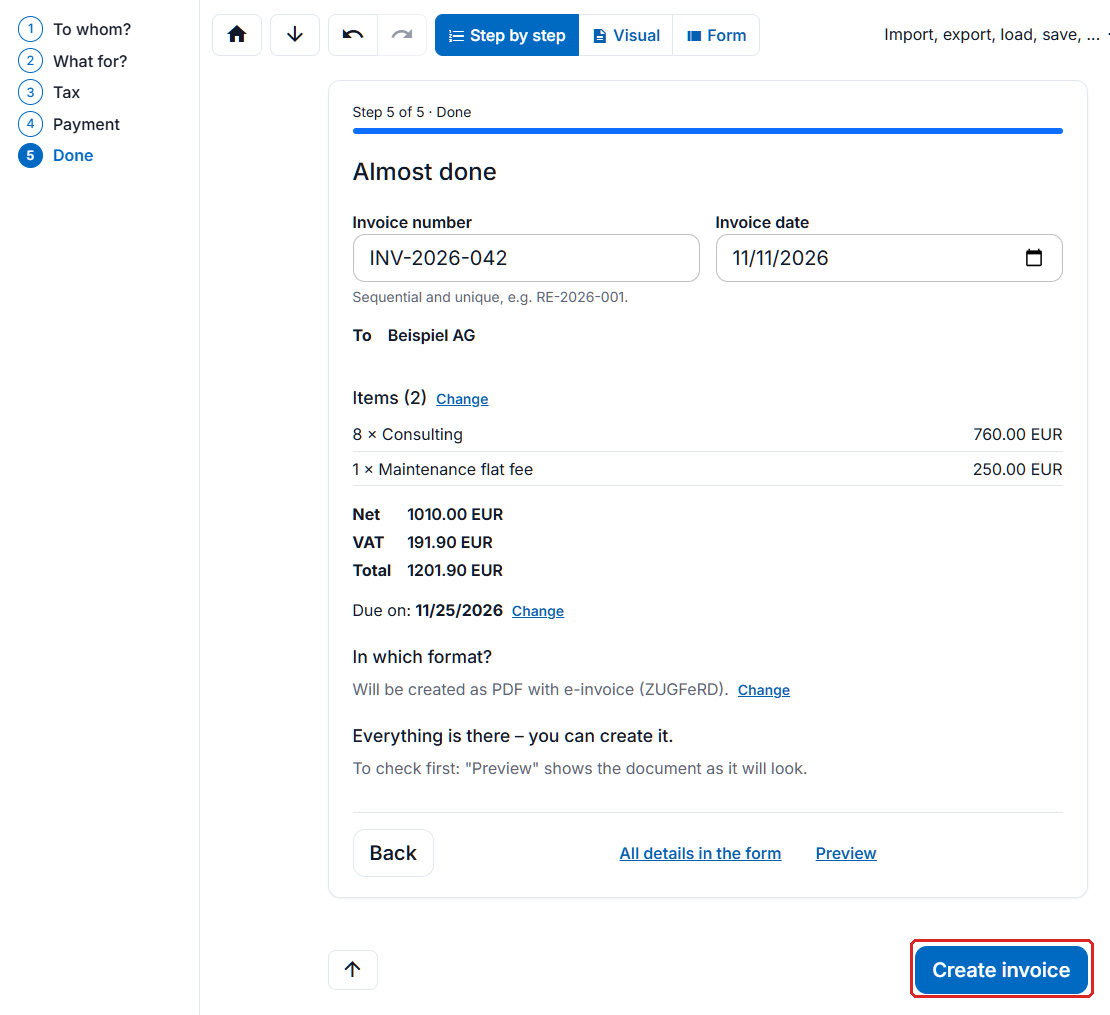
- "Done": check the invoice number, invoice date, items and totals. Under "In which format?" you can change the format if needed. If anything is missing, it is listed under "Still missing:" with a "Fix" button. Once it says "Everything is there – you can create it.", click "Create invoice".
- The generator checks the e-invoice against the official rules of its format. Then download the file with "Download" (in the Toolbox: "Save") or print it with "Print". The invoice also appears in "My invoices".
For your next invoice, the generator suggests your previous customers and items as you type. In "My invoices" you can use an invoice you have created as a template for the next one.
In the old version you fill in a form from top to bottom: "Invoice data", "Biller", "Invoice recipient", "Payment details", "Items" and so on down to "Output options". Required fields are highlighted in colour. "Check invoice" checks your entries in advance, "Create invoice" creates the file.
Frequently asked questions
How do I offer an early payment discount (Skonto) in the e-invoice?
In an e-invoice, an early payment discount is stated in the payment terms (BT-20) in a fixed, machine-readable form. This lets your customer's software deduct it automatically.
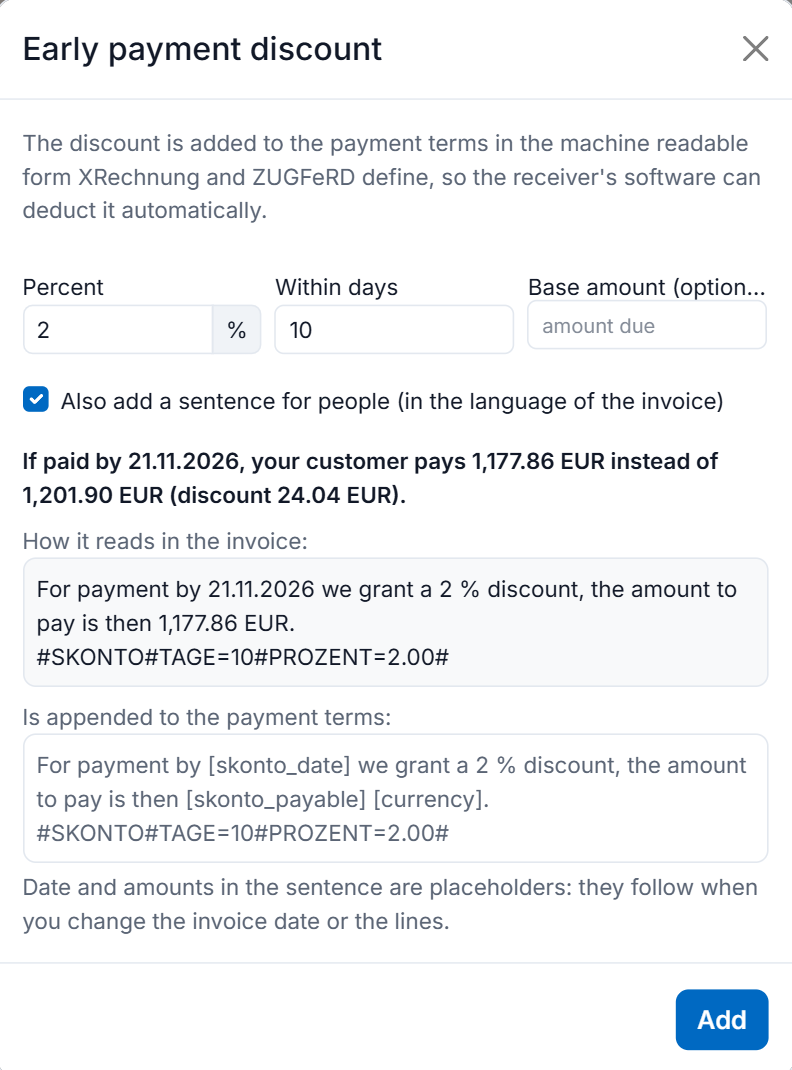
In the new version, click "+ Add or change early payment discount" under "Payment terms" in the "Payment details" section (in "Step by step": "Offer a cash discount …"). In the dialog, enter "Percent" and "Within days", and a "Base amount (optional)" if the discount applies to only part of the amount. With "Also add a sentence for people (in the language of the invoice)", the invoice also shows a readable sentence with date and amount. The dialog shows in advance what your customer pays with the discount. Enter several levels (e.g. 3 % within 7 days, 2 % within 14 days) one after the other. Lines typed in by hand that do not follow the required form are fixed with "Correct automatically".
In the old version (and wherever you write the payment terms yourself), enter a separate line for each discount level in the "Payment terms" field:
#SKONTO#TAGE=14#PROZENT=2.00#
#SKONTO#TAGE=28#PROZENT=1.00#
If the discount applies to only part of the invoice amount (e.g. only to the materials), add the base amount as a fourth segment:
#SKONTO#TAGE=14#PROZENT=2.25#BASISBETRAG=357.93#The rules (required for XRechnung, recommended for ZUGFeRD):
- Upper case, no spaces. The keywords are always German (SKONTO, TAGE, PROZENT, BASISBETRAG), whatever the language of the invoice.
- Percentage and base amount with a decimal point and exactly two decimal places.
- Each line starts and ends with
#and stands on its own line. - A sentence for people ("2 % discount if paid within 14 days") goes on a separate line.
If a line does not follow these rules, validation rejects an XRechnung with rule BR-DE-18 (see Validation errors).
Gross prices: why is the total off by 1 cent?
An e-invoice is calculated from net amounts: each line is rounded to two decimal places net, and the VAT is calculated from the net total. With gross prices, this sometimes results in one cent more or less. Example: €9.99 gross at 19 % VAT is €8.39 net plus €1.59 VAT = €9.98. With €8.40 net it would be €10.00 – exactly €9.99 cannot be reached with two decimal places at all.
This is what the "Rounding amount" (BT-114) in the "Totals" section is for. The "Amount due" is the gross total minus the "Amount paid" plus the rounding amount.
- New version: Enter your prices gross – in the "Form" in the "Unit price (gross)" field, in the "Visual" view if you have chosen "Gross (incl. VAT)" in "My profile". The generator then balances the amounts itself: it adjusts the net unit prices and sets the rounding amount for the rest. The field then shows "Set automatically, so that the total is exactly your gross prices." The amount due matches your gross prices exactly. ("Step by step" asks for net prices.)
- Old version: Enter the rounding amount yourself: the difference between the amount you want and "Total (gross)", in the example above 0.01. If the amount is one cent too high, enter -0.01. The former checkbox for switching off exact rounding no longer exists.
How do I add attachments, and where do I find them?
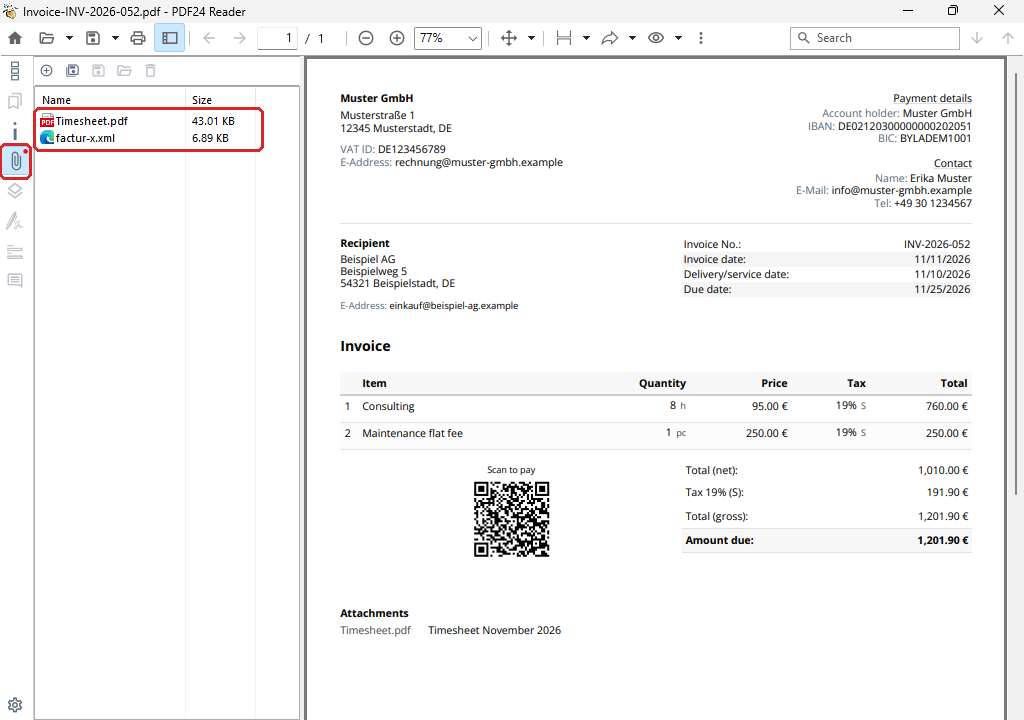
In the "Attachments" section, use "Add file" to attach files, for example a delivery note or a timesheet. PDF, PNG, JPG, CSV, XLSX and ODS are allowed – these are the file types e-invoices permit. Give each attachment a description.
In a PDF with e-invoice (ZUGFeRD), the attachments are embedded in the PDF as files, not as additional pages – much like attachments to an e-mail. In PDF24 Reader you find them under "Attachments", in Adobe Acrobat Reader under "Attachments" (paper clip); a browser's PDF view usually does not show them. The invoice itself lists the attachments with name and description. The e-invoice itself also appears there as an attachment: factur-x.xml, or xrechnung.xml with the XRechnung profile.
Under "Output options", "Embed attachments" decides where the attachments go: "PDF" (default, as attachments of the PDF), "XML" (into the e-invoice data) or "XML + PDF" (both). If your customer's software only reads the XML data, choose "XML + PDF". In pure XML formats (XRechnung, Peppol), attachments are always in the XML file.
How do I add a logo and change the layout?
- Logo: In the "Biller" section under "Logo", click "Choose logo" (JPG or PNG). Save your company details together with the logo, and it will be on every invoice.
- Appearance: Under "Output options" (in the new version in the expandable "Appearance" area) you set the "Logo display" (Automatic, Inline, Block, Right, Do not show) and "Logo size" (Standard, Large, Extra large), as well as page numbers, line numbers, number and date format and the file name with placeholders such as [invoice_number] or [buyer_name].
- Address window: For a windowed envelope, choose "DIN 5008 (windowed envelope)" under "Layout" in the new version or under "Address window" in the old one. The sender line and the address are then placed where the window is.
- Management and other mandatory details: In the "Biller" section, enter names under "Management" and choose the "Title on the document" (e.g. managing director or board). Further details for the footer go into the "Further mandatory details" field, one per line.
To make every new invoice look like this, save the output options with "Save data" in the section's menu and select them in the menu under "Open preferences" at "Output options" › "Default values". A freely designable layout with your own template is not available. If the invoice has to look exactly like your letterhead, create the PDF in your own program and have the e-invoice embedded in it – the page Convert a PDF invoice into an e-invoice explains how.
How do I print the e-invoice?
After "Create invoice", PDF formats (ZUGFeRD) show the "Print" button (printer icon) next to "Download" or "Save". Pure XML formats such as XRechnung do not have it, because the file contains only data. To read and print an XRechnung, make it visible with XML e-invoice to PDF or Validate e-invoice (details on the page Receiving e-invoices). A printout is only a copy for reading; the e-invoice is the file you send.
How do I add a payment QR code (EPC QR code) to the invoice?
The generator creates the EPC QR code, which many banking apps can scan (in Germany often called "GiroCode"), for the payment type "SEPA Credit Transfer":
- In the "Payment details" section, enter the IBAN and account holder for the payment type "SEPA Credit Transfer".
- Only with several accounts: tick "Use this account for the EPC QR code" for the account the code should use. Unticked, the generator takes the first account with IBAN and account holder. In the PDF24 Creator Toolbox up to version 11.34 the checkbox is still called "Generate EPC QR code for this payment method" and works the same way.
- Enter a "Payment reference" – without a payment reference, no code is created. With the placeholder [invoice_number], the invoice number is inserted automatically.
The code contains the recipient, IBAN, BIC, the amount due and the payment reference. It is printed on the PDF of the invoice. No QR code: "Output options" › "QR code for payment" › "Do not show" – the checkbox at the account does not switch it off. The "Visual" view of the new version shows it even before you create the invoice.
In which language is the invoice created?
Under "Output options", "Language" sets the language of the document – around 50 languages are available. Headings and labels on the invoice appear in this language; your own texts (items, notes) stay as you wrote them. The default is the language of the page on which you opened the generator. Number and date formats are set separately ("Decimal separator", "Thousands separator", "Date format").
In the new version, "Second language" creates a bilingual document, for example with the heading "Invoice / Rechnung".
Can I open and edit an e-invoice I received or created earlier?
Yes. In the new version, choose "Open an invoice" on the start page; in the old version, "Import invoice" in the menu. The generator reads XML invoices in CII and UBL (XRechnung, Peppol, EN 16931), PDFs with an embedded e-invoice (ZUGFeRD, Factur-X) and saved invoice data (JSON). An ordinary PDF invoice without e-invoice data is read by the automatic recognition online – more on the page Convert a PDF invoice into an e-invoice.
How do I create a down payment invoice?
In the new version, the start page has the tiles "Down payment invoice" and "Final invoice": you invoice part of the order in advance, and the final invoice deducts the down payments made, with net amount, VAT and gross amount. This is explained step by step, together with self-billed invoices, credit notes and invoice corrections, on the page Down payments, final invoices, credit notes, corrections and serial invoices.
Where is my invoice data stored?
Saved company details, customers, items and "My invoices" are stored in a database of your browser on your computer – in the Toolbox, in its built-in browser. PDF24 does not store them in a cloud. If you clear your browser data or change computers, they are gone – so back them up regularly with "Export all data" in the Data Manager (new version: "Back up now"). Several workstations can share the same data through a common JSON file as a data source ("Preferences" › "Data sources"). Everything about this, including setting up a data source via URL, is on the page E-invoice data: storage, backup and sharing.
Can I create e-invoices automatically?
Yes, with the PDF24 Creator Toolbox on the command line (pdf24-Toolbox.exe -createInvoice). The input is invoice data in JSON format or an existing XML invoice, optionally together with your own PDF; the output is, for example, a ZUGFeRD PDF or an XRechnung. The call, switches, JSON format and examples are on the page Create e-invoices automatically.
Features at a glance
- Create e-invoices online or offline, free of charge and without registration
- Formats: PDF with e-invoice (ZUGFeRD/Factur-X: EN 16931, Extended, XRechnung profile), XRechnung (CII and UBL), e-invoice as XML only (EN 16931, CII and UBL), Peppol BIS Billing 3.0
- Validation against the official rules of the format (XRechnung, ZUGFeRD/Factur-X, Peppol, EN 16931), errors with a plain-language hint and a jump to the field
- New version: start page with templates for invoice, quote, order confirmation, delivery note, pro forma invoice, down payment and final invoice, self-billed invoice, credit note and invoice correction
- New version: three views – "Step by step", "Visual" (directly in the document), "Form" – with undo and redo
- "My profile": small business, net or gross prices, payment period – every new invoice is pre-filled to match
- Gross prices balanced automatically to the cent (new version), rounding amount (BT-114)
- Allowances and charges at line and invoice level
- Early payment discount dialog (new version) or discount lines in the required form by hand
- Payment types: SEPA Credit Transfer with EPC QR code, SEPA Direct Debit, cash, card, online payment service
- Leitweg-ID with check digit validation, hint to the right format for public authorities in Germany
- Embed attachments (PDF, images, spreadsheets) in the PDF and/or the XML
- Logo, DIN 5008 layout for windowed envelopes, page numbers, file name with placeholders
- Invoices in around 50 languages, bilingual documents (new version)
- Import of XML invoices (CII, UBL), ZUGFeRD/Factur-X PDFs and JSON; online also ordinary PDF invoices via automatic recognition
- Use your own PDF as the visible invoice ("Use the PDF")
- New version: "My invoices" with payment status, payment reminders and overdue notices, recurring invoices, export for accounting (CSV, optionally with the XML files)
- New version: serial invoices from Excel, CSV or JSON files, several companies with their own number ranges
- Save customers, items and other details, Data Manager with export and import, data sources for several workstations
- Hide fields you never need in the form; colour-coded sections (new version)
- Print directly after creating
- Toolbox: command line for automatic creation
Changes and new features
The online generator gets new features continuously and first. The Toolbox receives many of them with a new version of PDF24 Creator. Some features are deliberately available online only, such as the automatic recognition of PDF invoices, because the Toolbox does not send invoices to any service.
Changes to the e-invoice tool in the Toolbox are listed in the PDF24 Creator changelog in the entries about e-invoices.
Questions and suggestions
Many features of the generator go back to suggestions from users. If something is missing or does not work as expected, write to us at team@pdf24.org – for errors, ideally with the exact wording of the message. Explanations of the most common validation messages are on the page E-invoice validation errors and common problems.