PDF24 Creator is currently available for Windows only. On a Mac, on Linux, on a Chromebook, an iPhone or an Android phone you use the PDF24 online tools in your browser: free, without registration and, if you like, installed like an app. This page shows what is available for which system and which way suits you best.
Contents
- What is available for which system?
- PDF24 for Mac
- PDF24 for Linux
- PDF24 with Wine?
- PDF24 on a Chromebook
- PDF24 for iPhone and iPad
- PDF24 for Android
- Install PDF24 as an app
- Is there a portable version of PDF24?
- PDF24 without administrator rights
- Windows versions and Windows on ARM
- Privacy with the online tools
What is available for which system?
- Windows 10 and 11, Windows Server 2016 and later: the free PDF24 Creator with PDF24 Toolbox, PDF24 Reader and a PDF printer. It works offline, your files stay on your PC.
- Mac and Linux: the PDF24 online tools in your browser. PDF24 Reader, PDF24 Toolbox and PDF24 Creator for Linux and Mac are in the works and will be released once they are finished.
- Chromebook: the online tools in Chrome.
- iPhone and iPad: the online tools in Safari, optionally as an app on your home screen. There is no app in the App Store.
- Android: the online tools in your browser, optionally installed as an app. There is no app in the Google Play Store. PDF24 Reader for Android is in the works and will be released once it is finished.
- Portable version (e.g. on a USB stick): not available. To work without installing anything, use the online tools.
The online tools are the same on every device as on the website: merge, compress, edit, sign and convert PDFs, recognize text and much more. You find an overview under All Tools.
PDF24 for Mac
PDF24 Creator is not available for macOS; its setup runs on Windows only. PDF24 Reader, PDF24 Toolbox and PDF24 Creator for Linux and Mac are in the works and will be released once they are finished.
Until then, use the PDF24 online tools on your Mac in Safari, Chrome, Firefox or Edge. There is nothing to install. The most popular tools:
- PDF Converter – files to PDF and PDF back to Word, Excel, images and more
- Merge PDF – combine several PDFs, images or Word files into one PDF
- Compress PDF – make PDFs smaller, e.g. for sending by e-mail
- Edit PDF – text, images, shapes, signatures, comments and forms in one editor
- Sign PDF – draw, upload or photograph your signature
- PDF OCR – make scans and photos searchable and copy their text
- Images to PDF – several pictures in one PDF
Step-by-step guides for the most common tasks, each with the online way: create PDF, merge PDF, edit PDF and sign PDF.
With Chrome or Edge you can also install the online tools as an app. They then appear in the Applications folder and open in a window of their own – see Install PDF24 as an app.
A PDF printer on the Mac
The PDF24 printer exists on Windows only. On a Mac you usually don't need it: the print dialog of almost every program has a "PDF" menu at the bottom with "Save as PDF". This turns any printable document into a PDF, which you can then merge, compress or edit with the online tools.
Windows on a Mac
If your Mac runs Windows, for example in a virtual machine, install PDF24 Creator there as on any Windows PC (Windows 10 or 11). On Macs with Apple silicon this is Windows for ARM processors: choose "arm64" on the download page. The PDF printer is then available to the Windows programs in the virtual machine, not to your Mac programs.
PDF24 for Linux
PDF24 Creator is not available for Linux either – there is no package for Ubuntu, Debian or Mint and no Flatpak or Snap. PDF24 Reader, PDF24 Toolbox and PDF24 Creator for Linux and Mac are in the works and will be released once they are finished.
Until then, use the PDF24 online tools in Firefox, Chrome or any other browser – they are the same tools as on the Mac. With Chrome or Edge you can install them as an app on Linux, too (here's how).
To create a PDF from a program on Linux, you can usually use the print dialog: choose "Print to File" and the PDF format.
PDF24 with Wine?
In the forum, users report that they started PDF24 Creator with Wine on Linux or on a Mac. We have not tested PDF24 with Wine and do not support it. We cannot say whether or how well the current version runs there, and we cannot help with problems.
If you really need the functions of PDF24 Creator on a Mac or on Linux, Windows in a virtual machine is the more reliable way. For everything else, the online tools in your browser are enough.
PDF24 on a Chromebook
A Chromebook cannot install Windows programs, so PDF24 Creator does not run there. Open tools.pdf24.org in Chrome and use the online tools. With the install icon on the right side of the address bar you can set them up like an app (here's how).
To save a document or a web page as a PDF in Chrome, choose "Print" and the destination "Save as PDF". For web pages there is also Webpage to PDF: paste the URL and download the PDF.
PDF24 for iPhone and iPad
There is no PDF24 app in the App Store. Apps there with "PDF24" in their name are not ours; we regularly have such apps removed. The PDF24 tools are free, with no subscription and no trial period.
On an iPhone or iPad, use the online tools in Safari. With "Add to Home Screen" you put them on your home screen like an app (here's how).
Tip for photos: the iPhone often saves photos in the HEIC format, which the PDF24 tools cannot process. Under Settings > Camera > Formats, choose "Most Compatible" – the iPhone then saves new photos as JPG – or choose JPG when you share or export a photo.
PDF24 for Android
There is currently no PDF24 app in the Google Play Store. Apps there with "PDF24" in their name are not ours. PDF24 Reader for Android is in the works and will be released once it is finished.
On your phone or tablet, use the online tools in your browser, for example the PDF Converter to turn documents and photos into PDFs. In Chrome you can install the tools as an app from the menu (here's how).
There is no PDF24 printer for Android. Many apps can create a PDF themselves, though: choose "Print" and the printer "Save as PDF".
Install PDF24 as an app
You can install the PDF24 online tools as an app straight from your browser – on your smartphone, tablet and computer, without an app store. The app starts from its own icon and opens in a window of its own without an address bar. It is free and always up to date; there is nothing for you to update.
Android (Chrome):
- Open tools.pdf24.org in Chrome and tap the menu with the three dots in the top right corner.
- Tap "Install app" or "Add to home screen".
- Confirm with "Install".
iPhone and iPad (Safari):
- Open tools.pdf24.org in Safari and tap the share icon, the square with the arrow pointing up. In newer iOS versions you find it after tapping "•••" next to the address bar.
- Tap "Add to Home Screen" in the list.
- Tap "Add" in the top right corner.
Computer (Windows, macOS, Linux, Chromebook) with Chrome or Edge:
- Open tools.pdf24.org and click the install icon on the right side of the address bar. If you don't see it, you also find the installation in the browser menu behind the three dots.
- Confirm with "Install".
The detailed guide with pictures and answers to common questions is on Install PDF24 as an app.
Important: the tools need an internet connection, also as an app. Many tools process your files on our servers. To work offline, use PDF24 Creator on Windows.
For Google Chrome there is also the extension PDF24 Tools in the Chrome Web Store. It puts the PDF24 tools behind an icon in the browser toolbar.
Is there a portable version of PDF24?
No. There is no portable version of PDF24 Creator that you could run without installing it, for example from a USB stick. The PDF printer and other parts of the program are set up in Windows itself, which is why the setup needs administrator rights. We do not offer a ZIP file to unpack.
How to use PDF24 anyway:
- Without installing anything: the online tools run in any browser, on any computer, also on a company PC where you are not allowed to install software. With them you can, for example, merge, convert and compress PDFs or save web pages as PDF.
- On a company PC: ask your IT department to install PDF24 Creator. For distribution to many computers there is an MSI package; parts such as the PDF printer can be left out and the update check can be switched off. The options are described in the manual. Companies, authorities and agencies can also use PDF24 Creator free of charge.
- Training courses: instead of putting PDF24 on a USB stick, give the participants the link to tools.pdf24.org.
PDF24 without administrator rights
- Installing, updating and uninstalling need administrator rights, with the EXE setup as well as with the MSI package. If you start the setup without them, Windows asks for the credentials of an administrator.
- Updates: since version 11.31.0 the updater also offers "Install update" to users without administrator rights. Windows then asks for the credentials of an administrator, for example your own administrator account. In companies, the easiest way is for IT to distribute updates: an update is the normal setup of the new version.
- Using it: once PDF24 Creator is installed, you work with it under a normal user account. Settings you change without administrator rights apply to your account only.
If no administrator is at hand, the online tools remain.
Windows versions and Windows on ARM
PDF24 Creator runs on Windows 10 and Windows 11 and on Windows Server 2016 and later. It brings everything it needs; only for Office files does the offline conversion need Microsoft Office or the free LibreOffice (for Outlook messages the classic Outlook). On the download page you choose:
- EXE to install on a single computer, MSI for distribution on company computers.
- x64 for 64-bit Windows on Intel or AMD processors, x86 for 32-bit Windows and arm64 for Windows on ARM processors (e.g. Snapdragon).
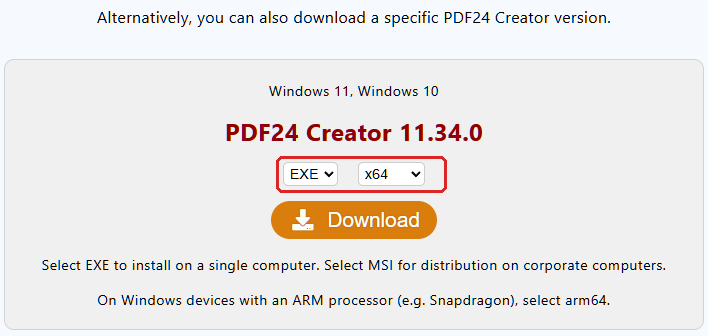
You can also install PDF24 Creator via the Microsoft Store.
Windows on ARM: use the "arm64" setup. Since version 11.32.0 the x64 setup can no longer be installed on ARM devices and points to the ARM64 version instead. An older x64 installation on an ARM device is replaced by the ARM64 version with the next update; your printers are kept.
Older Windows versions (Windows 7, 8, 8.1 and older) are no longer supported; the current setup cannot be installed there. Older versions of PDF24 Creator are available on the download page under "Show all versions"; the last version for Windows 7 is 9.2.2. They no longer get updates or fixes, and we cannot provide help for them. Whatever your operating system, the online tools in your browser remain an option.
If the installation fails or the PDF printer does not print, the solutions on the page PDF24 Creator: common problems and solutions help.
Privacy with the online tools
On a Mac, on Linux, a Chromebook or a phone you work with the online tools. For your files this means:
- The transfer is encrypted (SSL).
- The servers are located in Germany.
- Files are automatically deleted from the PDF24 server after one hour.
- Your files are used only for the function you run.
Companies using the online tools can create a data processing agreement (DPA) online themselves. If files must not leave the computer at all, PDF24 Creator is the right choice on Windows: it works offline and your files are not uploaded.
Would you like PDF24 for another system, or is a function missing? Write to us at team@pdf24.org.