Got a scan, a photo or a PDF where you can't select, copy or search any text? Then the page is just an image. Text recognition (OCR) reads the text in that image and puts it on the page as an invisible layer. The PDF looks exactly as before, but now you can search it and copy the text. PDF24 does this for free: online in your browser, or offline with PDF24 Creator for Windows.
Contents
- Which way suits you?
- Online: recognize text step by step
- In the online editor: recognize, correct, save as text
- Offline with PDF24 OCR
- Languages
- Rotate, deskew, remove background
- Pages that already contain text
- Automatically: while scanning, after printing, hot folder
- Command line (pdf24-Ocr.exe)
- Check the result, copy the text, save it as text
- Troubleshooting
Which way suits you?
- Quick, on any device: PDF OCR in your browser, also for photos and images (e.g. JPG, PNG, TIFF) and several files at once → Online
- Check and correct the recognized text right away: in the online editor, for text in Western European languages
- Files must not leave your PC, many or large files: the PDF24 OCR program that comes with the free PDF24 Creator → PDF24 OCR
- No clicking, every scan: hot folder or command line
The online tool works on Windows, Mac, Linux, iPhone and Android. Files are transferred encrypted and deleted from the server after one hour. PDF24 OCR in the Creator works on your PC; it only downloads each language file once (more).
Online: recognize text step by step
- Open PDF OCR.
- Click "Choose files" or drag PDFs or images into the file box.
- Under "Languages", choose the language of the document. You can pick several, e.g. English and German. The language of the website, or the one you used last, is preselected.
- Choose the "Output type": "PDF" (default) or "PDF/A" for archiving.
- Click "Start OCR" and download the result.
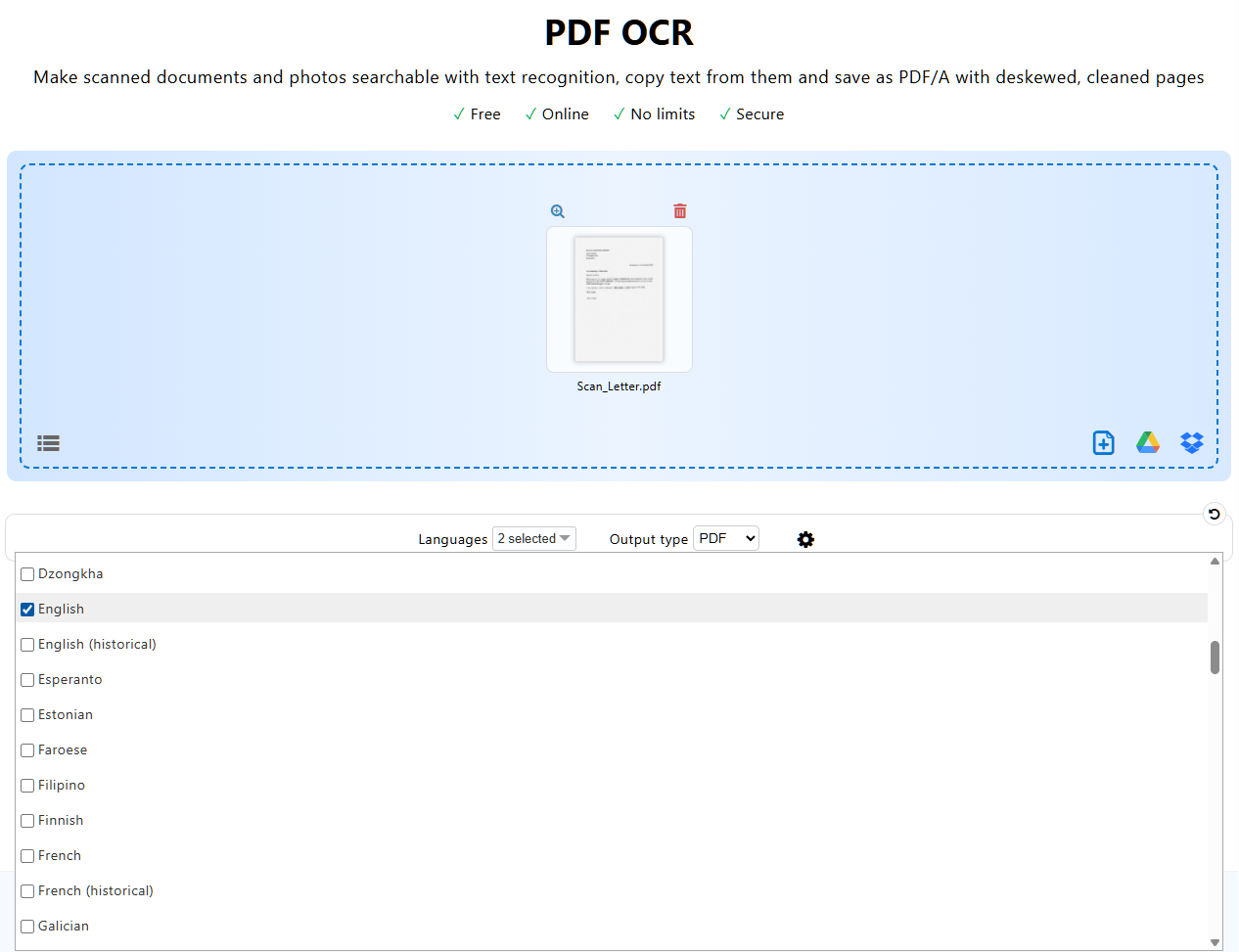
Additional options (gear icon)
- "Deskew pages" (ticked): straightens pages that were scanned slightly crooked.
- "Rotate pages": turns pages that lie sideways or upside down upright, based on the recognized text.
- "Remove background": removes a noisy background, e.g. grey or stained paper.
- "Clean pages": removes specks and dots from scanning.
- "Force OCR": also recognizes pages that already contain text (more).
- "Combine files": turns several files into one PDF, e.g. several photos.
- "Title", "Author", "Subject", "Keywords": written into the PDF's document properties.
The first four options are explained under Rotate, deskew, remove background.
Long documents: "Continue recognizing"
OCR takes time; with hundreds of pages it can take several minutes. With very long documents, one online run may not get through all pages. You then get the PDF with the pages recognized so far and the note "The time for one run was up". Click "Continue recognizing" to go on with the remaining pages; the pages already done stay as they are. This way even a very long document is recognized completely. Online, a file can be up to 1,000 MB. For very large files, PDF24 OCR on your PC is more convenient: it does everything in one go.
In the online editor: recognize, correct, save as text
In the PDF editor, text recognition runs directly in your browser. The advantage: you see the recognized text on the page right away and can fix single words.
- Open your PDF in Edit PDF.
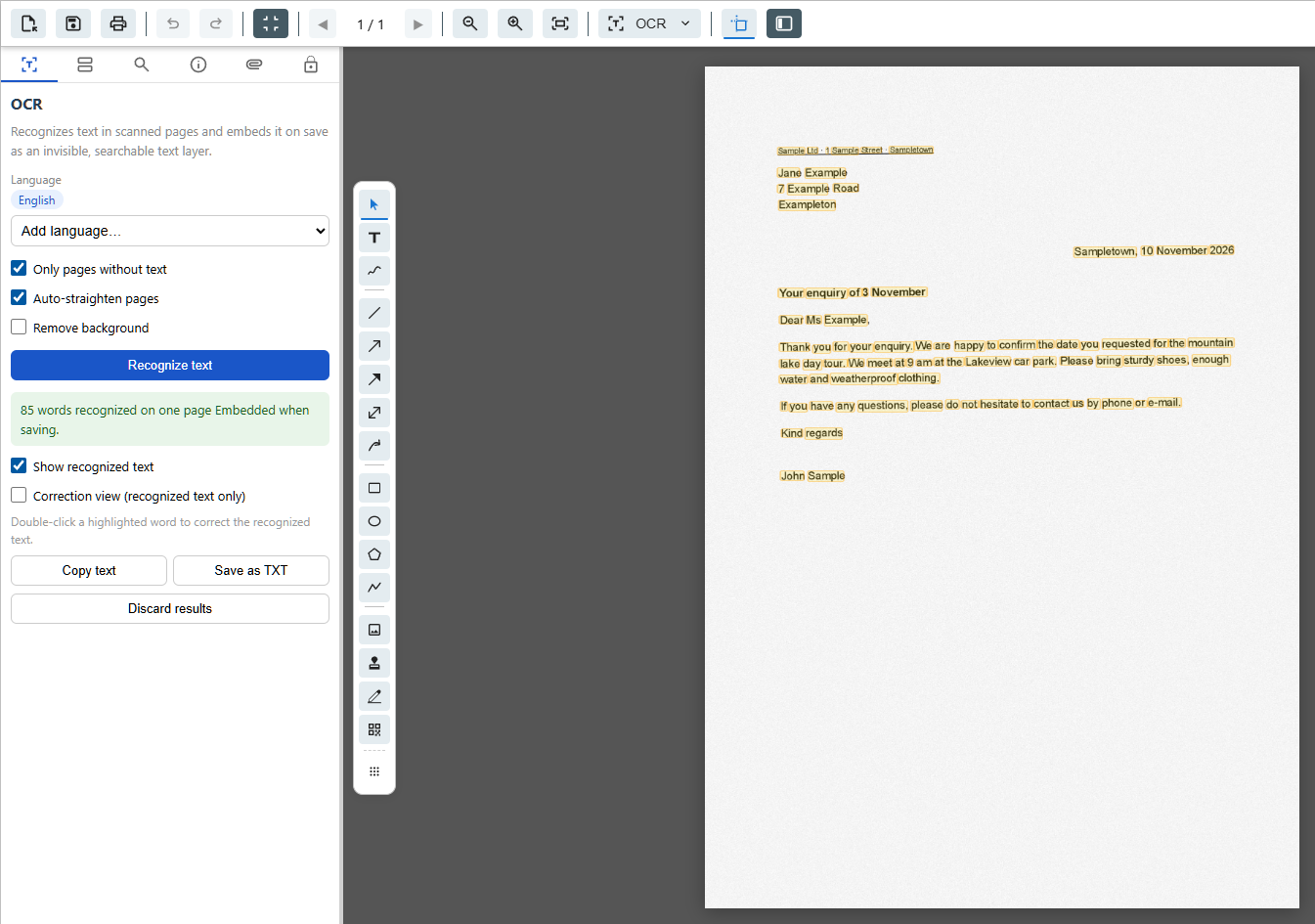
- At the top, click the button with the name of the mode ("Insert" when the editor opens) and choose the last entry, "OCR". The "OCR" panel opens on the left.
- Check the "Language" and set it to the language of your document; add more with "Add language…". "Only pages without text" and "Auto-straighten pages" are ticked; "Remove background" helps with a busy background.
- Click "Recognize text".
- To correct a word, double-click the highlighted word. After recognition the left panel switches to the inserted objects; click the "OCR" tab again. "Copy text" puts the whole text on the clipboard, "Save as TXT" saves it as a text file.
- Click "Save PDF". The recognized text is embedded in the PDF only when you save.
Other alphabets: for languages with letters beyond the Western European alphabet, e.g. Polish, Czech, Turkish, Russian, Greek or Chinese, use PDF OCR or PDF24 OCR. The editor doesn't store such characters correctly in the PDF when saving; "Copy text" and "Save as TXT" are not affected.
You can keep working on the same file in the editor, e.g. highlight text. Pages you redact are saved as images and are no longer searchable afterwards (Edit PDF).
Offline with PDF24 OCR
In PDF24 Creator, text recognition is done by the program PDF24 OCR. All of these open the same window:
- the "PDF OCR" tile in the PDF24 Toolbox (or "Open PDF24 OCR"),
- right-click the file in File Explorer › "PDF24" › "Recognize text" (on Windows 11 possibly under "Show more options"),
- "Recognize text" in the PDF24 Assistant after printing,
- "Forward file tools" › "OCR" in PDF24 Reader,
- "Recognize text" in the PDF24 Launcher.
To recognize the text:
- Drag PDFs or images into the list, or click "Add files" › "From filesystem".
- Choose the "Language" on the right (more).
- Click "Start". The list shows the progress and, at the end, the number of recognized words.
- Click "Save files". For one file, PDF24 asks for a location and name; for several, for a folder.
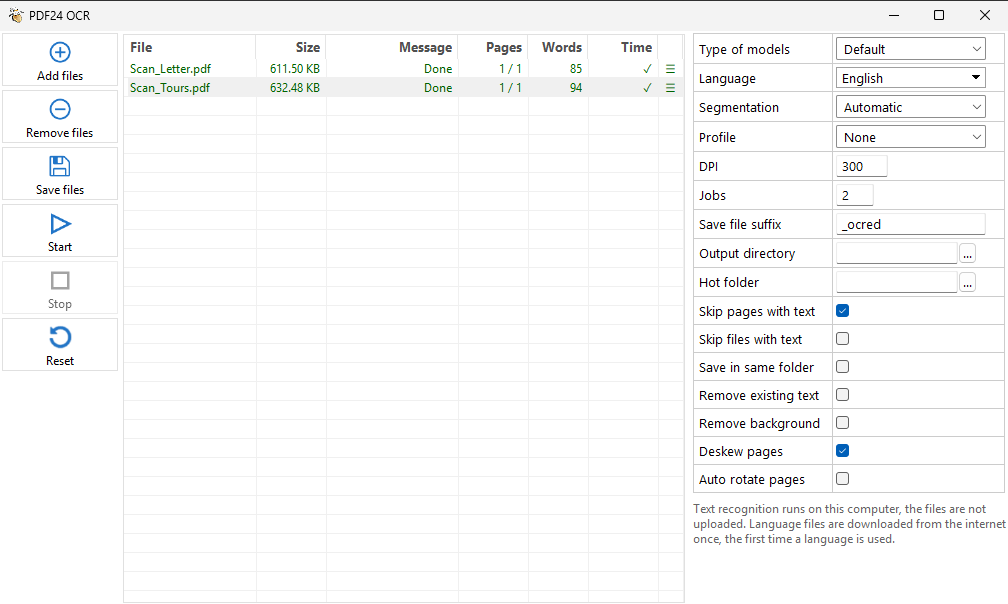
The settings
- "Type of models": "Default"; "FAST" is quicker but less accurate, "BEST" slower but the most accurate.
- "Language": one or more languages of the document.
- "Segmentation": how the page is split into blocks of text. "Automatic" usually fits. "Text block" helps when columns or tables get mixed up, "Sparse text" with forms, labels and drawings. The entries "Advanced: PSM 1" to "Advanced: PSM 13" choose a mode of the recognition engine directly.
- "Profile": an output profile applied after recognition, e.g. "Medium quality" for a smaller file, or your own profile. "None" leaves the file as it is.
- "DPI" (300): the resolution at which pages are read for recognition (more).
- "Jobs" (2): how many files are recognized at the same time.
- "Save file suffix" ("_ocred"): added to the file name, e.g. "Invoice_ocred.pdf".
- "Output directory" and "Save in same folder": when one of them is set, PDF24 OCR saves each result there as soon as it is done, without "Save files". The original stays.
- "Hot folder": a folder whose new files are recognized automatically (more).
- "Skip pages with text" (ticked), "Skip files with text", "Remove existing text": see Pages that already contain text.
- "Remove background", "Deskew pages" (ticked), "Auto rotate pages": see Rotate, deskew.
PDF24 OCR remembers your settings. Right-click a file in the list to open the result ("Open PDF with text"), the original or the recognized text.
Several images into one searchable PDF: each image you load into PDF24 OCR becomes a PDF of its own. To get one PDF from several images, use "Images to PDF" in the Toolbox, click "Continue" on the result and choose "PDF OCR". The PDF opens straight in PDF24 OCR without saving it first.
Languages
OCR works with language models. Always choose the language of the document: with the wrong one, special characters get lost; for example the German "für" turns into "fur". If a document mixes languages, choose all of them, e.g. English and German. More languages than needed make recognition slower.
PDF24 offers more than 100 languages, including Chinese, Japanese and Korean (also vertical), Arabic, Hebrew, Persian, Greek, Russian and Ukrainian, plus old scripts such as Fraktur.
Online, every language is available right away.
In PDF24 OCR, each language is downloaded once from the internet the first time you use it; after that it works offline. The language files are stored in your user profile. You don't have to install a separate component for them; the languages are not part of the setup.
PCs without internet access (e.g. in companies): you can also put the language files into the PDF24 folder permanently. PDF24 OCR then offers only these languages and downloads nothing. The steps are in the manual, chapter 10.2. After an update of PDF24, including the automatic one, copy the files into the PDF24 folder again.
Rotate, deskew, remove background
OCR reads straight, clean text best. These options improve scanned pages:
- Deskew (online and in PDF24 OCR "Deskew pages", on by default): straightens pages that were scanned slightly crooked. It only works on pages made of exactly one image, i.e. real scans, and only for a slight tilt.
- Rotate (online "Rotate pages", in PDF24 OCR "Auto rotate pages"): after recognition, turns whole pages by 90°, 180° or 270° so the text is upright. Text on sideways pages is recognized without this option too.
- Remove background: helps with grey, coloured or stained paper.
- Clean pages (online only): removes small specks and dots.
Deskewed pages and pages without background are saved as a new image, so the page itself changes. Without these options, OCR only puts the text over the existing page image.
To only straighten scans without OCR, use Straighten scans online. To rotate pages by hand: Rotate PDF pages.
In PDF24 OCR, these three options need the component "OpenJDK (GPL)". If it was deselected during installation, they are greyed out (fix).
Pages that already contain text
Normally OCR skips pages that already have text, because there is usually nothing to recognize. That is not always what you want:
- A scan with a few words of text, e.g. a stamp, a page number or the name of the scanning app, counts as a page with text and is skipped.
- A scan with poor text recognition, e.g. from the scanner or copier, should be recognized again.
To force recognition:
- Online: tick "Force OCR" behind the gear icon. An existing invisible text layer, e.g. from your scanner, is replaced; visible text stays. If PDF24 skipped nearly all pages, the result shows a note with a "Force OCR" button for a new run. This also applies to scans that already have text from an earlier text recognition, such as a PDF24 result you run through OCR again.
- In PDF24 OCR: untick "Skip pages with text". Every page is then recognized again; an invisible text layer, e.g. from your scanner or an earlier recognition, is replaced and visible text stays. If the file also has pages with real text (e.g. from Word), better keep the tick and tick "Remove existing text" instead: only visible text then counts as text, so pages with an earlier recognition are recognized again and pages with real text are skipped.
- In the online editor: "Only pages without text" only leaves out pages with a fair amount of text; a page number or a short stamp doesn't get in the way there. The editor does not replace an existing invisible text layer, so for such files use "Force OCR" online or PDF24 OCR.
PDF24 OCR shows in the list how many pages were skipped, e.g. "3 of 10 skipped".
With "Skip files with text", PDF24 OCR leaves out whole files that already contain text, which is handy for a folder that mixes scans and normal PDFs.
A PDF with real text, e.g. created from Word, doesn't need OCR. If you still can't search it, see Result not searchable.
Automatically: while scanning, after printing, hot folder
Scan with text recognition
- Open PDF24 OCR, e.g. with "PDF OCR" in the Toolbox.
- Click "Add files" › "From scanner".
- In the "Select source" window, tick "Collect files" so all pages become one PDF, for several pages on a flatbed scanner also "Close app manually", then click your scanner.
- Scan as usual. The scan appears in the PDF24 OCR list.
- Click "Start" and "Save files".
More about scanning, including with a phone camera: Create PDF: scanning.
After printing to the PDF24 printer
There is no setting that makes the PDF printer recognize text while printing. The shortest way: after printing, click "Recognize text" in the PDF24 Assistant. The file opens in PDF24 OCR without saving it first. Under "Profile" you can pick an output profile there, e.g. to make the file smaller.
To recognize every print job without clicking, let the printer save automatically into a folder and make that folder the hot folder of PDF24 OCR.
Hot folder: recognize every new scan automatically
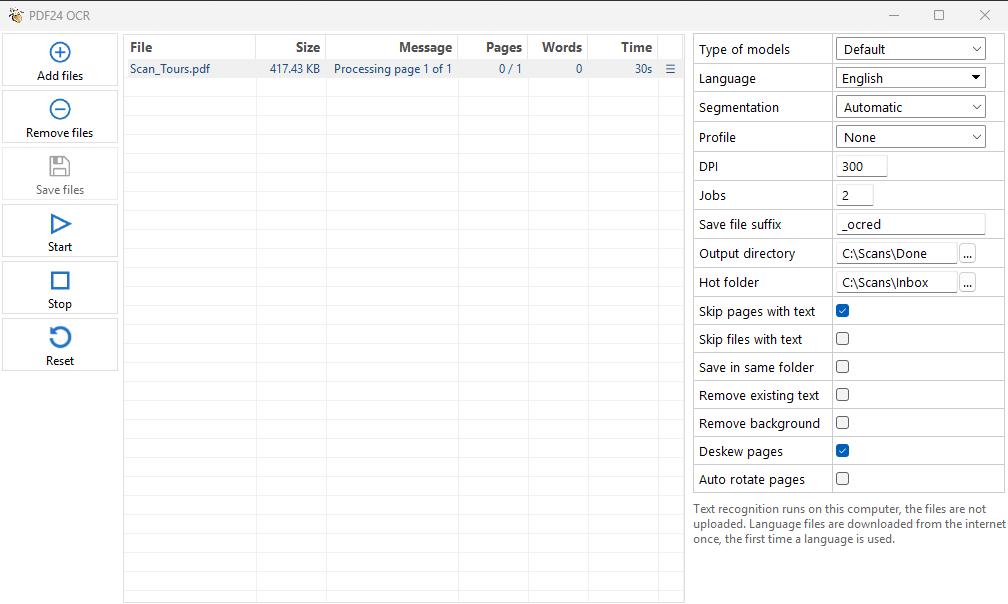
- Open PDF24 OCR and set the language and options.
- Under "Hot folder", choose the folder your scanner or printer saves to.
- If you like, choose an "Output directory" for the results.
Every PDF and image (JPG, PNG, TIFF, BMP, GIF, WebP) that lands in this folder is recognized and saved with the "Save file suffix": in the output directory or, if none is set, next to the original. The originals stay in the folder. Note:
- The folder is only watched while PDF24 OCR is open. Files that arrive in the meantime are processed the next time you open it.
- Subfolders are not watched.
- A file that is still being written waits until it is complete. An incomplete or damaged file is listed as "Incomplete"; click "Start" to recognize it anyway.
Command line (pdf24-Ocr.exe)
For scripts and large batches, run PDF24 OCR without a window. It recognizes exactly one file per call and saves the result to the file given with -outputFile:
"C:\Program Files\PDF24\pdf24-Ocr.exe" -outputFile "C:\Scans\Invoice_ocr.pdf" -language eng -skipPagesWithText -deskew "C:\Scans\Invoice.pdf"The switches:
-outputFile file: the result, always a PDF. Give the full path; a name without a folder ends up in the current folder of the command prompt.-language eng: the language; several joined with+, e.g.eng+deu. Without the switch, English (eng) is used.pdf24-Ocr.exe -listLanguageslists all language codes.-dpi 300: resolution for recognition, 300 is the default.-models best: model typedefault,fastorbest(like "Type of models").-applyProfile default/medium: output profile applied afterwards,default/lowtodefault/best, your own profiles asuser/Name, profiles set up for all users asall/Name.-skipPagesWithText,-skipFilesWithText: skip pages or files that contain text.-removeExistingText: remove the invisible text of earlier recognitions and recognize again.-deskew,-autoRotatePages,-removeBackground: deskew, rotate, remove background.-segmentationMode textBlock: segmentationauto,textBlock,sparseTextor a PSM number.
Good to know:
- On the command line every option is off until you give it. For the same result as in the window, add
-skipPagesWithTextand-deskew. The settings last used in the window don't apply here. - The square brackets in the manual mean "optional" and are not typed. Since version 11.34.0, pdf24-Ocr.exe reports misspelled switches and ends with exit code 3; upper and lower case don't matter.
- Exit code 0 = result saved, 1 = error (message on the console). To make a batch file wait for the end, start it with
start "" /wait. - With several files or without
-outputFile, the window opens with the files and the switches are not applied.
Recognize a whole folder (batch file; the folder C:\Scans\OCR must exist):
for %%f in ("C:\Scans\*.pdf") do start "" /wait "C:\Program Files\PDF24\pdf24-Ocr.exe" -outputFile "C:\Scans\OCR\%%~nf.pdf" -language eng -skipPagesWithText -deskew "%%f"Typed directly into the command prompt, use %f instead of %%f.
To get the text as a TXT file, run a second command:
"C:\Program Files\PDF24\pdf24-DocTool.exe" -convertTo -param outputFormat txt -silent -outputFile "C:\Scans\Invoice.txt" "C:\Scans\Invoice_ocr.pdf"All switches are described in the manual, chapter 10.1.
Check the result, copy the text, save it as text
Open the new PDF and search for a word with Ctrl+F, or select a line. If the word is found, recognition worked. The page itself stays an image with the text invisibly on top. That's why the PDF looks as before, and you only notice a misread word when you search or copy.
Using the text:
- Copy: select text in the PDF and press Ctrl+C.
- As a text file: online, convert the recognized PDF with PDF to Text; in the Toolbox use "Convert from PDF"; in the online editor use "Save as TXT". In PDF24 OCR, right-click › "Show recognized text" opens the text in your text editor; save it there before you close PDF24 OCR.
- Edit in Word: convert the recognized PDF to Word (Convert PDF to Word). A scanned PDF without OCR only gives images in Word.
Troubleshooting
No text is recognized ("0 words" or pages skipped)
- If the list says "skipped", or the online result says "Pages skipped because they already contain text", the page already has a little text: force recognition. If the online note says "… already contain text from an earlier text recognition (OCR)", the file has been recognized before; "Force OCR" with the right language replaces the old recognition.
- If the page is almost empty, very light or scanned very small, OCR finds nothing. Scan again at 300 dpi.
- Sideways or upside-down pages are recognized with the segmentation "Automatic" anyway. If you chose "Text block" or one of the "Advanced: PSM …" entries in PDF24 OCR, switch back to "Automatic".
Text is recognized poorly
- Check the language: a wrong or missing language is the most common cause of wrong accents and characters (Languages).
- Resolution: scan at 300 dpi, very small print at 400 to 600 dpi. Photos should be sharp, straight and well lit. In PDF24 OCR, the "DPI" field sets the resolution at which pages are read. Very large pages are read at a lower resolution automatically so that memory suffices.
- Model type "BEST" in PDF24 OCR is more accurate but slower.
- Columns, tables or forms get mixed up: in PDF24 OCR set "Segmentation" to "Text block" or "Sparse text".
- Crooked or stained scan: "Deskew pages", "Remove background", online also "Clean pages".
PDF24 uses the open-source OCR engine Tesseract. What its models don't recognize, PDF24 can't fix afterwards; fractions like ½, for example, often come out as digits.
Handwriting is not recognized
OCR is made for printed text. It usually doesn't recognize handwriting, or only fragments of it; the same goes for signatures and handwritten notes.
The result is not searchable
- Open the new file, not the original. Online it has the same name as the original, in your downloads folder often with "(1)" added; PDF24 OCR adds the suffix "_ocred".
- If all pages were skipped, the file is unchanged: force recognition.
- A web page printed from the browser often contains text that can't be searched. Save the page with "Save as PDF" in the browser, or recognize the text in PDF24 OCR with "Skip pages with text" turned off (more).
The text appears twice
The file has two text layers, e.g. from the scanner and from an older PDF24 version, another program or the online editor. Recognize it again: online with "Force OCR", in PDF24 OCR with "Remove existing text" or without "Skip pages with text"; both replace the invisible layer. A page with real text (e.g. from Word) needs no OCR: take the original and keep "Skip pages with text" ticked.
Removing the recognized text again
There is no function that deletes only the text layer. For scanned pages, Rasterize PDF helps: every page becomes an image and all text is gone. Set "DPI" to 300 there so the scan stays sharp. Use it for scans only, as real text would be lost too.
The file gets bigger
The text layer itself adds little. The file grows noticeably when you recognize photos (they are converted to PDF in best quality), with "PDF/A", or when pages are deskewed or have their background removed and are saved as a new image. To make it smaller again:
- In PDF24 OCR, choose e.g. "Medium quality" under "Profile".
- Afterwards, shrink it with Compress PDF; the invisible text layer stays (Compress PDF guide).
Large files, or recognition takes long
- Online: if a run ends before the last page, click "Continue recognizing" (more).
- PDF24 OCR does everything in one go. For several files at once, increase "Jobs". A single large file is recognized page by page; "FAST" is quicker.
- While working, PDF24 OCR keeps page images in the temp folder. Very large files need plenty of free disk space; the images are deleted when you close PDF24 OCR.
Language errors ("Language information update failed")
PDF24 OCR needs internet access for a new language. Check your connection and any proxy or firewall blocking creator.pdf24.org or download.pdf24.org. On PCs without internet, install the language files permanently (Languages). If an error remains after an aborted recognition, click "Reset" in PDF24 OCR.
PDF OCR is missing in the Toolbox, or options are greyed out
- OCR needs the component "Tesseract (Apache License 2.0)". If it was deselected during installation, OCR is missing, or PDF24 says "For this function no suitable component is installed: Tesseract". Run the setup of PDF24 Creator again and select the component; your settings stay.
- "Deskew pages", "Remove background" and "Auto rotate pages" need "OpenJDK (GPL)".
- In companies, the administrator can switch OCR off. Ask your IT department.
More about problems with PDF24 Creator: PDF24 Creator troubleshooting.
Command line: no output file
- If pdf24-Ocr.exe reports an unknown switch (exit code 3), check the spelling and don't type the square brackets.
- Exit code 1: the message on the console names the reason; also check that the folder of
-outputFileexists. - If the window opens,
-outputFileis missing or several files were given.
Missing a feature or something doesn't work? Write to team@pdf24.org or ask in the PDF24 forum.