With the free PDF24 Creator you can create e-invoices (ZUGFeRD, Factur-X, XRechnung, Peppol) without filling in a form: one call of the PDF24 Toolbox turns a JSON or XML file from your program into a finished e-invoice. This lets you connect e-invoicing to your ERP, inventory system, Access, Excel or your own script. Everything runs locally on your PC.
This page describes the command, all switches, the JSON format with its required fields, and a complete example you can copy.
Contents
- What you need
- Which way suits your program?
- The -createInvoice command
- All switches and output formats
- XML as input: an existing XRechnung or ZUGFeRD XML
- JSON as input: the format
- Examples: batch file and PowerShell
- E-invoices from Access, Excel or your ERP system
- Exit codes and error messages
- Common mistakes
- Check the result
What you need
- PDF24 Creator for Windows, free: Download PDF24 Creator. Use the current version; some options on this page only exist from a certain version on, which is then stated.
- The "OpenJDK" component (Java). It is preselected during installation. If you choose a custom installation, leave it ticked: without it there are no e-invoices on the command line.
- The path to the PDF24 Toolbox. With a standard installation it is:
C:\Program Files\PDF24\pdf24-Toolbox.exeIf you installed PDF24 in a different folder, use the path from there. Always put the path in quotes because it contains spaces.
The e-invoice is created on your PC; PDF24 doesn't upload anything for it. Only if you give a logo or an attachment as an internet address in the invoice data does PDF24 download that file from there.
The examples on this page use the folder C:\Rechnungen ("Rechnungen" is German for invoices) and German sample data. Replace them with your own folders and data.
Which way suits your program?
- Your program already creates an XML invoice (XRechnung, ZUGFeRD or Factur-X as CII or UBL). Then give the XML as input. PDF24 turns it into a readable PDF with the XML embedded, or embeds the XML in your own PDF invoice. This is the easiest way because your program has already calculated the amounts correctly. See XML as input.
- Your program can write a text file but no e-invoice XML. Then write the invoice data as a JSON file. PDF24 calculates totals and taxes itself and creates the PDF and the XML. See JSON as input.
- You don't want to program, but you have many invoices, e.g. in an Excel sheet. Then serial invoices in the e-invoice tool are easier: Serial invoices without programming.
For single invoices by hand, use the "Create electronic invoice" tool in the PDF24 Toolbox or online: Create electronic invoice. For an overview, see the page Create e-invoices with PDF24.
The -createInvoice command
"C:\Program Files\PDF24\pdf24-Toolbox.exe" -createInvoice INPUTFILE OUTPUTFILE -outputType FORMAT [more switches]An example that turns a JSON file into a ZUGFeRD invoice:
"C:\Program Files\PDF24\pdf24-Toolbox.exe" -createInvoice "C:\Rechnungen\RE-2026-001.json" "C:\Rechnungen\RE-2026-001.pdf" -outputType zugferd:en16931Important:
- Right after
-createInvoicecome two paths: first the input file, then the output file. If you forget the output file, the Toolbox takes the next word as the file name (you then get e.g. a file called "-outputType"). - The input file must end in
.jsonor.xml. - The output file is saved under exactly the name you give, and an existing file is overwritten. Use
.pdffor PDF and ZUGFeRD output and.xmlfor pure XML invoices; PDF24 doesn't change the extension. - Paths with spaces belong in quotes. Ideally give full paths; then it doesn't matter from which folder your program starts the command.
- Without
-outputTypeyou only get a normal PDF invoice without XML, i.e. not an e-invoice.
The description in the PDF24 Creator manual is here: Manual, section Create invoices.
All switches and output formats
Write the switches as shown here, with the hyphen. Since version 11.34.0 upper and lower case don't matter (-outputtype works like -outputType), and an unknown or mistyped switch stops the command with a message and exit code 3. Up to version 11.33.0 upper and lower case matter, and a mistyped switch is not reported but skipped (see Common mistakes).
-outputType: the output format
zugferd:en16931– PDF with the embedded file factur-x.xml in the EN 16931 profile (ZUGFeRD/Factur-X). The usual format for invoices to businesses.zugferd:xrechnung– PDF with the embedded file xrechnung.xml (ZUGFeRD in the XRechnung profile).xrechnung:cii– the XML file only, XRechnung in CII syntax.xrechnung:ubl– the XML file only, XRechnung in UBL syntax.en16931:cii– the XML file only, according to EN 16931, CII syntax.en16931:ubl– the XML file only, according to EN 16931, UBL syntax.peppol:ubl– the XML file only, for the Peppol network (Peppol BIS Billing 3.0, UBL).pdf– only a readable PDF invoice without XML. This is not an e-invoice. This value applies if you leave out-outputType.
Which format your recipient needs is explained on the page Create e-invoices with PDF24. In Germany, public authorities usually require XRechnung, businesses often accept ZUGFeRD.
-pdfFile: use your own PDF
-pdfFile "C:\Rechnungen\RE-2026-001.pdf" – PDF24 then doesn't create its own PDF but takes yours, converts it to PDF/A-3 and embeds the XML. This way the invoice keeps your layout and letterhead. Only useful together with a zugferd: format.
-pdfaFile: use your PDF/A-3 file
-pdfaFile "C:\Rechnungen\RE-2026-001.pdf" – like -pdfFile, but without conversion. Only for files that are already PDF/A-3. If in doubt, use -pdfFile.
-pdfFile and -pdfaFile must always be followed by a path. If the switch stands alone at the end, the Toolbox reports it as an unknown option since version 11.34.0 (exit code 3); up to version 11.33.0 it is skipped.
-passthrough: take over your XML unchanged
Only for a CII XML as input with a zugferd: format. PDF24 then creates the PDF from the data in the XML but embeds your XML file unchanged instead of rewriting it. With -pdfFile or -pdfaFile you don't need this switch; your CII XML is then embedded unchanged anyway.
-regenerateXml: rewrite the XML
Only together with an XML input and -pdfFile or -pdfaFile. PDF24 then doesn't embed your XML unchanged but reads it and writes it anew. Since version 11.29.0.
-langCode: language of the PDF
-langCode en – the labels of the created PDF (e.g. "Invoice", "Invoice Date") in this language, e.g. de, en or fr. Without the switch the PDF is in German, so add -langCode en for English invoices. The XML is not affected. Since version 11.29.0.
-langFile: your own labels
-langFile "C:\Rechnungen\beschriftungen.txt" – a file with your own texts for the labels of the PDF. You can get a template for this file on request at team@pdf24.org. Since version 11.29.0.
XML as input: an existing XRechnung or ZUGFeRD XML
The Toolbox reads XML invoices in CII and UBL syntax (XRechnung, ZUGFeRD/Factur-X from profile EN 16931 up, Peppol). This lets you do the following:
A readable PDF from an XML invoice (e.g. to print a received XRechnung):
"C:\Program Files\PDF24\pdf24-Toolbox.exe" -createInvoice "C:\Rechnungen\RE-4711.xml" "C:\Rechnungen\RE-4711-ansicht.pdf" -outputType pdfCombine your PDF and your XML into a ZUGFeRD invoice:
"C:\Program Files\PDF24\pdf24-Toolbox.exe" -createInvoice "C:\Rechnungen\RE-4711.xml" "C:\Rechnungen\RE-4711-zugferd.pdf" -outputType zugferd:en16931 -pdfFile "C:\Rechnungen\RE-4711.pdf"A CII XML is embedded unchanged, a UBL XML is converted to CII (since version 11.31.0). Marking and file name follow your XML, not -outputType: an XRechnung stays an XRechnung (xrechnung.xml), even with zugferd:en16931, and an XML in the EXTENDED profile is marked as EXTENDED. More on the page Convert a PDF invoice to an e-invoice: Which XML works?
Turn an XML into a ZUGFeRD PDF with an invoice page created by PDF24: as above, but without -pdfFile. With -passthrough your CII XML stays unchanged.
Convert UBL to CII (or the other way round): give the XML as input and as the format e.g. en16931:cii or xrechnung:ubl.
A logo or other settings for the PDF can't be passed with an XML input; the XML has no fields for them. If you need a logo: use your own PDF with the logo (-pdfFile) or supply the data as JSON.
How to combine PDF and XML without the command line, in the Toolbox or online, is described on the page Convert a PDF invoice to an e-invoice.
Directly when printing from your program
If your program prints the invoice and writes the XML to a file, the PDF24 printer can combine both in one step:
- Open the PDF24 settings, section "PDF Printer".
- Set saving to "Automatically save documents after printed" and tick "Recognize control codes in the printed document".
- Enter under "Execute the following command after saving":
"C:\Program Files\PDF24\pdf24-Toolbox.exe" -createInvoice $cmdArgs -outputType zugferd:en16931 -pdfFile "$file"- Have your program print a control code on the invoice that names the XML file and the target file, e.g.
@@cmdargs:"C:\Rechnungen\RE-4711.xml" "C:\Rechnungen\RE-4711-zugferd.pdf"@@.
$file is the PDF just saved, $cmdArgs the content of the control code. Control codes are described in the manual in the chapter on the PDF printer.
JSON as input: the format
The JSON file uses the same format that the e-invoice tool saves when you export an invoice. But you don't have to supply everything: PDF24 calculates totals, tax amounts and much more itself.
Tip: create an invoice in the tool and export it
The quickest way to see the format:
- Open "Create electronic invoice" in the PDF24 Toolbox, or online Create electronic invoice.
- Fill in a sample invoice, ideally with logo, attachment and everything you need.
- Open the menu at the top right (next to it it says "Import, export, load, save, ...") and choose "Export invoice".
- Open the saved JSON file in a text editor.
With "Import invoice" in the same menu you load a JSON file back into the form, e.g. to see whether your program wrote it correctly.
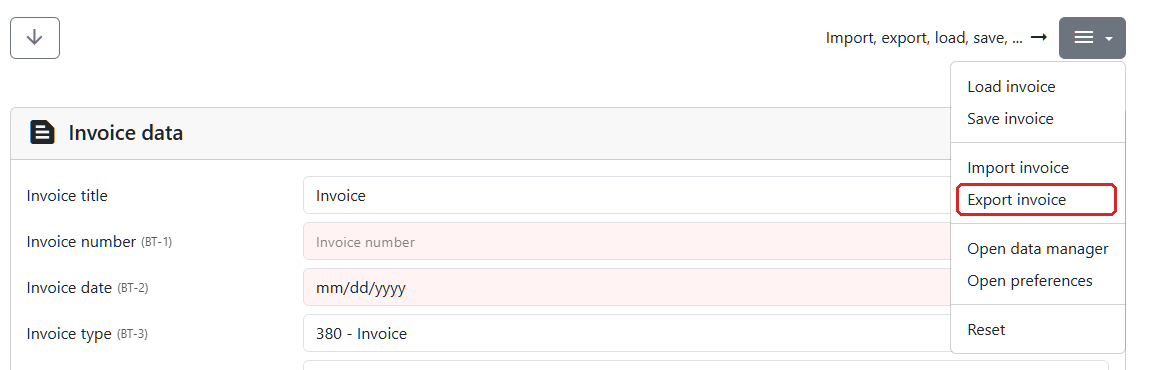
Important: use the "Create electronic invoice" tool. The JSON file from the "Create invoice" tool (normal invoice without XML) has a different format and doesn't fit.
If you use an exported file as a template: delete the "totals" and "taxes" sections and, for the line items, "netAmount", "taxAmount" and "grossAmount". These are the results of the sample invoice. If they stay, PDF24 also takes them over for new line items, and the totals no longer add up (see Specified amounts).
A complete example
This file produces a valid e-invoice in all eight formats (for Peppol see the electronic addresses below). Save it as UTF-8, e.g. as C:\Rechnungen\RE-2026-001.json:
{
    "number": "RE-2026-001",
    "typeCode": "380",
    "issueDate": "2026-11-11",
    "dueDate": "2026-11-25",
    "deliveryDate": "2026-11-10",
    "currencyCode": "EUR",
    "buyerReference": "PO-4711",
    "seller": {
        "name": "Muster GmbH",
        "vatId": "DE123456789",
        "electronicAddress": "rechnung@muster-gmbh.de",
        "address": {
            "line1": "Hauptstraße 1",
            "postCode": "10115",
            "city": "Berlin",
            "countryCode": "DE"
        },
        "contact": {
            "name": "Max Mustermann",
            "phone": "+49 30 123456",
            "email": "max@muster-gmbh.de"
        }
    },
    "buyer": {
        "name": "Beispiel AG",
        "electronicAddress": "eingang@beispiel-ag.de",
        "address": {
            "line1": "Marktplatz 5",
            "postCode": "80331",
            "city": "München",
            "countryCode": "DE"
        }
    },
    "payment": {
        "terms": "Zahlbar bis [due_date] ohne Abzug.",
        "methods": [
            {
                "typeCode": "58",
                "iban": "DE02120300000000202051",
                "accountName": "Muster GmbH"
            }
        ]
    },
    "items": [
        {
            "name": "Beratung",
            "quantity": 2,
            "unit": "HUR",
            "netUnitPrice": 120.00,
            "vatRate": 19
        },
        {
            "name": "Fachbuch",
            "quantity": 5,
            "unit": "H87",
            "netUnitPrice": 4.99,
            "vatRate": 7
        }
    ]
}
From this PDF24 calculates: line items 240.00 and 24.95 EUR, net 264.95 EUR, VAT 45.60 EUR (19 %) and 1.75 EUR (7 %), total and amount due 312.30 EUR. [due_date] becomes "25.11.2026" (the default date format; you can change it in outputOptions, see below).
Structure of the file
The file is a JSON object with these sections (in brackets the number in the EN 16931 standard):
- Invoice header:
numberinvoice number (BT-1),issueDateinvoice date (BT-2),typeCodeinvoice type (BT-3, default 380 = invoice),currencyCodecurrency (BT-5, e.g.EUR),dueDatedue date (BT-9),buyerReferencebuyer reference, in Germany also the Leitweg-ID (BT-10),deliveryDatedelivery date (BT-72),billingPeriodStartandbillingPeriodEndbilling period (BT-73, BT-74),buyerOrderReferencepurchase order number (BT-13),contractReferencecontract number (BT-12),projectReferenceproject number (BT-11),notesnotes (BT-22, a text or a list of texts). seller, the invoice issuer:name(BT-27),vatIdVAT ID (BT-31),taxIdtax number (BT-32),idseller identifier (BT-29),tradeIdtrade register number (BT-30),electronicAddresselectronic address (BT-34),address,contact(BG-6) withname,phone,email, pluslogoFilefor the logo.buyer, the invoice recipient:name(BT-44),idcustomer number (BT-46),vatId(BT-48),electronicAddress(BT-49),address,contact.address(for seller and buyer):line1,line2,line3street and additional lines,postCode,city,countryCode(two letters, e.g.DE).payment:termspayment terms (BT-20),referenceremittance information (BT-83),methodsa list of payment means withtypeCode(BT-81, e.g.58SEPA credit transfer,59SEPA direct debit,10cash),iban,bic,accountNameaccount holder, for direct debitdirectDebitMandateandcreditorId.items, the line items, per item:name(BT-153),description(BT-154),quantity(BT-129),unitunit code (BT-130, e.g.H87piece,HURhour,C62unit; defaultH87),netUnitPricenet price per unit (BT-146),vatRatetax rate in percent (BT-152),vatCodetax category (BT-151),sellerIditem number (BT-155),quantityUnitSymbolabbreviation for the PDF (e.g. "hrs" instead of "HUR"),allowancesandchargesfor allowances and charges on the item.allowancesandchargesat invoice level: allowances (BG-20) and charges (BG-21) such as shipping costs.attachments: supporting documents (BG-24).outputOptions: settings for the PDF, see below.
Write dates as 2026-11-11 (11.11.2026 is also read). Amounts and quantities are JSON numbers with a decimal point and without quotes.
Required fields
PDF24 doesn't check on the call whether all required details are there. If something is missing, a file is still created, which the recipient then rejects. Which details are required depends on the chosen format. For a normal invoice with VAT the following applies (tested with the official validation rules):
For all formats (ZUGFeRD zugferd:en16931, en16931:cii, en16931:ubl):
number,issueDate,currencyCodedeliveryDateorbillingPeriodStart/billingPeriodEnd(required for ZUGFeRD, recommended for XRechnung)dueDateorpayment.terms- for the seller
nameandaddresswithcountryCode, plusvatId(or, for invoices without VAT,taxIdandid, see below) - for the buyer
nameandaddresswithcountryCode - per line item
name,quantity,netUnitPriceandvatRate
The standard doesn't require the postcode (postCode) and city (city) yet; give them anyway, they belong in every complete address.
Additionally for XRechnung (xrechnung:cii, xrechnung:ubl, zugferd:xrechnung), the German format:
postCodeandcityin theaddressof seller and buyerbuyerReference, for German public authorities the Leitweg-IDseller.contactwithname,phoneandemailseller.electronicAddressandbuyer.electronicAddresspayment.methodswith at least one payment means, for credit transfer withiban
If these details are missing, validators report XRechnung rules such as BR-DE-15 (buyer reference BT-10 missing), BR-DE-2 (seller contact BG-6 missing) or BR-DE-1 (payment instructions BG-16 missing). The XRechnung rule texts are in German, e.g. "[BR-DE-15] Das Element "Buyer reference" (BT-10) muss übermittelt werden.". What such messages mean is explained on the page E-invoice validation errors and common problems.
Additionally for Peppol (peppol:ubl): like XRechnung, the electronic addresses, but with a Peppol scheme, see the next section. If the seller is based in Germany, additional German rules apply in Peppol which, among other things, require postCode and city.
Electronic address and scheme
Without further details, the electronic address (electronicAddress) is an e-mail address (scheme EM). That is enough for XRechnung and ZUGFeRD. Peppol doesn't allow EM; there you give the scheme with electronicAddressScheme, e.g. 9930 for a German VAT ID, 0204 for a Leitweg-ID or 0088 for a GLN:
"electronicAddress": "DE123456789",
"electronicAddressScheme": "9930"
Which address and which scheme your recipient expects, you find out from them.
What PDF24 calculates itself
Leave these fields out and PDF24 calculates them:
- per line item the net amount (quantity × price, minus allowances, plus charges), the VAT and the gross amount
- the tax category of a line item:
S(standard rate) for a tax rate above 0,E(exempt) for 0 - the VAT breakdown per tax rate (BG-23)
- all totals: sum of line items, allowances, charges, net, VAT, gross and the amount due (BT-106 to BT-115)
- allowances and charges with
percent: base amount and amount
In the payment terms (terms) PDF24 replaces placeholders: [due_date] or [Fälligkeitsdatum], [due_amount] or [Endbetrag], [invoice_number] or [Rechnungsnummer], [issue_date] or [Rechnungsdatum], [IBAN]. In the remittance information (reference), [invoice_number] and [Kundennummer] work.
Specified amounts are not recalculated
If you supply amounts, such as the netAmount of a line item or the totals or taxes section, PDF24 takes them over as they are and doesn't recalculate them. If they don't match the line items, you get an invoice with wrong totals that validators reject, e.g. with "[BR-CO-14] Invoice total VAT amount (BT-110) = Σ VAT category tax amount (BT-117)" or, with allowances, with Peppol rules such as R120 and R040.
So: either supply amounts that are consistent, or leave them out and let PDF24 calculate. Leaving them out is the safe way. Exception: if your program rounds differently and the invoice must show exactly your amounts, supply all amounts completely.
Allowances and charges
A discount on a line item:
{ "name": "Beratung", "quantity": 2, "unit": "HUR", "netUnitPrice": 120.00, "vatRate": 19,
  "allowances": [ { "percent": 10, "reason": "Rabatt" } ] }
Shipping costs as a charge on the whole invoice, at the same level as items:
"charges": [ { "netAmount": 5.90, "reason": "Versand", "vatCode": "S", "vatRate": 19 } ]For allowances and charges at invoice level, always give vatCode and vatRate. Unlike for line items, PDF24 doesn't derive the tax category from the tax rate there; without vatCode validators reject the invoice. Allowances on a line item take over the tax of the line item.
Logo and attachments
On the command line, the logo and attachments may point to files on your PC; you don't have to base64-encode them:
"seller": {
    "name": "Muster GmbH",
    "logoFile": "C:\\Rechnungen\\logo.png",
    ...
},
"attachments": [
    {
        "file": "C:\\Rechnungen\\Leistungsnachweis.pdf",
        "filename": "Leistungsnachweis.pdf",
        "description": "Leistungsnachweis Oktober"
    }
]- In JSON every backslash is doubled:
C:\\Rechnungen\\logo.png. - Instead of
logoFileyou can uselogoUrl(internet address), instead offileyou can useurl. An exported file contains the logo and attachments base64-encoded (logoData,base64); that works too. - Always give
filenamefor an attachment. Without the name, the creation aborts. - File paths and internet addresses are only read when called with
-createInvoice. If you open such a JSON file in PDF24 Creator, the logo and attachments from file paths are left out (since version 11.31.0, so that someone else's invoice data can't bring files from your PC into a PDF).
The attachments are embedded in the ZUGFeRD PDF as files next to the XML and are listed on the invoice under "Attachments" (with German labels "Anlagen").
Appearance of the PDF: outputOptions
With the outputOptions section you control the created PDF, e.g.:
"outputOptions": {
    "addressWindowMode": "din5008",
    "logoSizeMode": "large",
    "noteSubjectCodeDisplayMode": "hidden",
    "langCode": "en"
}
"addressWindowMode": "din5008"– layout according to the German standard DIN 5008 for window envelopes"logoSizeMode":"large"or"xlarge"– larger logo;"logoDisplayMode": "right"– logo on the right above the payment details"noteSubjectCodeDisplayMode": "hidden"– hide codes such as "AAB" in front of the notes"quantityUnitDisplayMode": "hidden"– no unit after the quantity"langCode"– language of the PDF, like the-langCodeswitch"dateFormat"– date format of the PDF:"dd.mm.yyyy"(default),"dd/mm/yyyy","mm/dd/yyyy","yyyy-mm-dd"or"yyyy/mm/dd";"decimalSeparator"– e.g."."instead of the default comma in amounts on the PDF. The XML is not affected.
The easiest way is to set the output options in the tool, export an invoice and take the outputOptions section from the file. A completely custom layout isn't possible via JSON. For that, create the PDF yourself and pass it with -pdfFile.
Invoice without VAT (e.g. small businesses in Germany)
For invoices without VAT, set "vatRate": 0 for every line item (PDF24 then chooses category E, exempt) and give the reason at the top level. If the seller has no VAT ID, enter the tax number in taxId and a seller identifier in id (e.g. the company name), otherwise validation reports BR-CO-26. The example shows the wording used by small businesses in Germany (§ 19 UStG):
"taxExemptionReason": "Kein Ausweis von Umsatzsteuer, da Kleinunternehmer gemäß § 19 UStG",
"seller": {
    "name": "Muster GmbH",
    "taxId": "12/345/67890",
    "id": "Muster GmbH",
    ...
}
Which tax category and which wording are right for your invoices, your tax advisor will tell you.
Notes on writing the file
- Character set UTF-8. In a file in the Windows character set (ANSI), umlauts and other special characters silently turn into wrong characters. UTF-8 with or without BOM both work.
- Numbers without quotes and with a decimal point:
"netUnitPrice": 120.50. An amount as text ("120.50") is silently read as 0, a comma (120,50) makes the file invalid. - Texts with quotes or backslashes must be escaped:
\"and\\. A line break in a text becomes\n. - Only real JSON: no comments, no comma after the last entry of a list.
Examples: batch file and PowerShell
All JSON files in a folder (batch file)
Save this as erechnungen.cmd. It creates a ZUGFeRD PDF with the same name in C:\Rechnungen\pdf from every JSON file in C:\Rechnungen\json and writes errors to a log file:
@echo off
set TOOLBOX="C:\Program Files\PDF24\pdf24-Toolbox.exe"
for %%f in ("C:\Rechnungen\json\*.json") do (
  %TOOLBOX% -createInvoice "%%f" "C:\Rechnungen\pdf\%%~nf.pdf" -outputType zugferd:en16931 >> "C:\Rechnungen\protokoll.txt" 2>&1
  if errorlevel 1 echo Error with %%~nxf >> "C:\Rechnungen\fehler.txt"
)
In a batch file, Windows waits each time until the Toolbox has finished before the next invoice starts.
Combine PDF and XML in pairs (batch file)
If a folder contains a PDF and an XML with the same name for each invoice (RE-4711.pdf, RE-4711.xml), this creates one RE-4711-zugferd.pdf each:
@echo off
set TOOLBOX="C:\Program Files\PDF24\pdf24-Toolbox.exe"
for %%f in ("C:\Rechnungen\paare\*.xml") do (
  if exist "%%~dpnf.pdf" %TOOLBOX% -createInvoice "%%f" "%%~dpnf-zugferd.pdf" -outputType zugferd:en16931 -pdfFile "%%~dpnf.pdf"
)
All JSON files in a folder (PowerShell)
In PowerShell the simple call with & does not wait until the Toolbox has finished. So use Start-Process with -Wait:
$toolbox = 'C:\Program Files\PDF24\pdf24-Toolbox.exe'
Get-ChildItem 'C:\Rechnungen\json\*.json' | ForEach-Object {
    $out = Join-Path 'C:\Rechnungen\pdf' ($_.BaseName + '.pdf')
    $p = Start-Process -FilePath $toolbox -Wait -PassThru -NoNewWindow `
        -ArgumentList "-createInvoice `"$($_.FullName)`" `"$out`" -outputType zugferd:en16931"
    if ($p.ExitCode -ne 0) { Write-Warning "Error with $($_.Name)" }
}
E-invoices from Access, Excel or your ERP system
There is no ready-made connection for Access or particular ERP systems, but the way is always the same: your program writes the invoice data as a JSON file (or an XML invoice) and then calls the Toolbox. It's important that your program waits until the Toolbox has finished and evaluates the exit code.
Access and Excel (VBA)
A template is convenient: export a sample invoice from the e-invoice tool (see tip above), delete totals, taxes and the amounts of the line items, replace the changing values with placeholders such as "{{NUMMER}}" and the line items with "items": []. Your fixed details (company, bank details, logo) stay in the template.
This module fills the template, saves the JSON file as UTF-8 and creates the ZUGFeRD invoice:
Private Const TOOLBOX As String = "C:\Program Files\PDF24\pdf24-Toolbox.exe"

' Escape text for JSON (without the surrounding quotes)
Public Function JsonText(ByVal text As String) As String
    text = Replace(text, "\", "\\")
    text = Replace(text, """", "\""")
    text = Replace(text, vbCrLf, "\n")
    text = Replace(text, vbLf, "\n")
    text = Replace(text, vbCr, "\n")
    text = Replace(text, vbTab, "\t")
    JsonText = text
End Function

' Number for JSON: always with a decimal point, whatever the regional settings
Public Function JsonNum(ByVal wert As Double) As String
    JsonNum = Replace(Format(wert, "0.00##"), ",", ".")
End Function

Private Function LeseUtf8(ByVal pfad As String) As String
    With CreateObject("ADODB.Stream")
        .Type = 2: .Charset = "utf-8": .Open
        .LoadFromFile pfad
        LeseUtf8 = .ReadText
        .Close
    End With
End Function

Private Sub SpeichereUtf8(ByVal pfad As String, ByVal inhalt As String)
    With CreateObject("ADODB.Stream")
        .Type = 2: .Charset = "utf-8": .Open
        .WriteText inhalt
        .SaveToFile pfad, 2
        .Close
    End With
End Sub

' Starts the Toolbox, waits for it to finish and returns True if the file was created
Public Function ErzeugeERechnung(ByVal jsonDatei As String, ByVal pdfDatei As String) As Boolean
    Dim befehl As String
    befehl = """" & TOOLBOX & """ -createInvoice """ & jsonDatei & """ """ & pdfDatei & _
             """ -outputType zugferd:en16931"
    ' 0 = no window, True = wait; the return value is the exit code
    ErzeugeERechnung = (CreateObject("WScript.Shell").Run(befehl, 0, True) = 0)
End Function
Example for Access with a table Rechnungen (invoices) and a table Positionen (line items); adapt the field names to your database:
Public Sub RechnungAlsERechnung(ByVal rechnungId As Long)
    Dim re As DAO.Recordset, pos As DAO.Recordset
    Dim positionen As String, json As String, nr As String

    Set re = CurrentDb.OpenRecordset("SELECT * FROM Rechnungen WHERE ID = " & rechnungId)
    Set pos = CurrentDb.OpenRecordset("SELECT * FROM Positionen WHERE RechnungID = " & rechnungId)
    nr = Nz(re!RechnungsNr, "")

    Do Until pos.EOF
        If Len(positionen) > 0 Then positionen = positionen & ","
        positionen = positionen & "{""name"": """ & JsonText(Nz(pos!Bezeichnung, "")) & """" & _
            ", ""quantity"": " & JsonNum(pos!Menge) & _
            ", ""unit"": ""H87""" & _
            ", ""netUnitPrice"": " & JsonNum(pos!Einzelpreis) & _
            ", ""vatRate"": " & JsonNum(pos!MwStSatz) & "}"
        pos.MoveNext
    Loop

    json = LeseUtf8("C:\Rechnungen\vorlage.json")
    json = Replace(json, "{{NUMMER}}", JsonText(nr))
    json = Replace(json, "{{DATUM}}", Format(re!Rechnungsdatum, "yyyy-mm-dd"))
    json = Replace(json, "{{LEISTUNGSDATUM}}", Format(re!Leistungsdatum, "yyyy-mm-dd"))
    json = Replace(json, "{{KUNDE}}", JsonText(Nz(re!Kundenname, "")))
    json = Replace(json, """items"": []", """items"": [" & positionen & "]")

    SpeichereUtf8 "C:\Rechnungen\" & nr & ".json", json
    If Not ErzeugeERechnung("C:\Rechnungen\" & nr & ".json", "C:\Rechnungen\" & nr & ".pdf") Then
        MsgBox "The e-invoice " & nr & " could not be created."
    End If
End Sub
The same module works in Excel. Instead of the records, read the values from the cells, e.g. Cells(zeile, 2).Value, and leave out Nz(...).
Notes:
Shell(...)doesn't wait and returns no exit code. UseCreateObject("WScript.Shell").Run(befehl, 0, True)as above.Print #writes in the Windows character set, not in UTF-8. UseADODB.Streamfor writing as above.Format(wert, "0.00")writes a comma with German and many other regional settings. That's whyJsonNumreplaces the comma with a point.
ERP, inventory systems and your own programs
Any programming language that can write a file and start a program can create e-invoices this way. If your program can output XRechnung or ZUGFeRD XML (CII) itself, use this XML as input; then you don't have to write any JSON. If in doubt, ask the vendor of your software.
Exit codes and error messages
Since version 11.33.0 the Toolbox reports the result via the exit code:
0– the output file was written.1– no file was written. The message gives the reason, e.g.Input file does not exist: …orInvoice creation failed, no file written: …. Above it is the error message of the processing, e.g. for a typo in the JSONMalformedJsonException: Unterminated object at line 3 column 6 path $.numberwith line and column.3– an unknown or mistyped switch (since version 11.34.0). The message names it, e.g.pdf24-Toolbox.exe: unknown option: -ouputType; no file is written.
In older versions the exit code was always 0. There, check whether the output file has been newly created, or update PDF24.
The messages appear in the console from which you start the Toolbox. Error messages from the processing go to the error output (stderr). In a batch file you redirect both into a file with >> protokoll.txt 2>&1.
Important: exit code 0 only means that a file was created. Whether the e-invoice meets all rules is not checked by the command. See Check the result.
Common mistakes
A PDF is created, but without XML. Then -outputType is missing. Since version 11.34.0 the Toolbox points this out (Note: no -outputType given - a plain PDF invoice is created, without e-invoice XML.), reports a mistyped switch such as -ouputType as an unknown option with exit code 3 and accepts -outputtype or -OutputType in any upper and lower case. Up to version 11.33.0 the Toolbox skips unknown switches without a message and then creates a normal PDF; there the problem also occurs if -outputType is mistyped (e.g. -ouputType) or written differently (-outputtype, -OutputType). Check the spelling carefully or update to 11.34.0 or later.
A file called "-outputType" is created. The output file is missing in the command; the Toolbox took the next word as the file name.
-pdfaFile or -pdfFile without a path. These switches must be followed by your PDF. If PDF24 should create the PDF itself, leave the switch out completely.
-outputType zugferd without a suffix. This gives ZUGFeRD in the XRechnung profile with xrechnung.xml. For the EN 16931 profile with factur-x.xml, write zugferd:en16931.
The JSON file comes from "Create invoice". The tool for normal invoices uses a different JSON format. Export from "Create electronic invoice".
Totals wrong although the line items are correct. The file still contains totals, taxes or netAmount from a template. Delete these fields (see Specified amounts).
A price is 0. The amount is in quotes. Write it as a number.
Umlauts or accents wrong. The file isn't saved as UTF-8.
Error "Could not read invoice data file". The input file doesn't end in .json or .xml.
Error "Unsupported date format". A date has a format other than 2026-11-11 or 11.11.2026.
Abort with attachments. An attachment is missing filename.
The program continues before the invoice is finished. PowerShell with & or VBA with Shell don't wait. Use Start-Process -Wait or WScript.Shell.Run … , True (see Examples and Access/Excel).
The recipient rejects the invoice. Required details of the format are missing, e.g. the Leitweg-ID or the contact for an XRechnung. See Required fields and the page E-invoice validation errors and common problems.
Check the result
Check the first invoices your program creates, and again after every change to the process:
- In the PDF24 Toolbox with the "Validate e-invoice" tool, or online: Validate e-invoice. Both check XRechnung, ZUGFeRD/Factur-X and Peppol, as XML or PDF, with the official rules and explain the messages.
- Whether a PDF contains an XML you can see in the PDF24 Reader under "Attachments" (in Adobe Acrobat Reader also under "Attachments", the paperclip). factur-x.xml or xrechnung.xml must be listed there.
If something doesn't work as described here, write to us at team@pdf24.org. Send the complete command, the input file (feel free to change names and amounts) and the messages from the console.