Home › Forums › PDF24 Creator › Compressing automatically with PDF24 Creator
- This topic has 6 replies, 1 voice, and was last updated 1 day, 15 hours ago by PDF24 Support.
-
AuthorPosts
-
2016-12-27 at 11:31 #4526PDF24Guest
Can I do automatically the compression of one pdf file?
I need to Compress a pdf file automatically. I´ve tried with the command line but my best result is pdf24-compress FileName to open the window with the file that I want to compress.
I need to set PPP, imagen quality, the output path, and compress it automatically.
Is it possible?
Thanks a lot!2019-08-23 at 11:12 #6151Stefan ZieglerKeymasterYes, that is possible, but you should not use the the pdf24 compression tool here. This tool can not be used on the command line for now.
You should go into the output profiles dialog and there you should create a new profile that fits your needs. Change the DPI and image compression values. DPI of 144 is OK but you can set what you like. Our online PDF compression tool used these 144 DPI by default and this value is often good. Lower DPI values and lower JPG quality values results in smaller PDF files.
After you have create your profile, use the pdf24-doctool.exe. This tool has a command line interface and there you have to use the -applyProfile command. Use you newly created profile here. Read the command line description to get more information about it. Command line description can be printed by calling this tool without arguments.
There are also flags for output file name.
2024-07-21 at 14:08 #63556ingemanParticipantexe = Environ("ProgramW6432") & "\PDF24\Pdf24-DocTool.exe"
q = """"
outPDF = q & outPDF & q's = exe & " -join -profile ""default/good"" -outPutFile " & outPDF & " "
s = exe & " -join -profile -compress ""default/good"" -noProgress -outPutFile " & outPDF & " "For I = LBound(a) To UBound(a)
a(I) = q & a(I) & q
Next Is = s & Join(a, " ")
'Debug.Print sShell s, vbHide
How to avoid the popup on every time call
2024-07-22 at 16:00 #64446Stefan ZieglerKeymasterWhich popup do you mean? File selection UI?
-outPutFile should be -outputFile
-join -profile -compress ""default/good"" seems to be wrong too. -join command syntax is like this:
pdf24-DocTool.exe -join [-sort] [-bookmarks bookmarksCmd] [-profile profileId] [-outputDir dir] [-outputFile file] file1 [file2] ...
2024-07-23 at 04:44 #63561ingemanParticipantThe above pupup
Stil the same - popup
exe = Environ("ProgramW6432") & "\PDF24\Pdf24-DocTool.exe"
s = exe & " -join -profile -compress ""default/good"" -noProgress -outputFile " & outPDF & " "
2024-11-26 at 09:52 #63720malshanParticipantHi,
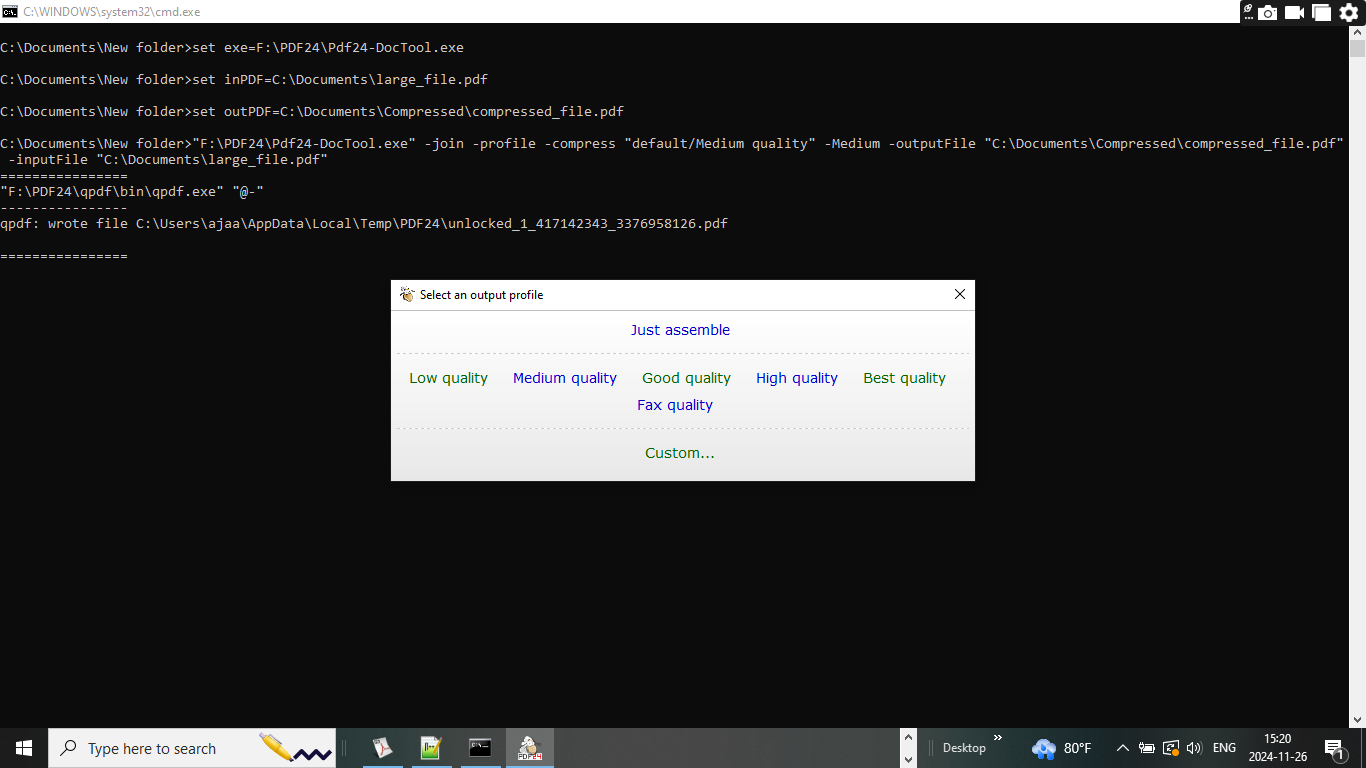
how to avoid this output profile popup?
I use this codingset exe=F:\PDF24\Pdf24-DocTool.exe
set inPDF=C:\Documents\large_file.pdf
set outPDF=C:\Documents\Compressed\compressed_file.pdf"%exe%" -join -profile -compress "default/good" -Medium -outputFile "%outPDF%" -inputFile "%inPDF%"
 2026-10-30 at 17:22 #65365PDF24 SupportModerator
Hello,
the dialog "Select an output profile" appears because
-profiletakes the next word as the profile ID. In your command this is-compress, which is not a profile, so the DocTool asks for one.-Mediumand-inputFileare not options either; the input files are simply listed at the end. Profile IDs look likedefault/mediumordefault/good, not like the names in the dialog.For compressing you need neither
-joinnor a profile. Use the command-compresswith the values for the images. One file:"F:\PDF24\pdf24-DocTool.exe" -compress -dpi 144 -imageQuality 75 -outputFile "C:\Documents\Compressed\compressed_file.pdf" -silent "C:\Documents\large_file.pdf"All PDF files of an input folder into an output folder:
"F:\PDF24\pdf24-DocTool.exe" -compress -dpi 144 -imageQuality 75 -expandDirs -includeFileExtensions .pdf -outputDir "C:\Documents\Compressed" -silent "C:\Documents\Input"- Lower values for
-dpiand-imageQualitygive smaller files and lower image quality; 144 and 75 are the defaults. - With
-outputDirthe files get a suffix with the values, e.g.large_file_144dpi_75%.pdf. -silent(since version 11.31.0) shows no windows and reports errors with an exit code, so the command can run unattended from a batch file or a scheduled task. With an older version, please update first.
The options are described here:
- https://creator.pdf24.org/manual/11/#11118-compress-pdf-files
- https://creator.pdf24.org/manual/11/#1111-general-format-and-options
- https://creator.pdf24.org/manual/11/#11119-exit-codes
Without the command line: PDF24 Compress (
pdf24-Compress.exein the PDF24 installation folder) has a Hot folder setting (since version 11.31.0). PDF files placed in this folder are compressed automatically and saved next to the original with the Save file suffix. This works only while Compress is open, and the files are saved in the same folder, not in a separate output folder.Compressing single files also works online: https://tools.pdf24.org/en/compress-pdf
- Lower values for
-
AuthorPosts

- You must be logged in to reply to this topic.