Want to fit two or more pages on one sheet, print a folded booklet, or spread one page across several sheets as a large poster? Or the other way round: split scanned A3 double pages back into single A4 pages? PDF24 does all of this for free: online in your browser, offline with PDF24 Creator, and right in the print dialog.
Contents
- Which way suits you?
- Multiple pages per sheet online
- Two pages stacked instead of side by side
- Multiple pages per sheet offline in the PDF24 Toolbox
- When printing: the PDF24 print dialog
- Print a booklet
- Print a PDF as a poster across several sheets
- Print on both sides (duplex)
- The other way round: split double pages and n-up sheets
- Pages per sheet from the command line
- Problems and solutions
Which way suits you?
- A new PDF with 2, 4 or more pages per sheet, nothing to install: Pages per sheet in your browser. → Online
- Print with a preview of every sheet, also as a booklet or poster: Print PDF, Create PDF booklet and Print PDF as poster. → Booklet, Poster
- Offline on Windows: the "Pages per sheet" tool in the PDF24 Toolbox and the print dialog of PDF24 Reader, both part of the free PDF24 Creator. → Toolbox, Printing
- Split A3 double pages or 2 pages per sheet back into single pages: Halve PDF pages. → Split
Multiple pages per sheet online
- Open Pages per sheet.
- Click "Choose files" or drag your PDF into the file box.
- Choose "Pages per sheet": 2, 3, 4, 6, 8, 9, 12 or 16.
- Choose the "Page size" of the new sheet: A0 to A6, Letter or Legal. The default is A4.
- Click "Convert" and download the result.
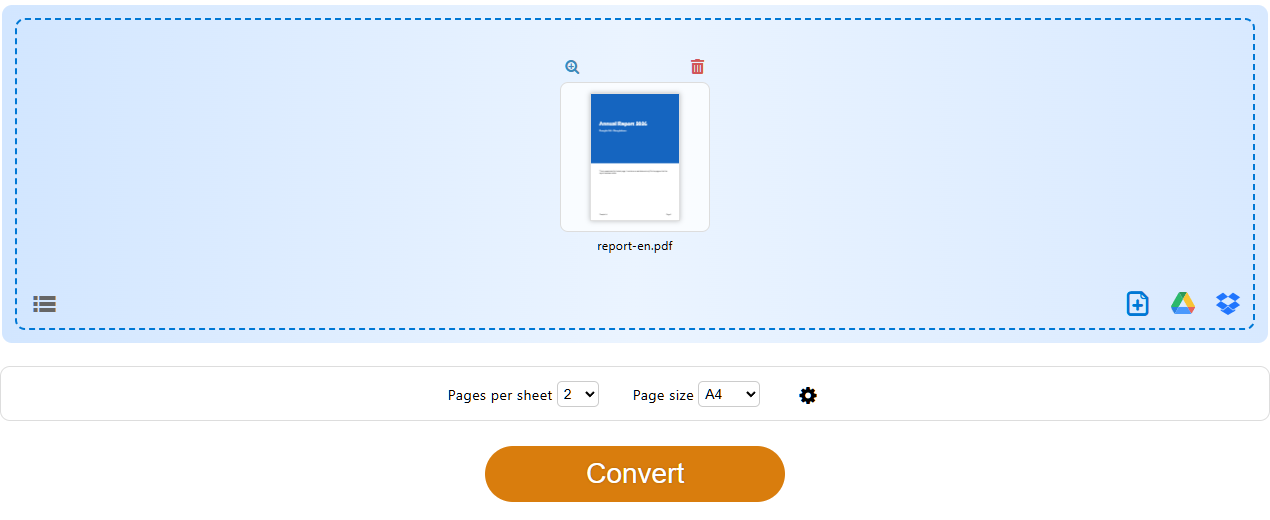
More options behind the gear icon ("Additional options"):
- "Margins" in percent (0 to 50): each page gets that much smaller, leaving space around it. At 0 the pages fill their place on the sheet.
- "Direction": "LTR" places the pages from left to right, "RTL" from right to left, e.g. for Arabic or Hebrew documents.
- "Add borders" draws a line around each page. "Border color" and "Border width" appear once it is ticked.
With 8 pages per sheet there is also "Page order" (0 or 1). With portrait pages it sets the order in which the pages fill the sheet; with landscape pages it has no effect.
Several files on the same sheets: if you load several PDFs, "Combine files first" appears. When ticked, the pages of all files go onto the sheets together, e.g. two one-page PDFs on one sheet. Unticked, each file is converted on its own. The order of the files is the order in the file box.
PDF24 decides how the sheet lies, based on the first page:
- 2, 3, 6 or 8 portrait pages go side by side on a landscape sheet; landscape pages go one above the other on a portrait sheet.
- With 4, 9, 12 and 16 pages the sheet lies the same way as the pages.
- Pages of the other orientation, e.g. a landscape table in a portrait report, are turned by 90° so they come out larger. To keep all pages upright, see Problems.
The pages are reduced, but text stays text: it remains sharp, searchable and copyable. Bookmarks and links keep pointing to the right pages.
If you are working in the online editor anyway, you will find a "Pages per sheet" mode there. With "Orientation" "Automatic" it arranges the pages the same way when you save. "Portrait" or "Landscape" fixes the sheet and the pages stay upright – so with "Portrait", for example, two portrait pages go one above the other. In "Edit PDF" in the PDF24 Toolbox this only comes with the next version; until then, leave it on "Automatic" there.
Two pages stacked instead of side by side
The "Pages per sheet" tool always places two portrait pages side by side on a landscape sheet. If you want them one above the other on a portrait sheet, choose the orientation yourself:
Online with "Print PDF":
- Open Print PDF and click "Choose PDF".
- Under "Pages per sheet", choose 2.
- Under "Paper", choose e.g. A4 and below it "Portrait".
- Check the preview and click "Save as PDF", or "Print" straight away.
Online in the editor: in the online editor, choose 2 pages per sheet in the "Pages per sheet" mode and "Orientation" "Portrait", then save the PDF.
Offline in PDF24 Reader: in the print dialog, choose "Pages per sheet" 2 and "Orientation" "Portrait". If you want a PDF instead of a printout, choose "Create new PDF" as the printer; the button at the bottom is then also called "Create new PDF".
Stacked portrait pages come out smaller than side by side, because each only gets half the height of the sheet. For landscape pages (e.g. slides), on the other hand, stacking is the best layout. "Pages per sheet" picks it automatically.
Multiple pages per sheet offline in the PDF24 Toolbox
The PDF24 Toolbox is part of the free PDF24 Creator for Windows and works without an internet connection.
- Open the PDF24 Toolbox and then "Pages per sheet".
- Drag the PDF into the window or click "Choose files".
- Set "Pages per sheet" (2 to 16), "Page size", "Margins" (in percent), "Direction" and, if needed, "Add borders". The options work as online.
- Click "Convert" and save the result.
Bookmarks and links stored as a jump action (many programs do this, e.g. Word) point nowhere after "Pages per sheet" in the Toolbox. This is fixed online; for PDF24 Creator the fix comes with the next version.
The Toolbox converts several files one by one. If their pages should go onto the sheets together, merge the files first with "Merge PDF" (see Merge PDF).
Several photos on one page: first turn them into a PDF with "Images to PDF" (online: Images to PDF), then use "Pages per sheet".
When printing: the PDF24 print dialog
PDF24 Reader has its own print dialog with a preview. It puts several pages on one sheet, prints booklets and posters, and can also save the result as a new PDF. PDF24 Assistant and PDF24 Creator open the same dialog with "Print".
- Open the PDF in PDF24 Reader and click "Print" in the toolbar (or press Ctrl+P).
- Choose the printer. The first entry, "Create new PDF", prints nothing; it creates a new PDF with the chosen layout and opens it in a new tab of the Reader ("… (new).pdf"). Save it there with "Save as..." – the Reader doesn't ask when you close it, so an unsaved tab is lost. Form entries and comments are not carried over; flatten the PDF first with Flatten PDF. This is fixed and comes with the next version: the new PDF then keeps form entries, comments and highlights (flattened, as when printing).
- Under "Options", choose "Pages per sheet" (1, 2, 4, 6 or 9) and the "Orientation": "Automatic" turns the sheet so the pages come out as large as possible; "Portrait" or "Landscape" fixes it.
- Check the preview on the right (the arrows below it go through the sheets) and click "Print" – or "Create new PDF" if you chose that as the printer.
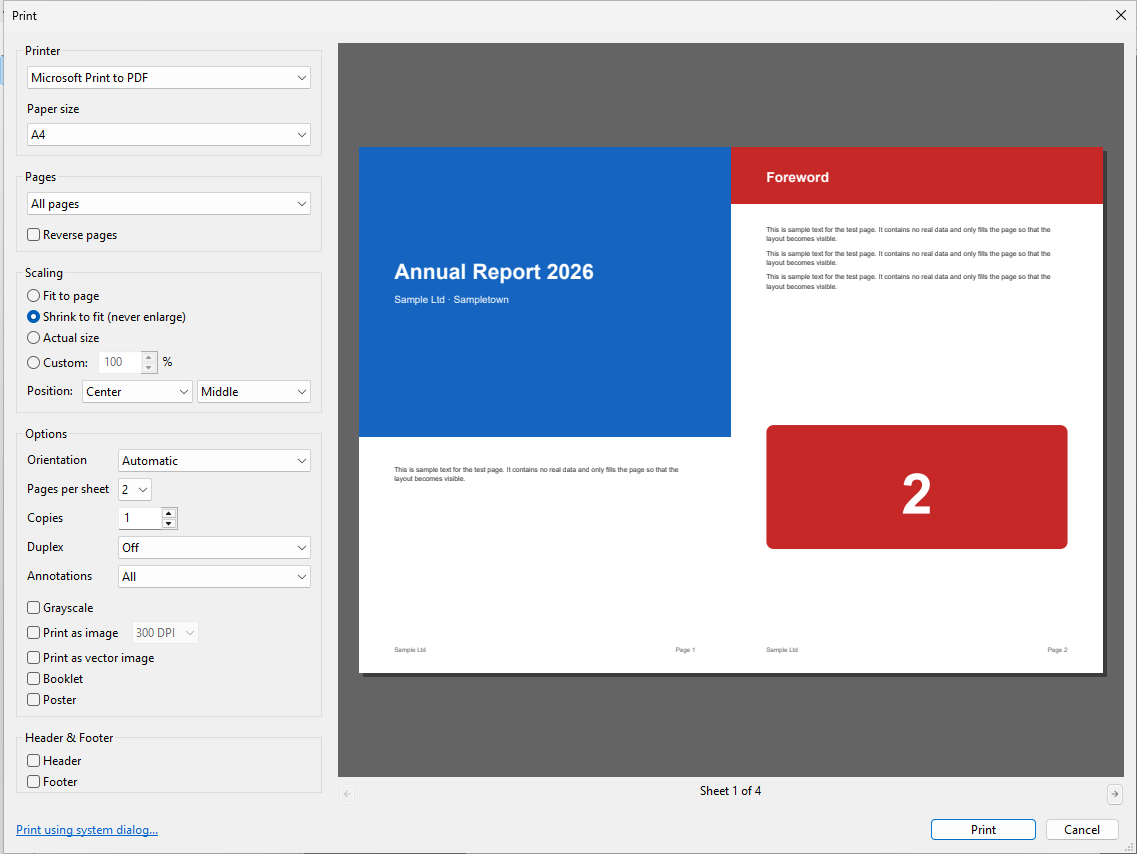
From any program: print the document to the "PDF24" printer. In PDF24 Assistant click "Print" and the same dialog opens. This way you can print, say, a web page or an e-mail with 2 pages per sheet on your real printer. "Create new PDF" does not work from the Assistant or the Creator. To get the result as a PDF, save the PDF first ("Save as PDF" in the Assistant, "Save as..." in the Creator), open it in PDF24 Reader and choose "Create new PDF" in its print dialog. With the next version this works directly: from the Assistant and the Creator, "Create new PDF" then asks where to save the new PDF and opens it in PDF24 Reader afterwards.
The other settings of the dialog (page range, scaling, header and footer) are described in the PDF24 Creator manual, section 12.2 Print dialog.
Print a booklet
In a booklet, each sheet carries four pages, two on the front and two on the back, arranged so that everything is in the right order once the sheets are folded. A4 sheets make an A5 booklet, A3 sheets an A4 booklet (Letter sheets a Half Letter booklet). If the page count is not a multiple of four, PDF24 adds blank pages.
Online:
- Open Create PDF booklet and click "Choose PDF".
- Under "Paper for printing", choose e.g. "Letter – booklet in Half Letter", "A4 – booklet in A5" or "A3 – booklet in A4" (Tabloid too).
- "Binding" left or right.
- If needed: "Split" into "Booklets of …" 3, 4, 5, 6 or 8 sheets, because thick booklets fold badly. "The last page stays the back cover" puts missing blank pages before the last page. "Extra space at the fold" (3, 5 or 10 mm) keeps content out of the binding.
- Under "Both sides": "My printer prints both sides", or "Both sides by hand" for printers without duplex. PDF24 then guides you through the back sides.
- Look at the result as "Sheets" or as "Finished booklet" and click "Print" or "Save as PDF".
In the browser's print dialog, choose "Print on both sides" with "Flip on short edge" and actual size (100 %). Then fold the stack in the middle and staple it twice along the fold.
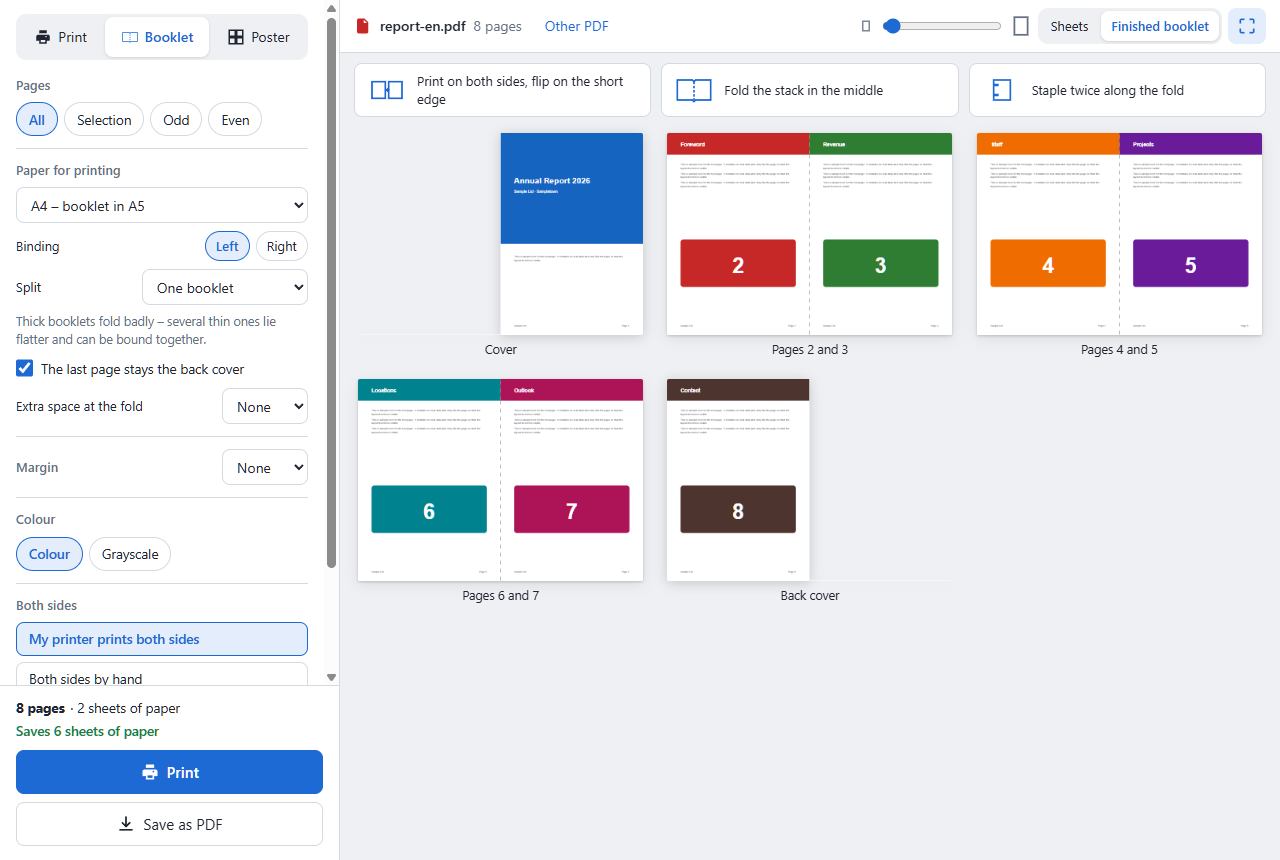
Offline in PDF24 Reader: in the print dialog, tick "Booklet" under "Options". The paper size is the sheet (A4 for an A5 booklet). Choose "Binding" left or right. The dialog automatically prints on both sides, flipped on the short edge. If your printer can't print on both sides, choose "Front side only" under "Subset" first, put the stack back in turned over, and then print "Back side only". With "Create new PDF" you save the booklet as a PDF, e.g. for a print shop.
The PDF24 Toolbox has no booklet tool of its own. Use the Reader's print dialog.
Print a PDF as a poster across several sheets
Poster printing enlarges one page and spreads it across several sheets that you glue together afterwards, e.g. an A4 page on four A4 sheets (about A2 size).
Online:
- Open Print PDF as poster and click "Choose PDF".
- Choose the "Poster size": a grid from "2 × 1 sheets" to "5 × 5 sheets", a size from A3 to A0 (PDF24 then uses as few sheets as needed), or "Custom" with "Sheets across" and "Sheets down" (up to 10 each).
- Choose the "Paper" of your printer, usually A4 or Letter.
- "Overlap for gluing": None, 5, 10 or 20 mm (default 10 mm). "Margin": None, 5, 10 or 15 mm (default 10 mm). Most printers need the margin because they don't print to the edge of the paper.
- Best leave "Cut marks and sheet names (A1, A2 …)" on. Each sheet then shows its position in the poster.
- Check the "Assembled poster" view and click "Print" or "Save as PDF", e.g. for a copy shop.
Print at actual size (100 %). Cut off the top and left margins along the cut marks, lay each sheet over its neighbour with the cut edge on its mark, and glue the sheets together. If you select several pages, each becomes a poster of its own.
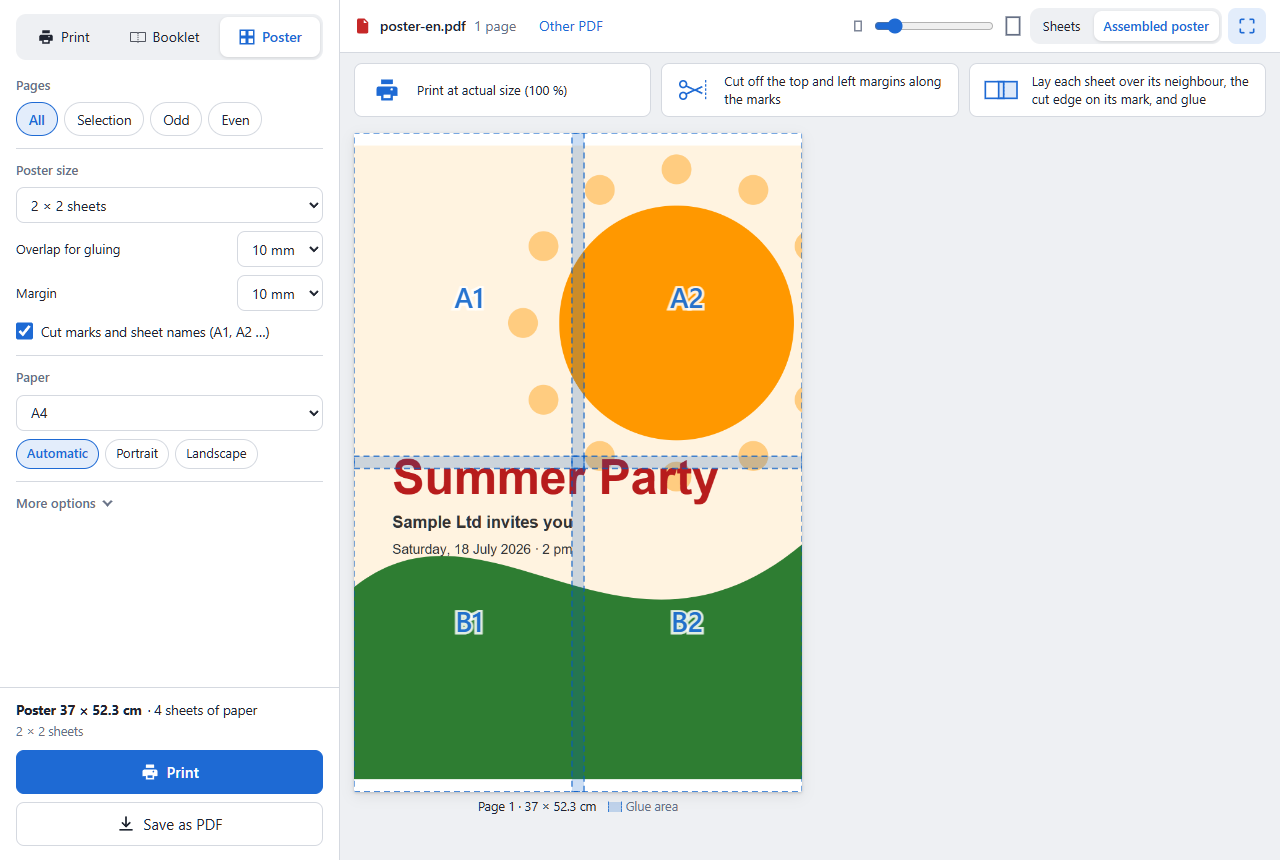
Offline in PDF24 Reader: tick "Poster" in the print dialog.
- "Sheets per page": 2, 3, 4, 6, 8, 9, 12 or 16. The page gets as large as these sheets allow.
- Or "By scale" with a percentage: 141 % turns A4 into roughly A3, 200 % into roughly A2. PDF24 uses as many sheets as needed.
- "Overlap" and "Margin" in mm (default 10 each), "Cut marks" and "Labels" (the position of each sheet, e.g. B2).
With poster on, the dialog prints one-sided only. Pages per sheet, booklet, scaling, grayscale and header/footer are then off.
A large print without gluing, e.g. on an A1 plotter, doesn't need to be split. Change the page size instead (see Change PDF page size).
Print on both sides (duplex)
Double-sided is a setting for printing, not a property of the PDF. The "PDF24" PDF printer only creates the PDF. You choose double-sided when you print that PDF on paper.
- PDF24 Reader: in the print dialog under "Duplex": "Off", "Long edge" (normal portrait documents) or "Short edge" (landscape sheets, e.g. with 2 pages per sheet). The dialog takes the setting from the printer's preferences in Windows. The preview then shows the front and back of each sheet side by side.
- Printers without duplex: first print "Odd pages", put the stack back in, then print "Even pages". If the back sides come out in the wrong order, tick "Reverse pages" for the second run. Try it with a four-page document first. This works with one page per sheet: "Odd pages" means the page numbers, not the sheets. With several pages per sheet, first create a PDF of the sheets with "Create new PDF" in PDF24 Reader and print that PDF odd and even. Or use "Both sides by hand" online (next point). With the next version the detour is no longer needed: with several pages per sheet, "Odd pages" and "Even pages" then print the odd or even sheets, with a booklet the front or back sides; "Reverse pages" then reverses the order of the sheets.
- Online with Print PDF: under "Both sides" you'll find "One side", "My printer prints both sides" and "Both sides by hand". By hand, PDF24 guides you through the back sides. If it doesn't come out right, tick "Print the back sides in reverse order" or "Turn the back sides upside down"; your choice is remembered for next time.
- Several documents double-sided: so that every document starts on a front side, merge them with "Insert blank pages" › "On odd page count" (how it works).
The other way round: split double pages and n-up sheets
Scanned A3 double pages, a book scan with two pages per image, or a PDF with 2 pages per sheet: cut them down the middle and every page becomes two.
Online:
- Open Halve PDF pages.
- Load the PDF (several files at once also work).
- For books read from right to left (e.g. Arabic, Hebrew, Japanese), tick "Right to left". The right half then comes first.
- Click "Halve pages".
Offline in the PDF24 Toolbox: open "Split PDF", choose "Halve pages" as the "Mode" ("Right to left" if needed) and click "Split". The result is one PDF with twice as many pages.
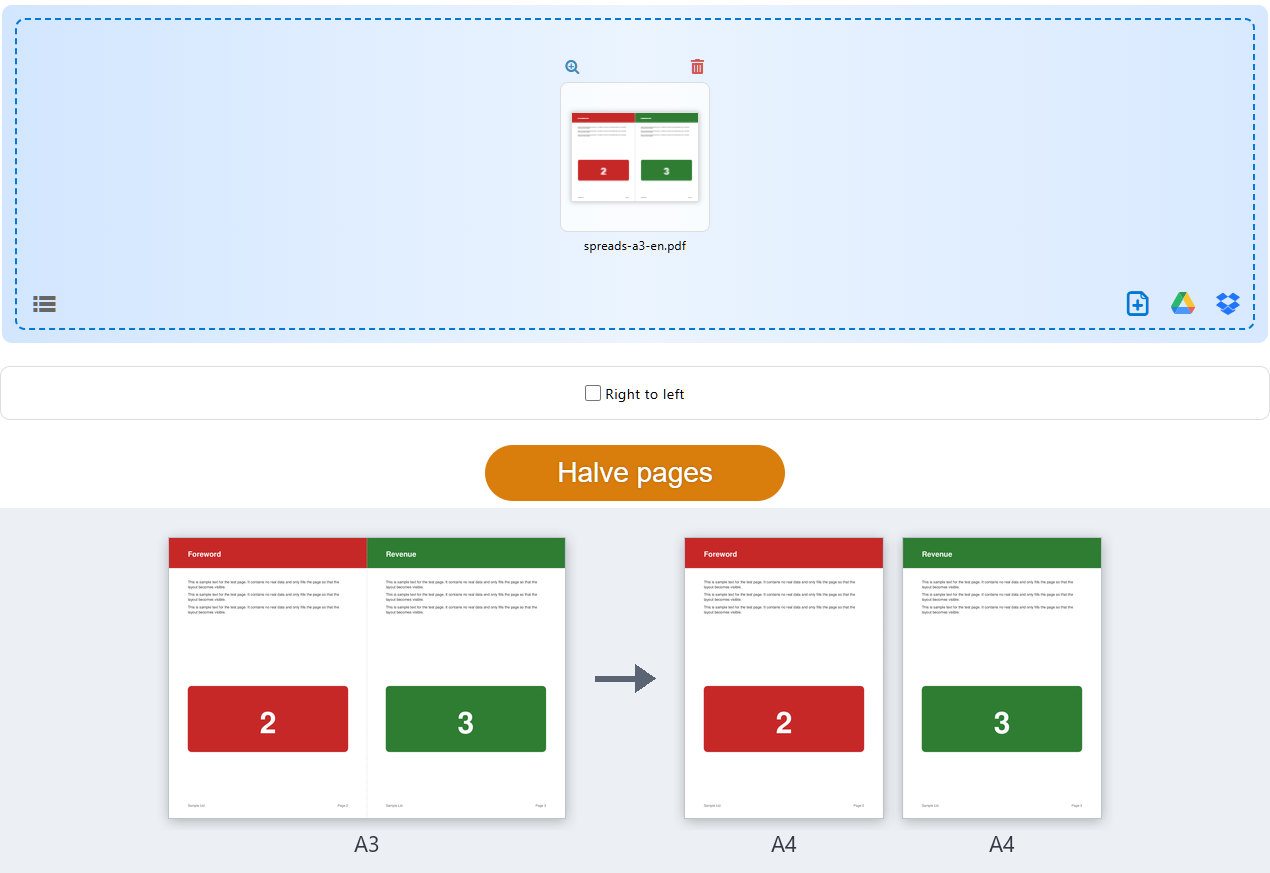
How the page is split:
- A landscape page is split into a left and a right half. A3 landscape gives two A4 portrait pages.
- A portrait page is split into a top and a bottom half.
- PDF24 splits the visible area of the page, always exactly in the middle.
To split 4 pages per sheet, halve twice. With a portrait sheet (four portrait pages) the pages are then in the right order. With a landscape sheet (four landscape pages) they come out as 1, 3, 2, 4; put them in order with Rearrange PDF pages. There is no automatic split for 6, 9 or more pages per sheet. In that case crop each area on its own with Crop PDF (see Crop a PDF).
Scanned booklets: a stapled booklet scanned sheet by sheet has its pages in print-sheet order after halving, e.g. 8, 1, 2, 7 … Put them into reading order with Rearrange PDF pages (see Rearrange pages). If scans lie on their side, rotate them upright before halving.
Pages per sheet from the command line
Since version 11.34.0, PDF24 DocTool puts several pages on one sheet without a window, with the same options as the Toolbox:
"C:\Program Files\PDF24\pdf24-DocTool.exe" -nup -pagesPerSheet 2 -paperSize A4 -silent -outputDir "C:\Output" "C:\Input\*.pdf"-pagesPerSheet2 (default), 3, 4, 6, 8, 9, 12 or 16;-paperSizeA0 to A6,letterorlegal(default A4).-marginPercent0 to 50,-direction ltr|rtl,-borderswith-borderColorand-borderWidth,-pageOrder 0|1(with 8 portrait pages per sheet).- Without
-outputFile, the result is named like the file with_nup, e.g.report_nup.pdf. - To put two files on the same sheets, merge them first with
-join(two calls).
All switches are in the manual, section 11.1.25 Put several pages on one sheet. Booklet, poster and halving are not available on the command line.
Problems and solutions
The pages are side by side, I want them stacked
"Pages per sheet" chooses how the sheet lies from the first page. For a fixed orientation use Print PDF, the online editor or the Reader's print dialog.
The sheets are landscape, or single pages lie on their side
"Pages per sheet" orients the sheet by the first page and turns pages of the other orientation by 90°. Take a differing cover page out first. Or use Print PDF: there you choose the orientation of the sheet yourself and the pages stay upright. In the print dialog of PDF24 Reader and in the online editor ("Orientation" "Portrait" or "Landscape") you also set the orientation yourself.
The same page several times on one sheet (e.g. 4 labels)
Open Print PDF, choose "Selection" under "Pages" and type 1, 1, 1, 1, together with "Pages per sheet" 4. For a multi-page PDF use 1, 1, 1, 1, 2, 2, 2, 2 and so on. This only works online; the PDF24 Reader print dialog uses each page only once.
The booklet prints upside down or in the wrong order
Booklets are flipped on the short edge. In the browser's print dialog choose "Print on both sides" with "Flip on short edge" (or the matching setting of your printer) and print at actual size. With printers without duplex, choose "Both sides by hand" online or "Subset" in the Reader, and try it with two sheets first.
The poster is smaller than expected
The poster size follows from the number of sheets: an A1 page on 2 × 2 A4 sheets only becomes about A2. Choose the size online (e.g. "A1 – 59.4 × 84.1 cm") or more sheets. Also print at actual size (100 %), not "Fit to page".
After halving, another program or the print shop still shows A3
PDF24 halves via the visible area of the page. Some programs read the original sheet size. In that case bring the halved PDF to A4 with Change PDF page size (see Change PDF page size). Then other programs see A4 pages too.
Halving twice doesn't give the pages I expected
PDF24 always cuts across the longer side. That works for 4 pages per sheet (with landscape pages, sort them afterwards), but not for 6 or 9 pages per sheet (see Split).
If a function is missing or something doesn't work, write to us at team@pdf24.org or ask in the PDF24 forum.