Your company details, customers and items only need to be entered once in the PDF24 e-invoice generator: it stores them on your computer and fills them into your next invoice. This page explains where this data is kept, how to back it up, move it to another PC and share it with colleagues.
Contents
- Where is my invoice data stored?
- Online, Toolbox, browser: separate storage
- What deletes the saved data?
- Save an invoice and edit it later
- Save sellers, customers and items as templates
- Data manager: back up and restore your data
- Move to a new PC or another browser
- Switching from the old to the new generator
- Share data: data sources
- Change the storage location in the Toolbox
- Privacy: what does PDF24 see?
- Frequently asked questions
Where is my invoice data stored?
Online tool (Create electronic invoice): everything you save is kept in a database of your web browser on your computer. PDF24 does not store this data; there is no user account and no cloud storage.
PDF24 Creator Toolbox ("Create electronic invoice"): the Toolbox shows the generator in an embedded browser (Microsoft WebView2). The data is stored in its profile in your Windows user folder:
%LOCALAPPDATA%\PDF24\WebView2\UserDataThe invoice data itself is in EBWebView\Default\IndexedDB\https_pdf24_0.indexeddb.leveldb inside that folder. This is a browser database, not a file you can open or edit. To get at your data, use the data manager.
What is stored:
- everything you save with "Save data", "Save items" and so on (biller, invoice recipient, items, payment details, attachments, allowances, charges, output options …)
- invoices you save with "Save invoice"
- the generator's preferences, including the data sources
- in the new generator also: "My invoices" (every invoice you create), drafts, your profile, your companies and number ranges
What is not stored there are the finished invoice files (PDF, XML). You save those yourself: online they go to your browser's download folder, in the Toolbox you choose where to save them. Keep these files – they are your actual invoices.
Online, Toolbox, browser: separate storage
Every browser has its own storage. That is why you only see your saved data where you created it:
- Another browser: data from Chrome is not available in Firefox or Edge.
- Another browser profile: each profile (e.g. "Personal" and "Work" in Chrome or Edge) has its own data.
- Another computer: the data is not synchronized, not even via a Google or Microsoft account.
- Online and Toolbox: the online tool and the PDF24 Creator Toolbox have separate storage, even if you use Edge. Data from one is not visible in the other.
- Old and new generator: they share the saved data as long as you work in the same browser or the same Toolbox (see Switching from the old to the new generator).
How to take your data from one place to another is explained under Move to a new PC or another browser.
What deletes the saved data?
In the online tool, your invoice data belongs to the "site data" of tools.pdf24.org. It is lost when:
- you clear browsing data and select "Cookies and other site data" (Chrome, Edge) or "Cookies and site data" (Firefox). Clearing only the browsing history or the cache (without cookies and site data) does no harm.
- the browser deletes site data automatically when it is closed (a browser setting), or a cleanup program does so.
- you work in a private or incognito window: everything is gone when the window is closed.
- you reset the browser, create a new profile or change computers.
- the browser deletes site data when disk space runs low. Safari can delete the data of sites you have not visited for a while.
That is why the new generator asks the browser to keep the data permanently. Firefox asks you once whether the site may store data in persistent storage – allow it. The data manager shows at the bottom whether this worked: "Stored persistently" or "Not persistent: the browser may delete the data when space runs low, please back up regularly".
In the Toolbox, clearing browsing data in Edge, Chrome or Firefox has no effect, and neither do PDF24 Creator updates. The data is lost if the folder %LOCALAPPDATA%\PDF24\WebView2 is deleted, your Windows user profile is recreated or you change PCs.
In every case: an up-to-date backup made with the data manager protects you against all of this.
Save an invoice and edit it later
There are several ways to reopen an invoice later.
"My invoices" (new generator)
Every invoice you create in the new generator is added to "My invoices" automatically. You do not have to do anything.
- Open the menu at the top right (the ☰ button next to "Import, export, load, save, ...") and choose "My invoices". Your latest invoices are also listed on the start page under "Recently worked on".
- Find the invoice (number, customer, date …).
- Click "Open" to change it. Under "More actions" you find "New invoice with the same details", "Invoice correction" and "Credit note / cancellation". On the start page, "As template" uses an invoice as the starting point for the next one.
If you create an invoice with the same number again, it replaces the old entry. Attachments are kept in "My invoices" with name and description only, not as files; your own PDF used as the visible invoice is not kept either. "Remove from the list" only removes the entry, not the invoice file you created.
Invoices you have started but not yet created are saved as drafts by the new generator in the background. They are listed on the start page under "Recently worked on" with "Continue". At most 10 drafts are kept for 30 days; they are not part of a backup.
"Save invoice" (old and new generator)
- Open the menu at the top right (☰) and choose "Save invoice".
- Enter a name under "Identifier", e.g. "2026-117 Example Ltd", and click "Save".
- Later: menu › "Load invoice", find the entry and click it. The form is filled in with it.
If you save under a name that already exists, you see "Name exists. Existing data set will be updated." – the old version is then overwritten. If you have loaded a saved invoice, the generator suggests its name the next time you save.
As a file: "Export invoice" and "Import invoice"
With menu › "Export invoice" you save the current invoice as a JSON file. With "Import invoice" (in the new generator also "Open an invoice" on the start page) you load it again. This is useful if you want to keep invoice data in your own folder structure.
You can also read a finished e-invoice (XML or ZUGFeRD PDF) back in with "Import invoice": the data then appears in the form and can be changed. For a normal PDF without embedded XML, the online generator offers automatic recognition of the invoice data (see Convert a PDF invoice to an e-invoice); this is not available in the Toolbox.
Save sellers, customers and items as templates
Each section of the form has its own menu (☰) at the top right. Use it to save recurring details individually (in the visual view of the new generator, "Load data" and "Save data" are in the menu of the area you clicked):
- Biller, invoice recipient, payment details etc.: "Save data", later "Load data".
- Items: "Save items" saves all items of the invoice as a group, "Load items" inserts the group again. Use "Load and add item" to add individual items to the invoice – this way you can build up an item list and insert just the items you need each month.
- Attachments, allowances, charges: "Save attachments" / "Load attachments", "Save allowances", "Save charges" and so on.
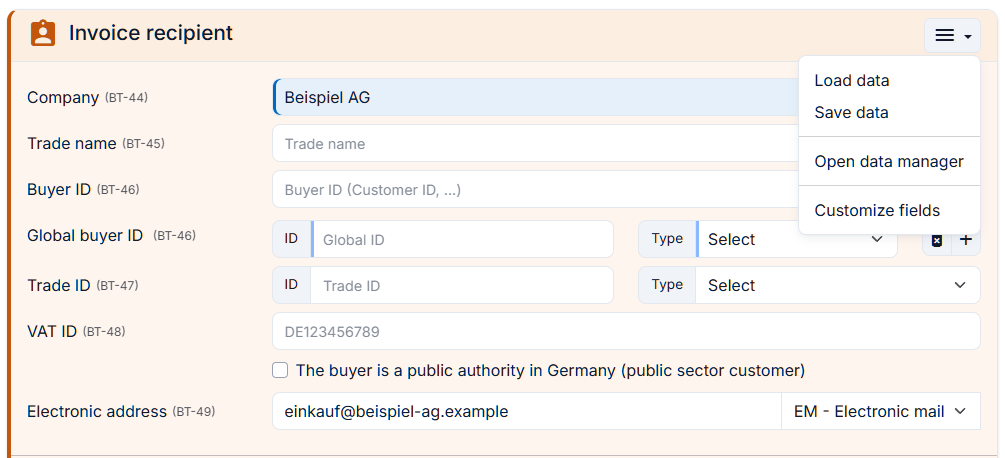
In the "Load data" dialog you can search and sort. If you have set up data sources, choose between "Local" and your data sources at the top left.
Data manager: back up and restore your data
The data manager shows all saved data, grouped by data store ("Invoices", "Sellers", "Buyers", "Items", "Item Groups", "Payment methods" …), with the number of records. Open it via the menu at the top right › "Open data manager" or via the menu of a section.
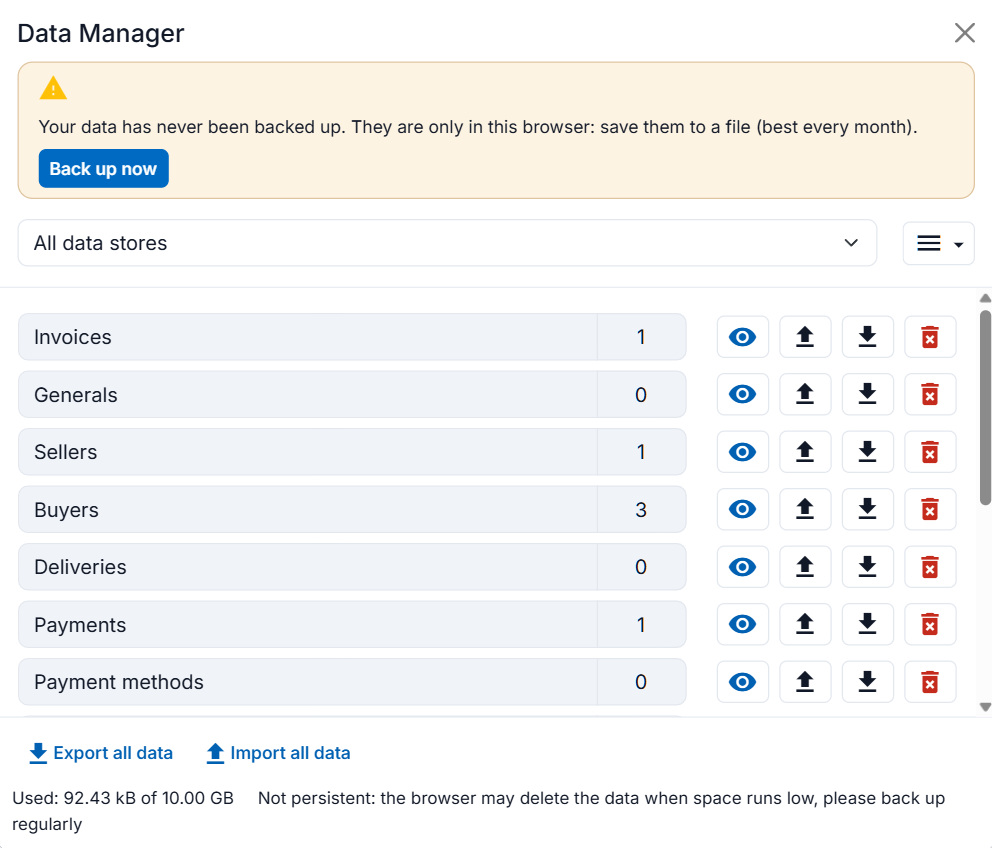
Create a backup
- Menu › "Open data manager".
- Click "Export all data" at the bottom.
- Online, the browser saves the file
pdf24-einvoice-datastore-all.jsonto your download folder ("The data has been exported. Check your download folder."). In the Toolbox you choose the location yourself. - Keep the file outside the browser, e.g. on a network drive, a USB stick or in your cloud storage.
The backup of the new generator also contains "My invoices" as well as your profile, companies and number ranges. Drafts and the data source settings are not included. The backup of the old generator contains the saved records. To export individual data stores, use "Export as file" in the list.
Back up the preferences (e.g. your data sources) separately: menu › "Open preferences", then the "Export preferences" button at the bottom (file pdf24-einvoice-preferences.json).
The new generator reminds you to back up: on the start page ("Back up your data") and after creating an invoice if the last backup was 30 days ago. Clicking "Back up now" creates the same file. Ideally, back up every month and before every change of browser or PC.
Restore a backup
- Menu › "Open data manager" › "Import all data" at the bottom. In the new generator you can also use "Restore from backup" on the start page.
- Select the file
pdf24-einvoice-datastore-all.json. - The generator reports "The data has been imported." with the number of records.
The generator adds what is missing; nothing is deleted. If an entry already exists – a record with the same name (upper and lower case are not distinguished) or an invoice with the same number in "My invoices" –, the new generator keeps the one that was changed last (online; in the PDF24 Creator Toolbox from version 11.35.0). So if you marked an invoice as paid or changed a customer after the backup, this is kept even when you read in an older backup. The old generator always leaves existing records with the same name unchanged. Your current number ranges are kept. If the generator reports "No data has been imported", all entries in the file already exist (and are not newer) or the file is not a backup from the data manager.
To restore the preferences, use "Open preferences" › "Import preferences" and then click "Save".
Move to a new PC or another browser
This is how you take your data with you – from the old to the new PC, from Chrome to Firefox, or from the online tool to the Toolbox (and back):
- In the old place: open the generator, menu › "Open data manager" › "Export all data".
- If you use data sources or other preferences: menu › "Open preferences" › "Export preferences".
- Copy the file(s) to the new PC, e.g. via USB stick or network drive.
- In the new place: open the generator (online in the browser you want to use, or in the Toolbox under "Create electronic invoice"), menu › "Open data manager" › "Import all data" and select the file.
- If needed: menu › "Open preferences" › "Import preferences" and click "Save".
- Check: the data manager should now show the same numbers as in the old place.
Copying the folder %LOCALAPPDATA%\PDF24\WebView2 to another PC by hand is not necessary and not recommended – using the data manager is safer.
Switching from the old to the new generator
How to switch between the old and the new version, online and in the Toolbox, is explained on the main page under Online or offline: which tool?
You do not need to transfer your data for this: in the same browser or the same Toolbox, both versions use the same storage. Saved billers, customers, items and invoices saved with "Save invoice" are available in the new generator under "Load data" and "Load invoice". Nothing is lost if you go back to the old version either.
Differences:
- "My invoices" and drafts only exist in the new generator. Invoices you created earlier with the old generator are not listed there – if needed, open them with "Open an invoice" from the XML or ZUGFeRD file.
- To be on the safe side, use "Export all data" once before you switch for the first time.
Share data: data sources
With a data source, several people or computers use the same master data – for example your company details, your customer list and your item list. A data source is a JSON file that the generator only reads. New or changed records are still saved by each user in their own local storage; there is no shared storage that everyone writes to.
Where the file can be:
- PDF24 Creator Toolbox: as a file on your PC or on a mapped network drive, e.g.
Z:\Accounting\pdf24-master-data.json. Enter the full path including the file name; the file name must end with.json. A URL is possible too. - Online tool: only as a URL (
https://…) on a web server. File paths do not work online.
Set up a data source
- Enter the shared data once in the generator ("Save data", "Load and add item" etc. as described above).
- Menu › "Open data manager" › "Export all data". This file is your data source – it already has the right structure.
- Put the file in the shared place (network drive or web server).
- Menu › "Open preferences". Under "Data sources", click the plus ("Add data source").
- "Type": "File". "Name": any name, e.g. "Company shared". "Location": path or URL of the file.
- Click "Save".
- Close and reopen the generator (online: reload the page; Toolbox: go back to the start page and open "Create electronic invoice" again).
- In a section, choose "Load data" and select your data source instead of "Local" at the top left.
The first time it accesses a file, the Toolbox asks "Allow access to file?" – confirm with "Yes" if you set up the file yourself. Your answer is remembered.
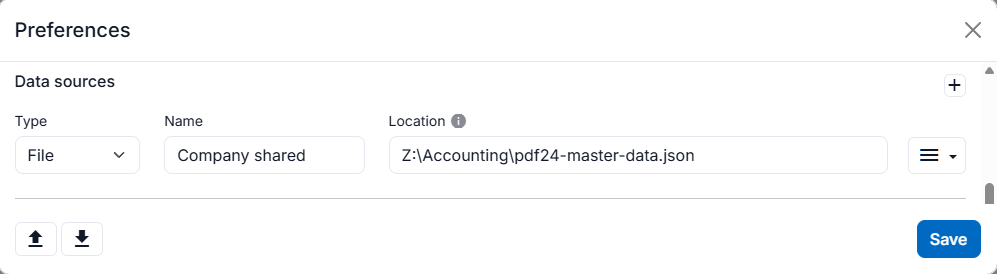
The menu next to a data source lets you "Disable", "Enable" or "Delete" it.
Important: the generator reads a data source only once while it is open. If you change the file or the preferences, you only see the change after reopening the generator.
Structure of the JSON file
The file has the same structure as a backup made with "Export all data". For each data store there is a list of records with name (this is how the entry appears in "Load data") and data (the fields). A small example with one customer and one item:
{
  "type": "einvoiceDataStoreContent",
  "invoice-buyers-store": [
    {
      "name": "Example Ltd",
      "data": {
        "name": "Example Ltd",
        "vatId": "DE123456789",
        "electronicAddress": "invoice@example.com",
        "electronicAddressTypeCode": "EM",
        "address": {
          "line1": "Sample Street 1",
          "postCode": "12345",
          "city": "Berlin",
          "countryCode": "DE"
        },
        "contact": { "name": "Jane Sample", "email": "accounts@example.com", "phone": "" }
      }
    }
  ],
  "invoice-items-store": [
    {
      "name": "Consulting (hour)",
      "data": {
        "name": "Consulting",
        "quantity": 1,
        "quantityUnit": "HUR",
        "netUnitPrice": 90,
        "vatCode": "S",
        "vatRate": 19
      }
    }
  ]
}
Other data stores are, for example, invoice-sellers-store (billers), invoice-payments-store (payment details) and invoice-item-groups-store (item groups). The easiest way to see which fields exist is to look at an exported file. This also lets you generate the file from your ERP system or a spreadsheet and have it rewritten regularly. How to create invoices from JSON data without using the form at all is explained under Create e-invoices automatically.
Data source via URL: requirements for the web server
If the file is on a web server, the browser fetches it directly. For this to work:
- The address starts with
https://. - The server delivers the file with the header
Content-Type: application/json; an addition such as; charset=utf-8is fine. Exception: the PDF24 Creator Toolbox up to version 11.34 needs exactlyapplication/jsonwithout additions. - The server allows requests from other sites (CORS) with the header
Access-Control-Allow-Origin:- for the online tool:
Access-Control-Allow-Origin: https://tools.pdf24.org - for the PDF24 Creator Toolbox:
Access-Control-Allow-Origin: https://pdf24 - for both:
Access-Control-Allow-Origin: *
- for the online tool:
If the data should not be public, protect such a URL yourself, e.g. by making the server reachable only from your company network.
If the data source stays empty
- "The address does not return JSON data (Content-Type: …). Expected: application/json.": the server sends the file with a different content type, e.g.
text/plain. Change the header toapplication/json. - "No data available in this storage.": the file was not found or contains no entries for this section. In the Toolbox up to version 11.34 this message also appears for a different content type. Check the full path including the file name and reopen the generator.
- "An error occurred when fetching data from the data source.": the URL cannot be reached, the CORS header is missing or the file is not valid JSON.
- Toolbox: if you answered "Allow access to file?" with "No", the Toolbox only asks again after a restart.
- A file from "Export invoice" (a single invoice) is not a data source. Use "Export all data" from the data manager.
Change the storage location in the Toolbox
A freely selectable folder for the Toolbox data is currently not available. What you can do is store the data in the roaming user profile instead of the local profile, e.g. if your Windows profile roams across the network:
- First back up your data with "Export all data".
- Open the PDF24 Creator settings and go to "Components".
- Under "WebView2", tick "Store WebView2 data in the roaming user profile" and click "OK".
- Restart the Toolbox. The data is then stored under
%APPDATA%\PDF24\WebView2\UserData. - The new location is empty at first: read in your backup with "Import all data".
If you need your data in a particular place, you can also use a data source on that drive and regularly export a backup to it.
Privacy: what does PDF24 see?
- Saved data (customers, items, "My invoices", preferences) is only stored on your computer. PDF24 does not store it and cannot see it. There is no cloud synchronization.
- Online tool: pure XML invoices (XRechnung, Peppol, EN 16931) are created by the new generator directly in your browser. For a PDF with an e-invoice (ZUGFeRD), a PDF24 server creates the file; the data of the current invoice is transferred encrypted for this. Download your result straight away.
- PDF24 Creator Toolbox: the invoice is created entirely on your PC; no invoice data is sent to PDF24.
- Backup files contain all your customer and invoice data in plain text. Store them in a protected place.
Frequently asked questions
My saved data is gone – what can I do?
First check that you are in the right place: the same browser and browser profile, online or in the Toolbox, on the same PC. The data manager shows how many records are stored here. If the data really has been deleted, only a backup helps: read it in with "Import all data". You can also read your finished invoices (XML, ZUGFeRD PDF) back in with "Import invoice" and save customers and items from them again.
Can I choose where the database is stored?
Not online – the data belongs to the browser. In the Toolbox only between the local and the roaming profile (see Change the storage location in the Toolbox). If a freely selectable location is important to you, write to us at team@pdf24.org.
Where do exported files go?
Online, to your browser's download folder. If you want your browser to ask where to save each download, change this in the browser's download settings. In the Toolbox, a save dialog opens.
Can several colleagues work with the same data at the same time?
For reading, yes, via a shared data source. Saving, however, always happens locally for each user. To make new customers available to everyone, add them to the shared file (e.g. with a new export).
Is my data stored in the PDF24 cloud?
No. See Privacy.
Further reading
- Create e-invoices with PDF24 – overview, formats and your first invoice step by step
- Create e-invoices automatically: command line, JSON and XML
- Convert a PDF invoice to an e-invoice (ZUGFeRD)
- Tool: Create electronic invoice