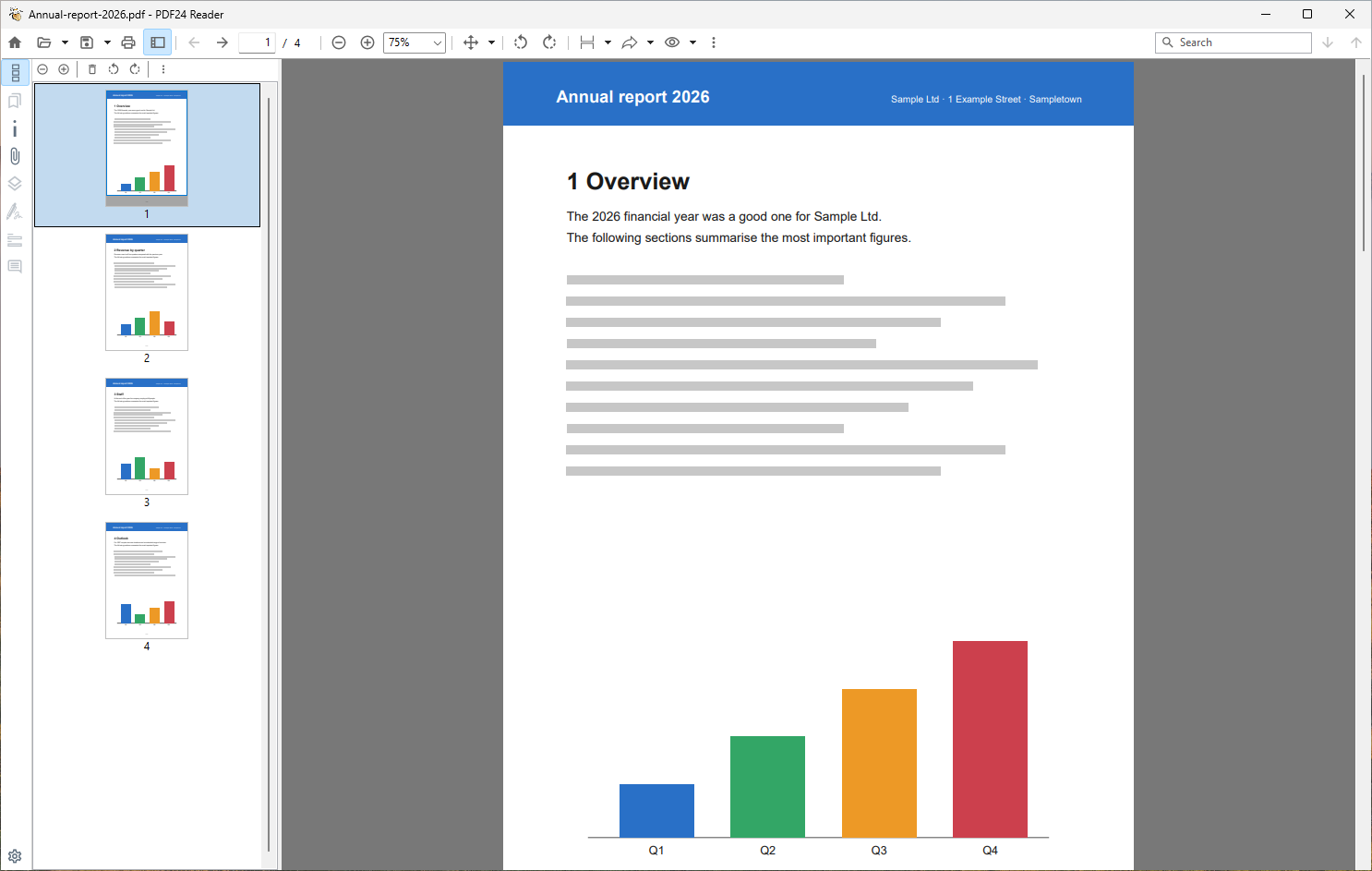
PDF24 Reader is the free PDF viewer of PDF24 Creator for Windows. It opens PDF files quickly, shows them in tabs, searches text even across many files and prints with its own print dialog – in grayscale, as an image, several pages per sheet or as a booklet. This guide shows how to set it up and what it can do.
Contents
- What is PDF24 Reader?
- Make PDF24 Reader the default app for PDF files
- View: zoom, page layout, full screen
- Dark mode and page colors
- Several PDF files: tabs, a window of their own, side by side
- Search text: Ctrl+F and extended search
- Printing
- Saving and the save folder
- Highlights, comments, forms and signatures
- Organize pages, measure, snapshot
- PDF24 Reader settings
- What PDF24 Reader cannot do
- Problems and solutions
What is PDF24 Reader?
PDF24 Reader is part of PDF24 Creator and is installed with it. It works offline, your files stay on your PC. More about the Reader on the page PDF24 Reader.
To open a PDF file in PDF24 Reader:
- double-click it, if the Reader is your default app for PDF files,
- in File Explorer, right-click the PDF > "Open with" > "PDF24 Reader",
- in the PDF24 Toolbox with "Open PDF24 Reader", or in the PDF24 Launcher with "PDF Reader",
- in the Reader itself with "Open" (Ctrl+O), or drag the file into the window.
Without an open file the Reader shows its start screen with "Recently opened", "Favorites" and "Reopen files from last session".
You find the version under "More" (the button with the three dots) > "About"; "Check for updates" in the same menu looks for a new version.
PDF24 Reader is available for Windows only. PDF24 Reader, PDF24 Toolbox and PDF24 Creator for Linux and Mac are in the works and will be released once they are finished – see PDF24 for Mac, Linux and as a portable version.
Make PDF24 Reader the default app for PDF files
Windows decides which program opens PDF files on a double-click, and programs cannot change this choice themselves. To make PDF24 Reader the default app:
- In PDF24 Reader: as long as another program opens PDF files, the start screen shows the link "Set PDF24 Reader as the default app for PDF files". It opens "Apps" > "Default apps" in the Windows settings. Search for
.pdfthere, click the app shown for.pdf, select "PDF24 Reader" and confirm with "Set default". - In File Explorer: right-click a PDF file > "Open with" > "Choose another app" > "PDF24 Reader" > "Always".
From then on PDF files open in the Reader on a double-click, "Print" in the right-click menu of a PDF file prints through the Reader, and File Explorer shows the PDF24 preview and thumbnails.
When you install PDF24 Creator, the options "Register PDF24 Reader" and "Set PDF24 Reader as default" decide whether the Reader is registered as a PDF program. Windows only uses this as long as you have not chosen a default app for PDF files yourself. More about the installation: PDF24 Creator setup.
Back to another program: do the same and select the program you want instead of "PDF24 Reader".
On company PCs, IT can set the default apps by group policy; your own choice then does not last.
View: zoom, page layout, full screen
- Zoom: Ctrl and the mouse wheel, Ctrl++ and Ctrl+-, or the zoom field in the toolbar. Under "Fit tools" you choose "Width + Height" (whole page), "Width" or "Height".
- Page layout: "Display mode" offers "One page", "Two pages", "Two pages with cover sheet" and "Variable number of pages" (as many pages side by side as fit into the window).
- Rotate the view: "Rotate left" and "Rotate right" in the toolbar, or Ctrl+Shift+- and Ctrl+Shift++.
- Turning pages: Space and Shift+Space scroll one screen down and up, Ctrl+Right/Left arrow (or Alt+Down/Up arrow) go to the next and previous page. The middle mouse button starts auto-scrolling.
- Sidebar: "Navigation" shows and hides the sidebar on the left with "Thumbnails", "Bookmarks", "Attachments", "Layers", "Comments", "Form Fields" and "Signatures".
- Ruler: "More" > "Show ruler", in millimeters, centimeters or inches.
Full screen: press F11. The Reader then fills the whole screen; F11 or Esc ends full screen. For a presentation, first select "Fit tools" > "Width + Height": each screen then shows a whole page, and you turn pages with Space or the arrow keys.
How a PDF looks when it opens: the zoom on opening is set in the settings ("Default zoom when opening a PDF"). If a PDF file contains its own viewer preferences, for example "two pages" or the bookmarks in the sidebar, the Reader opens it like that; your own setting stays for other files. You set such viewer preferences in the Toolbox with "Edit viewer preferences" or online with Set PDF viewer preferences.
Dark mode and page colors
The Reader distinguishes two things:
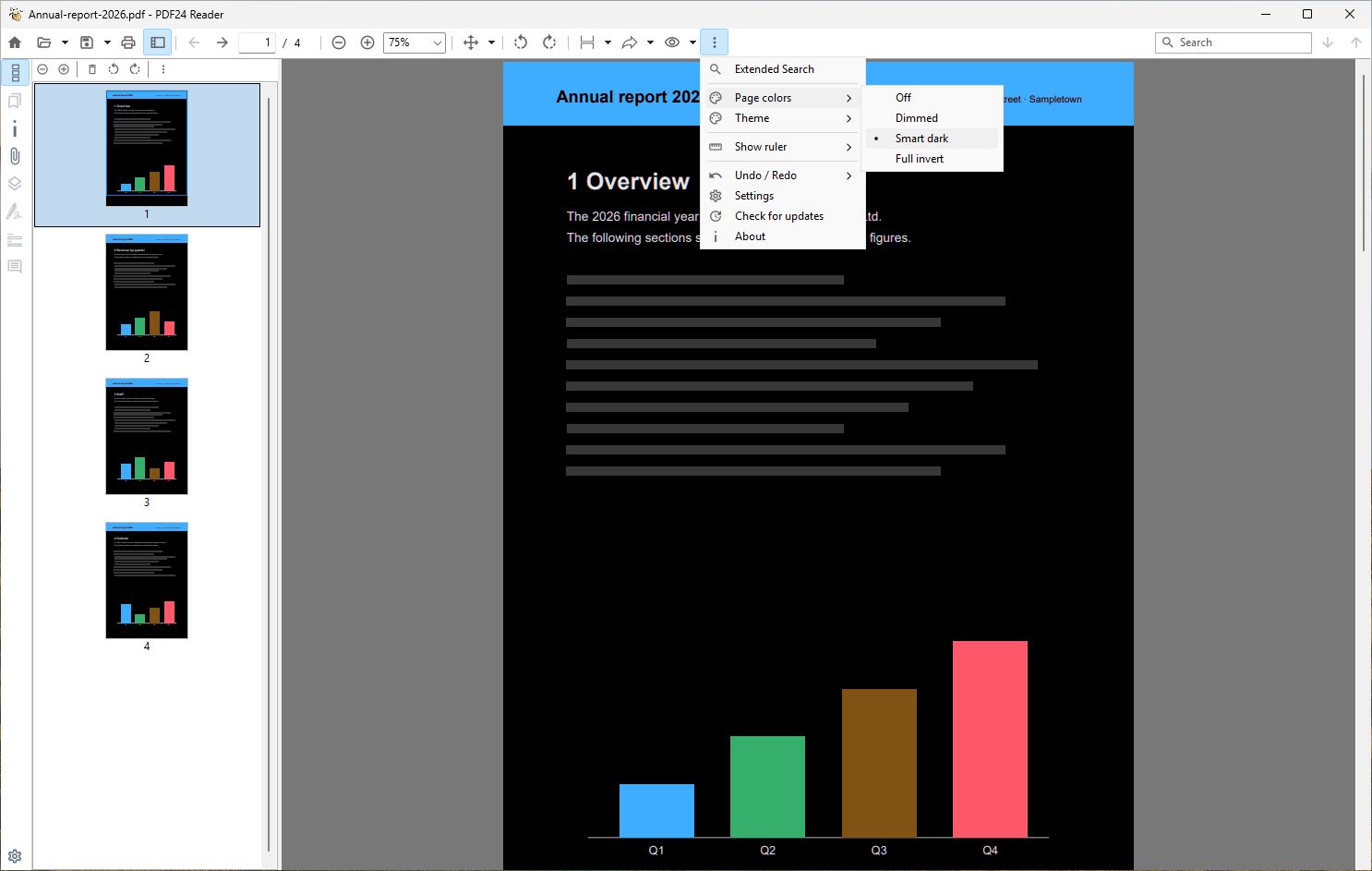
- Theme colors the Reader window itself (toolbars, sidebar, the area around the pages). Under "More" > "Theme" choose "System" (like Windows), "Light" or "Dark". This choice applies until you close the Reader. To keep it, set the theme in the settings on the page "Reader" under "The theme of the app".
- Page colors recolors the pages of the PDF for reading in low light. Under "More" > "Page colors" choose "Dimmed", "Smart dark" or "Full invert"; "Off" shows the pages normally again. The page colors apply to all open PDF files until you close the Reader.
Page colors only change the display, not the file.
Several PDF files: tabs, a window of their own, side by side
PDF24 Reader opens every PDF file as a tab in the Reader window that was used last. Ctrl+Tab and Ctrl+Shift+Tab switch between the tabs, Ctrl+W closes the current tab.
Every PDF file in a window of its own: open the settings, page "Reader", and switch off "Open PDF files in an existing instance". Every PDF file then opens in its own window.
Only one file in a new window:
- Hold down Ctrl while you double-click the file in File Explorer.
- Or right-click the tab and select "Open in new window".
Two PDF files side by side: right-click a tab > "Move to right pane". With "Synchronous scrolling" in the toolbar both files scroll together.
Open several files at once: select the PDF files in File Explorer, right-click them and select "Open". If the Reader is your default app, they all open as tabs.
Join PDF files: in the same tab menu, "Join all" combines the open PDF files into a new file. The Reader closes the single tabs, the original files stay unchanged. Save the new file with "Save as..." where you want it.
More tab settings: "Always show the tab bar with open files" and "Close the reader when the last tab is closed".
Search text: Ctrl+F and extended search
- Press Ctrl+F or click into the search field on the right of the toolbar. Text you selected before is already in the field.
- Type the search term and press Enter. The Reader searches all pages and also marks the hits next to the scroll bar; the current hit is orange.
- "Next" and "Previous" (the arrows next to the search field) jump between the hits.
Extended search – also in many PDF files: "More" > "Extended Search" (also on the start screen).
- Under "Search in" choose "Current document", "All open documents" or "Folder" – with "Include subfolders" and a filter for the "Filename", e.g.
Invoice*. - Options: "Match case", "Whole word", "Regular expression".
- The result list shows "File", "Page" and "Text"; a double-click opens the place. "Export results (CSV)" saves the list.
Nothing found? If the search reports "No text found (scanned PDF?)", the PDF file only contains images of the pages, for example a scan. Make it searchable with OCR first – offline you can do this directly from the Reader with "Forward file tools" > "OCR". More: PDF OCR: recognize text.
Printing
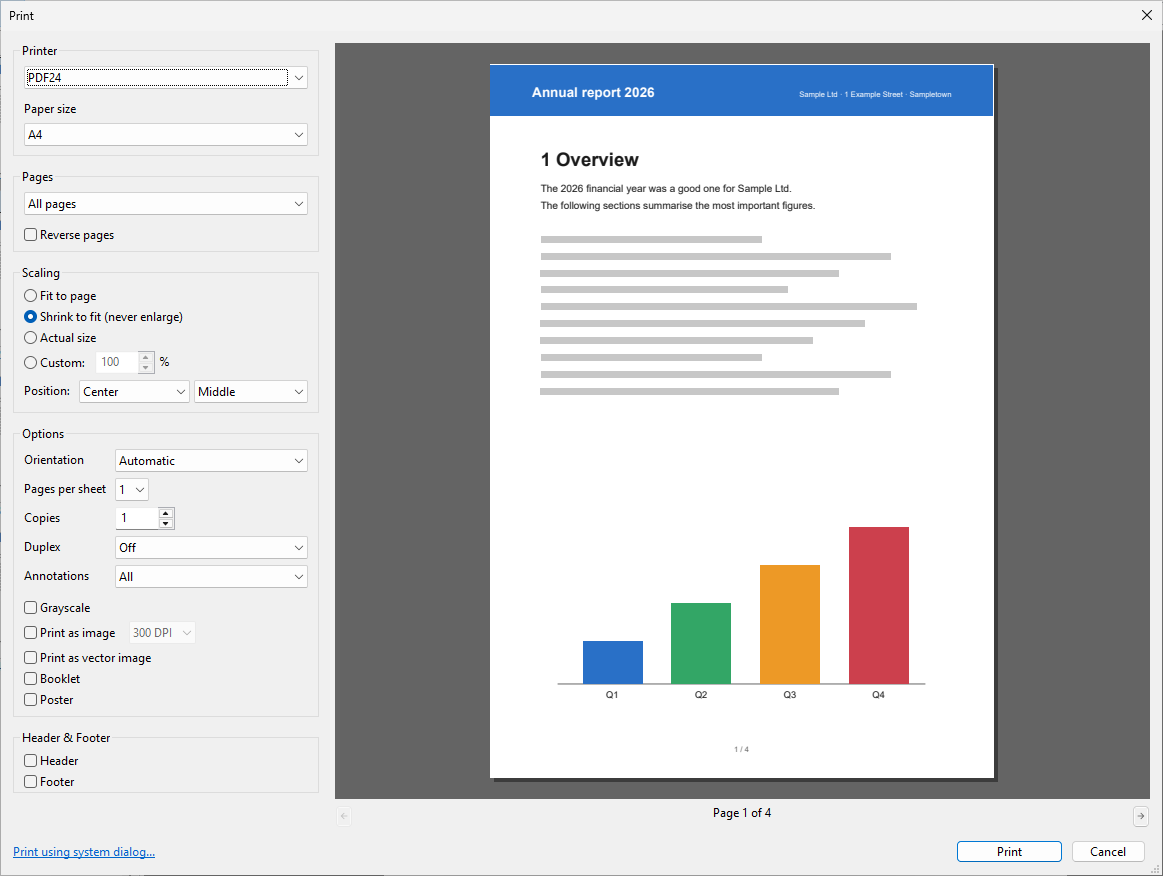
PDF24 Reader prints with its own print dialog with a preview. Open it with "Print" in the toolbar or Ctrl+P. The PDF24 Assistant and PDF24 Creator open the same dialog with "Print".
- Select the "Printer". The dialog remembers the printer used last.
- Choose the pages, the "Scaling" and under "Options", for example, "Grayscale" or "Print as image".
- Check the preview on the right and click "Print".
Important settings:
- Actual size instead of reduced: the default is "Shrink to fit (never enlarge)". For plans and patterns select "Actual size" under "Scaling". The dialog remembers the scaling for each printer. In detail in the manual: How to print a PDF at actual size.
- Several pages per sheet, booklet, poster: "Pages per sheet" (1, 2, 4, 6 or 9), "Booklet" and "Poster" are also under "Options". Step by step in Pages per sheet, booklet and poster printing.
- A new PDF file instead of paper: the first entry in the printer list, "Create new PDF", creates a new PDF file with your settings and opens it in a new tab. Save it there with "Save as...". The new PDF file takes over filled-in form fields and comments, flattened as when printing (since version 11.35.0).
- Header and footer: under "Header & Footer" you print, for example, the file name, page number and date.
- Windows print dialog: "Print using system dialog..." at the bottom left opens the Windows dialog with the settings of the printer driver. To always print with the Windows dialog, switch on "Always print using the system dialog instead of the PDF24 print dialog".
- Printing without a dialog: "Print" in the right-click menu of a PDF file in File Explorer prints to the Windows default printer if PDF24 Reader is your default app for PDF files.
The manual describes all options of the dialog in Print dialog.
Print in grayscale
Tick "Grayscale" under "Options" in the print dialog. The color PDF is printed in shades of gray, the file itself stays unchanged. If the printer is set to grayscale in Windows, the box is already ticked.
If you need the PDF file itself in grayscale, use Convert PDF to grayscale.
Print as image
"Print as image" under "Options" prints every page as an image, with 150, 300 or 600 DPI. This helps when a printer prints some content incorrectly or not at all. "Print as vector image" is the second option for such cases.
With the printer "Create new PDF" this gives you a PDF file whose pages consist of images only.
If a printout is blurred, check that "Print as image" is not ticked by mistake.
Select pages, odd and even pages
Under "Pages" choose "All pages", "Odd pages", "Even pages", "Current page" or "Page range:", e.g. 1,3,5-7. The range is printed in the order typed, 7-5 prints backwards. "Reverse pages" prints from the last to the first page. You can also print a single page by right-clicking the page > "Print this page".
Printing on both sides without a duplex printer: first print the "Odd pages", put the stack back into the printer, then print the "Even pages". How the stack has to be put back depends on the printer – try it with four pages. If the second run comes out in the wrong order, tick "Reverse pages". For a booklet use "Subset:" "Front side only" and then "Back side only" instead.
Together with "Pages per sheet" or "Booklet", "Odd pages" and "Even pages" print the odd or even sheets since version 11.35.0, so you can print on both sides by hand this way as well.
Print comments or leave them out
Under "Options" > "Annotations" choose:
- "All" – comments and highlights are printed as they appear on the page,
- "Without comments" – the page without comments,
- "None" – without any annotations.
The Reader does not print a list of the comment texts on separate pages. You see the full text of every comment in the sidebar under "Comments".
Saving and the save folder
"Save" (the button or Ctrl+S) writes your changes into the open file without asking. "Save" only shows a dialog if the file cannot or should not be overwritten: for example read-only or password-protected files, and files from a temporary folder such as e-mail attachments or PDF files the browser opens directly.
The arrow next to "Save" offers:
- "Save as..." (Ctrl+Shift+S) – a new name or folder,
- "Save flattened" – a copy in which form fields can no longer be changed,
- "Save compressed" and "Save using profile",
- "Save password protected" – more in Password protect a PDF.
Where does the save dialog open? In the folder of the open file. For files from a temporary folder (e-mail attachments from Outlook, PDF files from the browser) it suggests the folder you last saved to instead. To make it always open in the folder used last, for example for PDF files from the Downloads folder, switch on "Don't use the file's source folder when saving (use the last used folder instead)" in the settings. There is no fixed save folder for the Reader; "Fixed save directory" in the settings only applies to the PDF24 Assistant.
Rename, delete, show in folder: the arrow next to "Open" offers "Rename..." (F2), "Delete file..." (to the Recycle Bin) and "Show in folder".
Highlights, comments, forms and signatures
These topics have guides of their own; here are the essentials for the Reader:
- Highlight text: select text with the mouse and click "Highlight" in the small bar above it; the arrow next to it offers the color, underline or strike out. More in Highlight, underline or strike out text.
- Comments and notes: right-click a highlight > "Add comment". The sidebar shows all comments of the file with their full text under "Comments". More in Comments and notes.
- Fill in forms: click into the fields, fill them in and click "Save". Step by step in Fill out forms in PDF24 Reader. Since version 11.35.0, total fields add amounts with a decimal comma correctly (12,50 + 7,25 gives 19,75; before, the cents were dropped).
- Verify signatures: the sidebar shows under "Signatures" who signed and whether the document was changed afterwards, see Verify a digital signature.
- Signing: you insert a signature or an image in the PDF24 Toolbox or online, see Insert a signature in the PDF24 Toolbox. From the Reader, "Forward file tools" > "Toolbox" takes you there directly.
Organize pages, measure, snapshot
Under "Interactive tools" in the toolbar you choose what the mouse does:
- "Read" – normal reading and selecting text,
- "Move page" – move the page with the mouse,
- "Select text" and "Select text block" – select and copy text exactly or block by block,
- "Snapshot" – create an image of an area of the page,
- "Measure" – measure distances on the page; whether centimeters or inches are shown is set in the settings,
- "Organize pages" – move, rotate, delete or insert pages as thumbnails (Ctrl+A, Ctrl+C, Ctrl+V, Delete), then "Save".
Put tools you use often into the sidebar: gear at the bottom of the sidebar > "Customize tool shortcuts…". There are no keyboard shortcuts of their own for these tools.
If you drag a PDF file from File Explorer onto the pages, the Reader offers "Append pages at the end" and "Insert pages at the beginning". "Forward file tools" opens the PDF in another PDF24 program, for example the Toolbox, OCR, or sends it by e-mail or fax.
PDF24 Reader settings
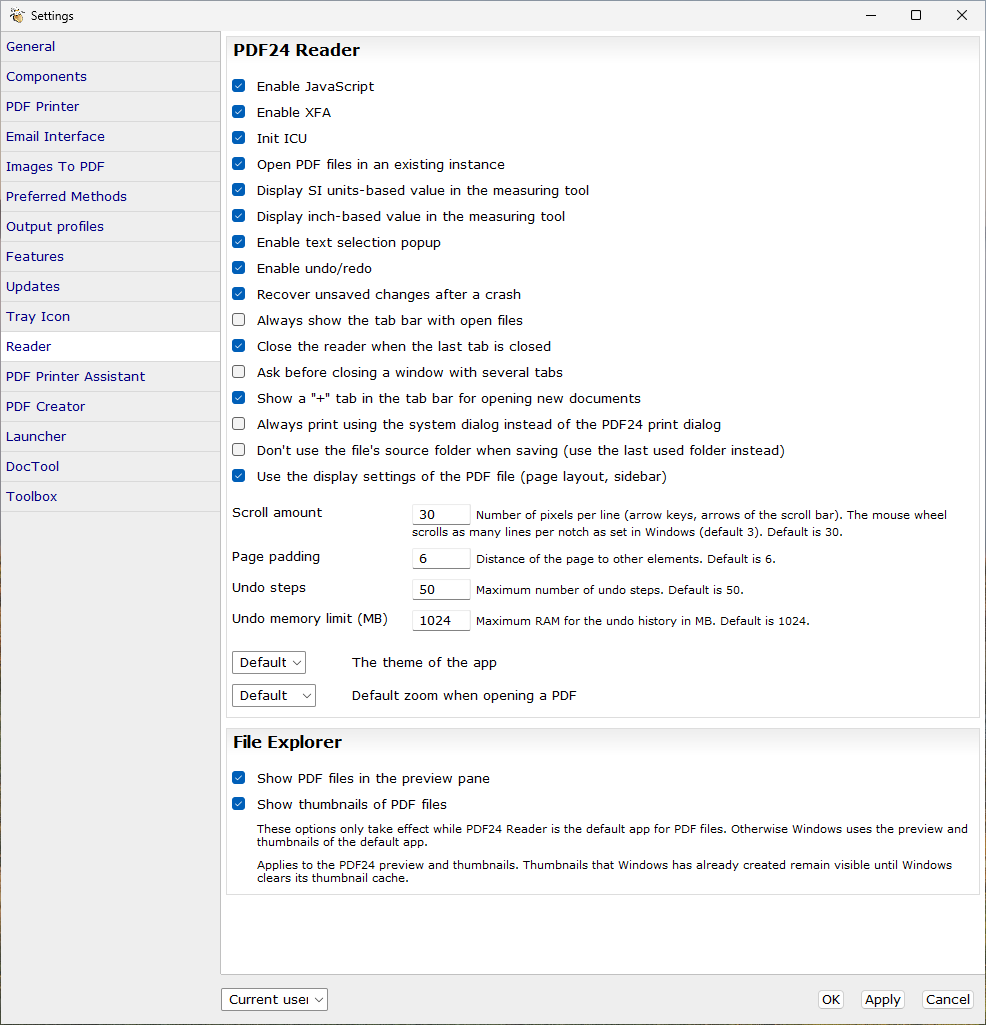
In the Reader, click "More" > "Settings". The PDF24 settings open directly on the page "Reader". The most important items:
- "Open PDF files in an existing instance" – off: every PDF file in a window of its own,
- "Always show the tab bar with open files" and "Close the reader when the last tab is closed",
- "Always print using the system dialog instead of the PDF24 print dialog",
- "Don't use the file's source folder when saving (use the last used folder instead)",
- "Enable text selection popup" – the small bar with "Highlight" above selected text,
- "Enable JavaScript" and "Enable XFA" – for forms with calculations and for XFA forms,
- "Display SI units-based value in the measuring tool" and "Display inch-based value in the measuring tool",
- "Recover unsaved changes after a crash" and "Enable undo/redo",
- "The theme of the app" – "System", "Light" or "Dark" for the Reader; "Default" takes the theme from the page "General",
- "Default zoom when opening a PDF" – "Fit" (whole page), "FitWidth" (page width) or "FitHeight" (page height),
- under "File Explorer": "Show PDF files in the preview pane" and "Show thumbnails of PDF files". Both only take effect while PDF24 Reader is the default app for PDF files.
The interface language and other settings of PDF24 Creator are explained in PDF24 Creator setup. Administrators find the registry values in the manual under Registry settings related to PDF24 Reader.
What PDF24 Reader cannot do
- Change existing text: PDF24 cannot yet rewrite text that is already in the PDF directly. This function is in the works and will be released with one of the upcoming versions once it is finished. The workaround is described in Replace existing text.
- Signing, stamps, watermarks, redaction: these tools are not available in the Reader at the moment. Use the PDF24 Toolbox ("Forward file tools" > "Toolbox") or the online tools, see Edit PDF.
- PDF portfolios: the Reader does not show portfolios as a portfolio but reports "Unsupported PDF feature: Portfolios_Packages". The files of the portfolio are stored in the PDF as attachments; you find them in the sidebar under "Attachments" and can open or save them there with "Open" or "Save".
- PDF files protected with Microsoft Purview / Azure Rights Management: PDF24 Reader does not support this protection. Instead of the content you only see the notice that such files contain for programs without this support. Open these files with the program your IT provides for protected documents. For other rights management systems it does not support, the Reader shows "Unsupported PDF feature: Rights_Management".
- Invert the colors of the file: "Page colors" only changes the display in the Reader, not the PDF file.
Problems and solutions
PDF files open in another program or show the wrong icon
If PDF files open in another program, for example PDF24 Compress, or show an unexpected file icon, another program is set as the default app for PDF files – often left over from an older installation. Set PDF24 Reader as described under default app. This also applies to PDF attachments in Outlook: they open with the Windows default app.
No preview in File Explorer
The PDF24 preview and thumbnails are only available while PDF24 Reader is the default app for PDF files. More causes and solutions: No preview in File Explorer. An error message about a registry key (error 5) in the preview of PDF files that open with the bookmarks or thumbnails view is fixed since version 11.35.0; update PDF24 Creator.
The Reader does not start
See PDF24 Reader, Toolbox or Launcher does not start.
A function on this page is missing
Many functions on this page (print dialog, extended search, page colors, saving into the open file) are only available in newer versions. Check your version under "More" > "About" and install the current one from tools.pdf24.org/en/creator over the existing installation – your settings are kept.
"The document's permissions do not allow this action"
The author of the PDF file has restricted actions such as printing, copying or filling in, and the Reader respects this. If you know the owner password of the PDF file, you can allow the action for the current session with "Unlock with the owner password". Otherwise contact the author of the file.
The password is not accepted
Check upper and lower case and the keyboard layout; the eye icon in the password field shows what you typed. If the password contains a euro sign or other special characters, the Reader up to version 11.34 rejected even the correct password for some encrypted PDF files. This is fixed since version 11.35.0; update PDF24 Creator.
The printout is blurred, or characters are missing
- Blurred: switch off "Print as image" in the print dialog, see Print as image.
- Characters or graphics missing on paper: switch on "Print as image" or "Print as vector image".
- Wrong size: check the "Scaling", see Printing.
After a crash: "Restore documents?"
If the Reader was not closed properly, it asks "Restore documents?" at the next start. "Restore" reopens the last session, including unsaved changes. Then save the files with "Save".
Your problem is not listed?
Ask your question in the PDF24 Help Center or write to us at team@pdf24.org.