Does your PDF have the wrong page size? With PDF24 you resize PDF pages to A4, A3, Letter or a size of your own, crop white margins and make pages of different sizes the same size. Free, online in the browser or offline with the PDF24 Creator.
Text, fonts and graphics are kept: the pages are scaled, not turned into images. The text stays searchable and can still be copied.
Contents
- Which way suits you?
- What page size does my PDF have?
- Change the PDF page size online: A3 to A4, Letter to A4
- What happens when scaling: text, fonts, margins
- Make pages of different sizes the same size
- Offline in the PDF24 Toolbox
- Create a new PDF in another size with PDF24 Reader
- Change the page size from the command line
- Crop a PDF: remove white margins
- Portrait and landscape
- Paper size when printing to the PDF24 printer, A4 as default
- Custom paper sizes in the PDF24 printer
- Margins when printing, borderless printing, actual size
- Page size when scanning and for images
- Problems and solutions
Which way suits you?
- Bring a finished PDF to A4, A3, Letter or a custom size: Change PDF page size in the browser, on any device. → Online. Offline on Windows the same in the PDF24 Toolbox. → Toolbox
- Cut off white margins or part of the page: Crop PDF. → Crop
- Pages are landscape instead of portrait or the other way round: → Portrait and landscape
- The PDF is created by printing and has the wrong size (Letter instead of A4, A4 instead of a custom size): → PDF24 printer and Custom paper sizes
- Many files automatically: → Command line
Several pages on one sheet, booklets, posters and splitting A3 double pages into two A4 pages are explained on Pages per sheet, booklet and poster. Rotating, deleting and sorting pages is on Split, delete, rotate and rearrange PDF pages.
What page size does my PDF have?
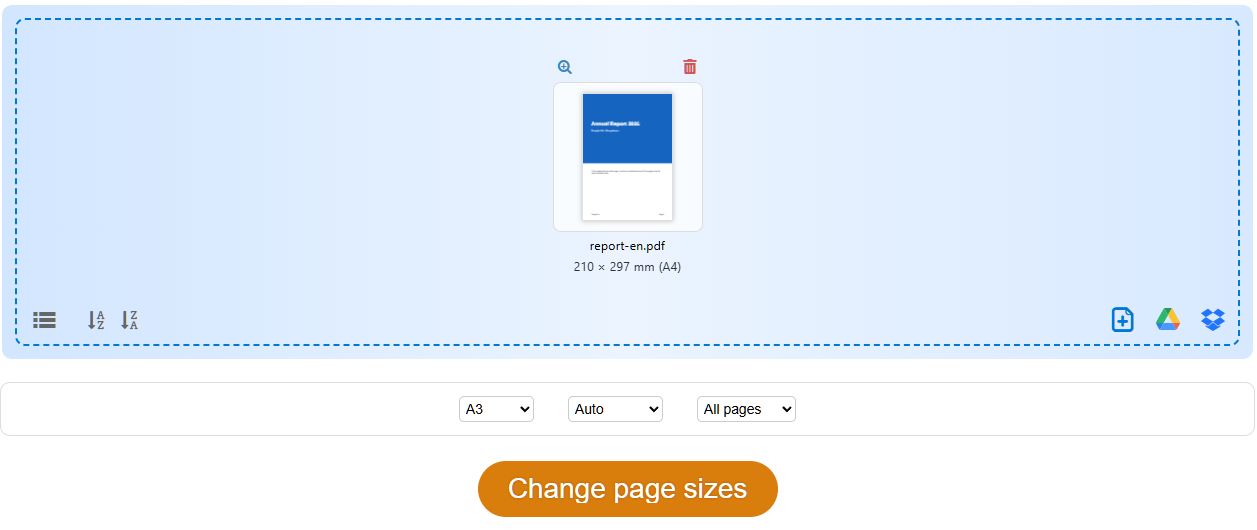
- Online while changing it: Add the file to Change PDF page size. Below the preview you see the size of the first page, for example "210 × 297 mm (A4)". If the pages differ, it adds "pages of different sizes".
- All pages at a glance: PDF info lists the sizes of all pages under "Page sizes".
- In PDF24 Reader: Right-click a page and choose "Show page information". The size of the first page is also shown in "Document information" under "Page size".
The size a PDF viewer shows on screen depends on the zoom. Two A4 pages can look different there if one of them is actually smaller. Check the real measurements as described above.
Change the PDF page size online: A3 to A4, Letter to A4
- Open Change PDF page size.
- Click "Choose files" or drag one or more PDFs into the file box. Below the file box there are three drop-down lists, from left to right for page size, orientation and pages.
- In the first list, choose the new page size: A0 to A6, Letter, Legal or "Custom". With "Custom" you enter the width and height and choose "mm" or "inch", for example 6 × 9 inch for a book format.
- In the second list, choose the page orientation: "Auto" (default), "Portrait" or "Landscape". See Make pages the same size.
- In the third list (Pages) keep "All pages", or choose "Page range" and enter the pages, for example
1-3, 5, 8-(8-means from page 8 to the end). The other pages stay as they are. - Click "Change page sizes" and download the result.
Good to know:
- A custom size must be larger than 0 and can be at most 5080 mm (200 inch) wide and high. Many PDF programs no longer display larger pages correctly. Otherwise you see, for example, "A PDF page can be at most … wide and high – please check the width and height." If one side is more than 20 times as long as the other, PDF24 points it out. This is usually a typo, such as a missing decimal point.
- The original size does not matter: A0 is brought to A4 just like A5. Small pages are enlarged.
- Your files are transferred encrypted, processed on servers in Germany and deleted automatically after one hour. If they must not leave your computer, use the Toolbox.
What happens when scaling: text, fonts, margins
- Text stays text. PDF24 scales the content of each page to the new size. Fonts, lines and images stay as they are, nothing is rasterized. The text remains searchable, selectable and sharp. You don't need the detour via a printer that users often ask about.
- The proportions are kept. The content is enlarged or reduced evenly, never distorted, and centered on the new page. From A3 to A4 everything is reduced to about 71 %, so a 10 point font becomes about 7 points.
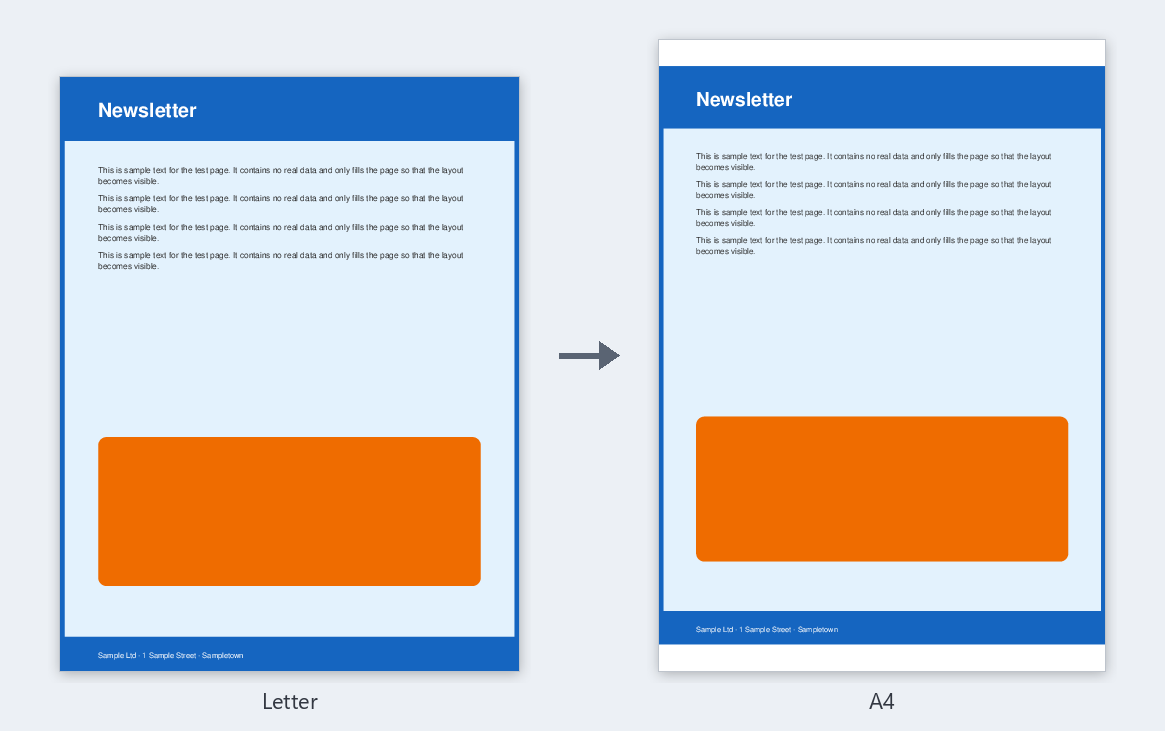
- White bars with a different aspect ratio. A4 and Letter have different proportions. Letter becomes A4 with a white bar of about half an inch at the top and bottom, A4 becomes Letter with about 0.35 inch on the left and right. That is the price for nothing being distorted or cut off.
- Pages with bleed (for example book pages for the printer with crop marks): PDF24 starts from the visible area of the page. It fills the new size, bleed and crop marks are left out.
- Form fields, comments and links move with the content: afterwards they are in the same place on the page, and fields can still be filled in. In the Toolbox this only comes with the next version. Until then they stay where they were there and end up in the wrong place or outside the page after the change. For the Toolbox, flatten filled-in forms and annotated PDFs first with Flatten PDF: entries, notes and highlights then become part of the page and are scaled with it. The fields can no longer be filled in afterwards, though, and links point to the wrong place.
- Scanned pages are images. They are scaled just as cleanly, but remain images. Text recognition with PDF OCR makes them searchable.
Make pages of different sizes the same size
After merging or scanning, pages often have different sizes. This is how they all get the same size:
- Add the PDF to Change PDF page size.
- Choose the target size, for example A4 or Letter, and keep "All pages".
- Choose the page orientation:
- "Auto": each page keeps its orientation. Portrait pages become A4 portrait, landscape pages A4 landscape. This is usually right, for example for tables and plans in landscape.
- "Portrait" or "Landscape": all pages that are not rotated get exactly the same format. A landscape page is not rotated but reduced onto a portrait page.
- Rotated pages: pages that are saved rotated by 90° in the file (for example after Rotate PDF pages, also some scans) come out as you see them, so in portrait with "Portrait" and in landscape with "Landscape". In the Toolbox this only comes with the next version; until then such pages come out there in landscape with "Portrait" and in portrait with "Landscape". For such PDFs choose "Auto" there: each page then keeps the orientation you see. If the content of a page is sideways, rotate it first and then change the size.
- Click "Change page sizes".
When merging, PDF24 keeps each page in its size. Make the sizes the same afterwards as described here.
Offline in the PDF24 Toolbox
The PDF24 Toolbox comes with the free PDF24 Creator for Windows and works without internet. Its tools work exactly like the online ones. Exception until the next version: the Toolbox still handles rotated pages, form fields, comments and links differently, as described above (Scaling, Make pages the same size).
- Open the PDF24 Toolbox and there "Change PDF page size".
- Drag the PDFs into the window or click "Choose files".
- Choose the Page size (A0 to A6, Letter, Legal or "Custom" in mm or inch) and the Page orientation ("Auto", "Portrait", "Landscape").
- Click "Change page sizes" and save the result.
In the Toolbox the new size always applies to all pages. To change only certain pages, use "Page range" online.
Create a new PDF in another size with PDF24 Reader
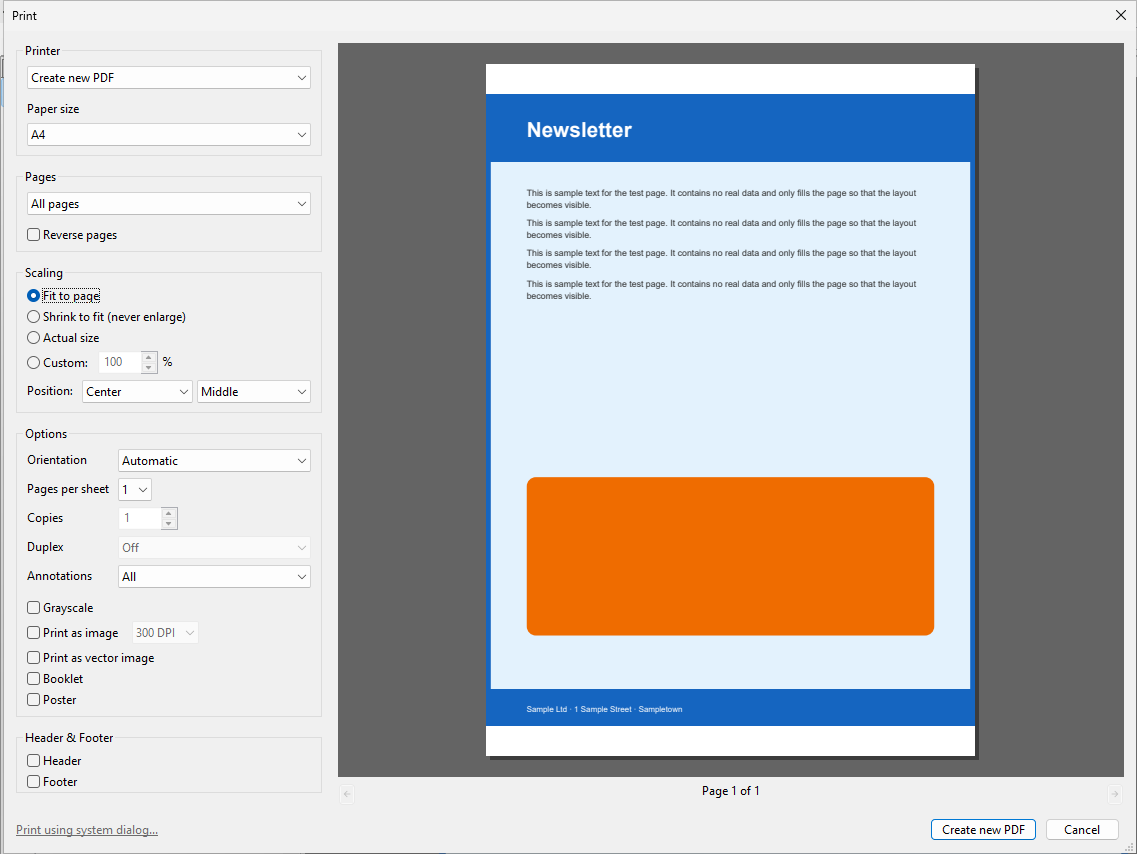
The print dialog of PDF24 Reader has "Create new PDF" as its first "printer". It prints nothing but creates a new PDF with the chosen paper size and scaling. This is handy if you also want to add a margin or a header and footer.
- Open the PDF in PDF24 Reader and click "Print" (Ctrl+P).
- Under "Printer" choose "Create new PDF".
- Under "Paper size" choose the new size, for example A4 or Letter. The list of paper sizes comes from the printer chosen last. If your size is missing, briefly choose a printer that has it (for example "PDF24"), then "Create new PDF" again and then the paper size. With "Printer default" the new PDF keeps the old page size.
- Choose the "Scaling": "Fit to page" enlarges or reduces to the paper, "Shrink to fit (never enlarge)" only reduces pages that are too large, "Custom:" takes a percentage. With 90 %, for example, you get a white margin all round, e.g. for punching holes.
- Click "Create new PDF". The new file opens in a tab of its own ("… (new).pdf"). Save it with "Save as..." and choose the folder and name. The Reader doesn't ask when you close it, so an unsaved tab is lost. "Create new PDF" does not work from PDF24 Assistant or Creator – save the PDF there first and open it in the Reader. With the next version, "Create new PDF" asks there where to save the new PDF and opens it in the Reader afterwards.
Text and fonts are kept here too. The new PDF only takes over the page content, though: form fields with their entries, comments, highlights and links are missing in it. So flatten a filled-in form or an annotated PDF first with Flatten PDF. This is fixed and comes with the next version: the new PDF then keeps form entries, comments and highlights (flattened, as when printing); links can no longer be clicked afterwards. "Grayscale" or "Print as image" turn the pages into images.
Change the page size from the command line
Since version 11.34.0 the PDF24 DocTool changes the page size without a window, for example for all PDFs in a folder:
"C:\Program Files\PDF24\pdf24-DocTool.exe" -changePageSize -pageSize letter -silent -outputDir "C:\Out" "C:\In\*.pdf"-pageSize:A0toA6,letter,legalor a custom size such as210x297mmor8.5x11inch. The default is A4.-orientation auto|portrait|landscape: like "Auto", "Portrait" and "Landscape". For PDFs with rotated pages useautountil the next version (see Make pages the same size).- Without
-outputFilethe result is named like the input with_resized, for examplereport_resized.pdf.
Cropping works with -crop (margins in mm by default, or with the suffix inch or pt):
"C:\Program Files\PDF24\pdf24-DocTool.exe" -crop -left 10 -top 10 -right 10 -bottom 15 -outputDir "C:\Out" "C:\In\scan.pdf"All options are in the PDF24 Creator manual under Change the page size of PDF files and Crop PDF files.
Crop a PDF: remove white margins
Cropping makes the page smaller without scaling the content. Use it to remove white margins around scans, header and footer areas, or to cut a detail out of a plan.
The same margins for all pages: Crop PDF
- Open Crop PDF and add the PDF.
- Enter how much is cut off "Left", "Top", "Right" and "Bottom", in mm.
- Or switch on "Visual mode": a preview of the file appears and you drag the frame to the right place with the mouse. With "Previous page" and "Next page" you check whether the frame fits all pages. The fields in mm follow.
- Click "Crop" and download the result.
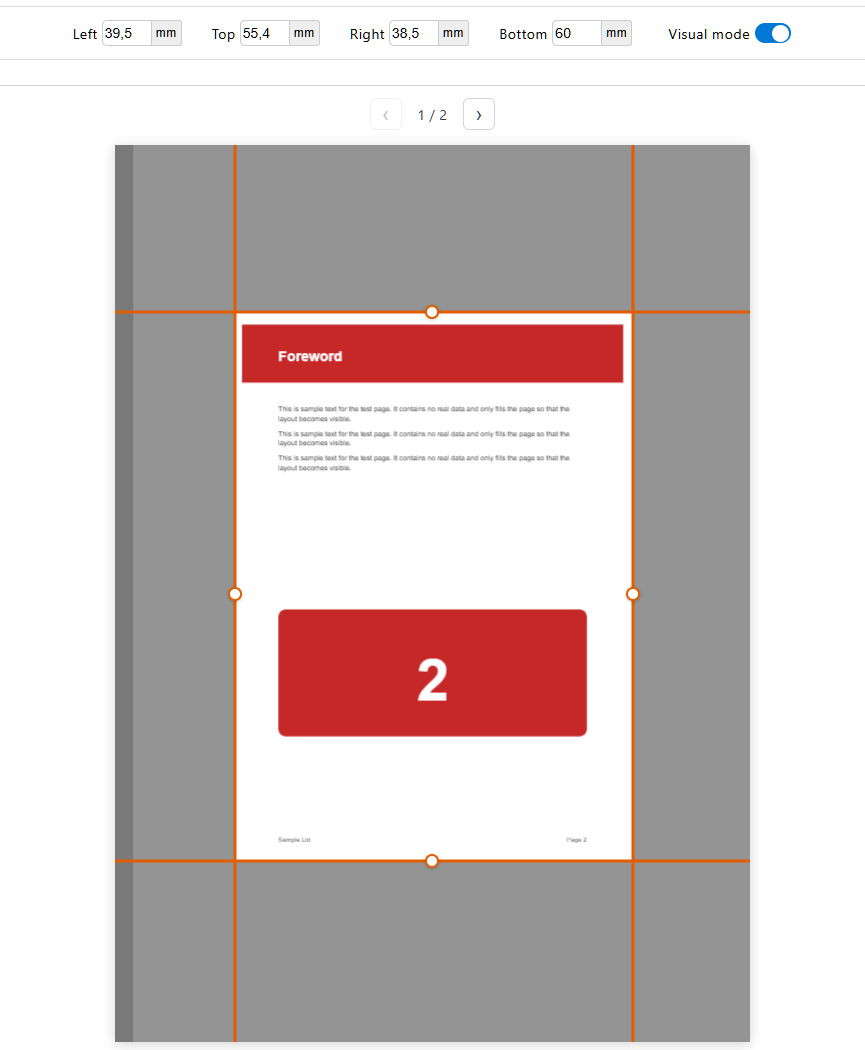
The margins apply to all pages and all files added. In the PDF24 Toolbox the tool is also called "Crop PDF", with the same fields and "Visual mode".
Each page differently or automatically: the "Crop" mode in the editor
If the pages need different margins, for example scans with a wide margin sometimes on the left and sometimes on the right, use the online editor:
- Open Edit PDF and add the PDF.
- At the top, choose the mode "Crop" with the button showing the name of the current mode ("Insert" when the editor opens).
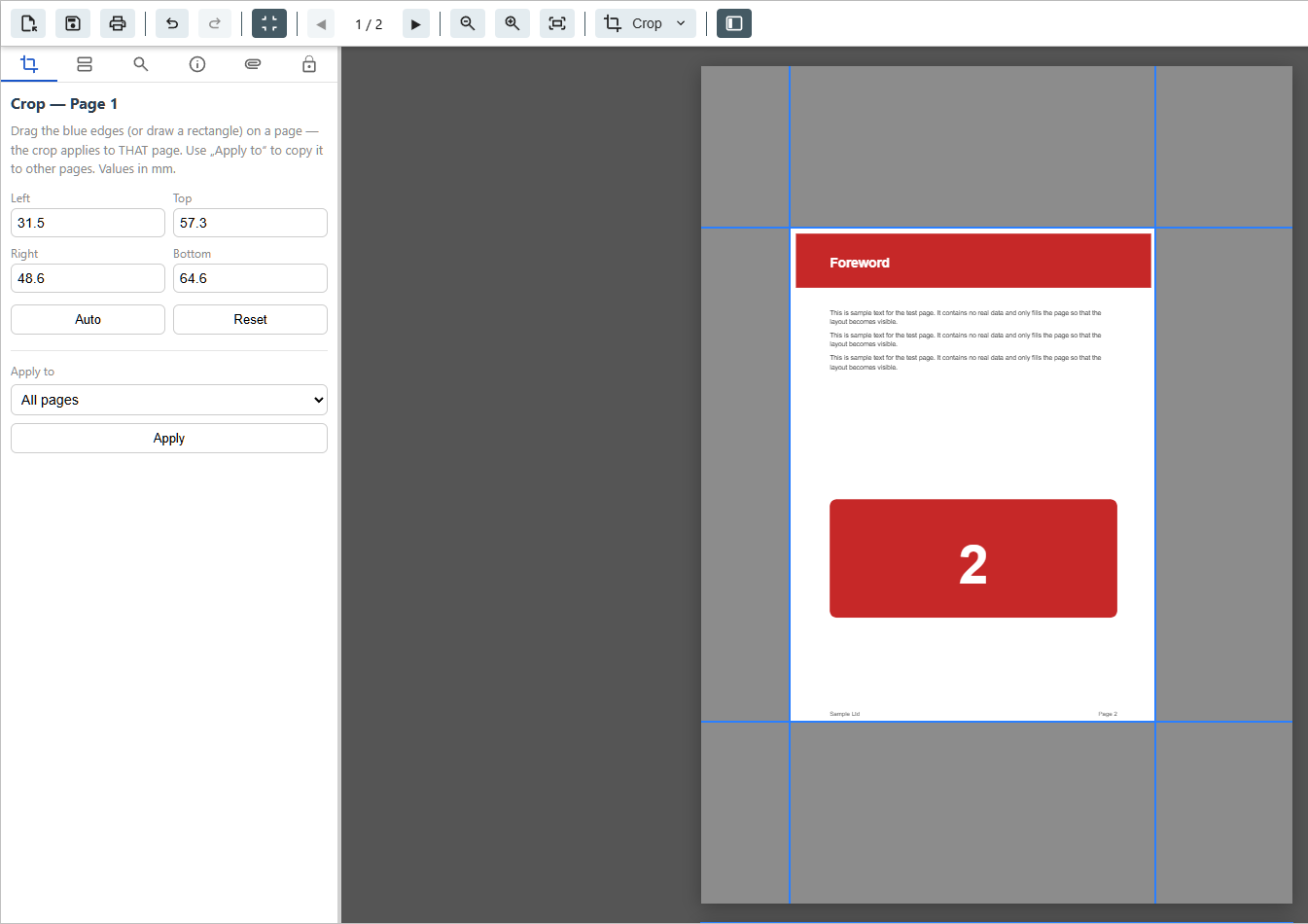
- Drag the blue edges on the page, draw a rectangle or enter the values in mm. The crop applies to this page.
- "Auto" detects the content area of the current page and cuts off the white margin, leaving 2 mm. A grey scanner edge counts as content; drag the edges in by hand then. "Reset" removes the crop of the page.
- Under "Apply to" copy the crop of the current page to "All pages", "Even pages", "Odd pages" or a "Page range" and click "Apply". This way, for example, all left-hand and all right-hand book pages get a margin of their own.
- Save with "Save PDF" (disk icon).
More about the editor: Edit PDF.
What cropping does
- PDF viewers and printers then only show the chosen area, and the page has its size.
- The part cut off is hidden, not deleted. Other PDF programs can make it visible again. If content must really disappear, for example personal data, redact it: see Remove text or images.
- If the cropped page should be A4 again, bring it to A4 afterwards with Change PDF page size. The content then fills the page better than before.
- "Crop PDF" cannot add a margin, for example bleed for the printer. Negative values at most bring back a part that was cropped before; nothing becomes larger than the original page. Add bleed in the program the document is made in. A white margin around the content can be added with PDF24 Reader (scaling below 100 %).
- The Toolbox also offers the choice "Box": "Crop Box" (default) sets what viewers show, "Trim Box" only sets the final format for the printer and does not change the display.
Portrait and landscape
Rotate pages
If a page is sideways or upside down, rotate it with Rotate PDF pages or in the editor in the mode "Organize". How to save rotated pages permanently is explained on Rotate pages and save the rotation.
The choice "Portrait"/"Landscape" when changing the page size does not rotate anything: it only sets the shape of the new page. For rotated pages, use "Auto" (see above).
Landscape becomes portrait when printing to the PDF24 printer
- The orientation comes from the program you print from. Set landscape there, in the page setup or in the print dialog.
- With the driverless PDF printer of versions 11.31.0 and 11.31.1, landscape pages in mixed documents came out upright. This has been fixed since version 11.32.0. Update the PDF24 Creator.
- Up to version 11.33.0, saving with an output profile rotated pages by the direction of their text. Landscape plans with vertical text ended up in portrait. Since version 11.34.0 "Auto rotate pages" is set to "None" by default, and the pages stay as they were printed. If PDF24 still rotates them for you, check the setting in the PDF24 Assistant under "Save as..." › PDF › "General" › "Auto rotate pages".
Turn pages upright by their text automatically
This can also be wanted, for example for scans where some pages lie sideways: text recognition turns them by the recognized text, online in PDF OCR behind the gear icon ("Additional options") with "Rotate pages", offline in the program PDF24 OCR (Toolbox "PDF OCR") with "Auto rotate pages". More on Rotate pages and save the rotation. PDFs with text are turned upright by the DocTool with -autoRotatePages (manual: Rotate pages automatically).
A landscape PDF is printed in portrait
In the print dialog of PDF24 Reader the "Orientation" is set to "Automatic": the paper is turned to fit each page, also in documents with portrait and landscape pages. If "Portrait" or "Landscape" is selected, it applies to all pages. When you print with "Print using system dialog...", the printer driver decides the orientation.
Paper size when printing to the PDF24 printer, A4 as default
The PDF printer "PDF24" is set up with A4. Many programs, however, print in the size of their document: Word takes the page size from "Layout" › "Size", so a document from an American template becomes Letter, a European one A4. Set the size correctly in the program first. If your document has a custom size the printer does not know, you still get A4 or Letter, see Right size in the program, but the PDF is A4.
Tip for Word, Excel and PowerPoint: convert instead of printing. Drag the file into the PDF24 Creator or use "Convert to PDF" in the Toolbox. The PDF then takes over the page size of the document, custom sizes too. More on Word to PDF.
The default paper size of the printer, for programs that take it from the printer, is changed in Windows:
- For your own user account: "Settings" › "Bluetooth & devices" › "Printers & scanners" › "PDF24" › "Printing preferences". For the classic printer, click "Advanced..." on the tab "Layout" and choose the paper size. The driverless printer has a fixed list of standard sizes.
- For all users (administrator): in the "Printer properties" of "PDF24", tab "Advanced", "Printing Defaults...".
If the PDF is already finished and has the wrong size, bring it to A4 or Letter with Change PDF page size.
Custom paper sizes in the PDF24 printer
Whether you can choose custom sizes when printing depends on the kind of PDF24 printer you have (more on The two kinds of PDF printer):
- Driverless printer (new installations on Windows 11 24H2 and later): a fixed list of 47 standard sizes (including A0 to A10, B and JIS B sizes, Letter, Legal, Tabloid). Windows does not allow custom sizes for driverless printers.
- Classic printer (Legacy, PostScript): custom sizes, also oversized ones for plans, and the forms of the Windows print server properties.
How to create a size of your own for the classic printer that stays in the list:
- In the Windows settings, open the print server properties under "Printers & scanners".
- There, create a new form with a name, width and height and save it. This usually needs administrator rights.
- Choose the form as paper size in your program when you print to "PDF24".
Without administrator rights, a single print job often works like this: in the advanced printing preferences of the classic printer, the paper sizes include a PostScript custom page size where you enter the width and height. Not every program takes it over; Word, for example, prints in the size of its document.
For large formats in landscape (for example plans from CAD programs) choose the size and set the orientation to landscape in the program. If you have the driverless printer and need custom sizes, add a classic printer or switch "PDF24", see Driverless or classic PDF printer.
It is often easier without a printer: convert Office files directly, or bring a finished PDF to any size with "Custom" in Change PDF page size.
Margins when printing, borderless printing, actual size
White margin in the PDF
The PDF24 printer prints to the edge of the sheet; it has no unprintable margin. The exception is the size "A4 Small" of the classic printer. A white margin in the PDF comes from the printing program: from the page margins in its page setup, the margin setting of the browser or an option like "fit to page". Make the margins smaller there. An existing margin is removed by cropping.
White margin or reduced print on paper
Real printers usually cannot print to the edge of the paper. In the PDF24 print dialog (in the Reader with Ctrl+P; the same dialog appears when you print from the PDF24 Assistant or the PDF24 Creator) you therefore choose under "Scaling":
- "Shrink to fit (never enlarge)" (default): an A4 page on A4 paper is reduced by about 3 to 5 % so that nothing is missing at the edge.
- "Actual size": the page is printed 1:1, for example for plans, sewing patterns and labels. Whatever lies in the unprintable margin of the printer is missing.
- "Fit to page" or "Custom:" with a percentage, for example 141 % from A4 to A3.
Check the "Paper size" too: the dialog picks the paper that matches the PDF page. Print small pages such as A5 or receipts at actual size on A4 or Letter paper by choosing that paper or "Printer default". The dialog remembers scaling and paper size for each printer.
Borderless printing only works if your printer can do it. Switch it on in the settings of the printer driver (at the bottom left of the dialog: "Print using system dialog...") and print at "Actual size". More in the manual: How to print a PDF at actual size.
Page size when scanning and for images
- Scanning: PDF24 sets no paper size for scanning. After you choose the scanner, the window of the scanner driver opens. Set the paper size there (for example A4 or Letter instead of Legal, or A3), the resolution and the colour. If it always shows the wrong size, check the defaults of the scanner software. How to scan with PDF24: Scan to PDF.
- Scan already done? If a sheet sits on a page that is too large (for example Legal, because the scanner was set to it), cut off the excess with Crop PDF, most easily in "Visual mode". If the sheet lies in the top left corner, that is about 76 mm (3 inches) at the bottom for a Letter sheet on Legal, or about 59 mm at the bottom and 6 mm on the right for an A4 sheet. The page then has the size of the sheet and the content keeps its original size. Change PDF page size would shrink it instead. White margins around the content are removed by cropping as well.
- Images and photos: Images to PDF has its own settings for "Page size" (A4 by default, also A3, Letter or a custom size), orientation and "Margin". This is how an A3 scan saved as JPG gets an A3 page. More on Create a PDF from images.
Problems and solutions
The PDF is Letter instead of A4
Usually the program printed in that size, for example a Word document from an American template. Set the size to A4 in the program or convert Office files directly, see PDF24 printer. Bring a finished PDF to A4 with Change PDF page size. If the program already shows the right size, read the next point.
Right size in the program, but the PDF is A4 or Letter
This happens mostly with custom sizes, for example a book in 6 × 9 inches or a square document of 21 × 21 cm: when printing to the PDF24 printer, only a size the printer knows is used. If it does not know yours, Windows or the program falls back to a standard size, and your page sits reduced or in a corner on an A4 or Letter sheet. The driverless printer does not know any custom sizes at all.
- Word, Excel, PowerPoint: convert instead of printing. Drag the file into the PDF24 Creator or use "Convert to PDF" in the Toolbox. The PDF then takes over the page size of the document.
- Other programs: create the size as a form for the classic printer and choose it in the program, see Custom paper sizes.
- The PDF is already finished: if your page is at its original size on the sheet (for example at the top in the middle), cut off the rest with Crop PDF. If it was reduced, bring the PDF to your size with "Custom" in Change PDF page size.
After changing the size there is a white bar at the top and bottom (or left and right)
The new size has other proportions than the old one, for example Letter and A4. PDF24 neither distorts nor cuts off anything, so a bar remains free. See Scaling.
The text is no longer searchable after the change
Online, in the Toolbox and on the command line, text stays text. If it was not searchable before, the PDF is a scan: have the text recognized with PDF OCR. When going via a printer, "Print as image" or "Grayscale" turn the pages into images.
Form fields or comments are in the wrong place after the change
Online, form fields, comments and links move with the content. Take the original file and change the page size with Change PDF page size. In the Toolbox and on the command line they are not moved along until the next version. There, flatten the original file first with Flatten PDF; the fields can no longer be filled in afterwards, and links stay in the wrong place (see Scaling).
Pages are landscape instead of portrait after the change
The pages were saved rotated in the file, and the size was changed in the Toolbox or on the command line with "Portrait" or "Landscape". Change the size again from the original file, online or with the page orientation "Auto" (see Make pages the same size). With the next version, rotated pages come out in the chosen orientation in the Toolbox too.
Cropping changes nothing
- Negative values do not add a margin. At most they undo an earlier crop.
- If the margins together are larger than the page, the page stays unchanged.
- Toolbox: pages that already had a visible area (for example after halving pages) became larger instead of smaller up to version 11.33.0. This has been fixed since version 11.34.0.
My paper size is missing in the PDF24 printer
You have the driverless printer. It only knows standard sizes. See Custom paper sizes.
Landscape pages come out in portrait
All pages are A4 but look different in size
Check the real measurements with PDF info. If some pages are smaller, make them the same size.
If you miss a function or something does not work, write to us at team@pdf24.org or ask in the PDF24 forum.