Do you need to fill in a PDF form on screen instead of printing it, or send out a form that others can fill in? PDF24 does both for free: online in your browser, or offline with PDF24 Creator for Windows.
Contents
- Which way suits you?
- Fill out a PDF form online
- Forms without fields (scans, printouts)
- Fill out forms in PDF24 Reader (offline)
- Save, flatten and send
- Make an existing PDF fillable
- Create a new form from scratch
- Totals and calculations
- Signature fields and signing
- Export and import a form
- Fillable forms from Word
- XFA forms
- Problems and solutions
Which way suits you?
- Fill in a form: online with Fill out PDF → Fill online; offline in PDF24 Reader → Reader
- Lock the entries: Flatten PDF → Flatten
- Add fields to a PDF you already have (e.g. made in Word, or a form you received): Make PDF fillable → Make fillable
- Design a new form: Create fillable PDF form → Create a form
The online tools run on Windows, Mac, Linux, iPhone and Android. Your file is transferred encrypted and deleted from the server after one hour. If your files must stay on your PC, use the free PDF24 Creator: you fill in forms in PDF24 Reader, and the PDF24 Toolbox has the tools "Make PDF fillable" and "Flatten PDF".
Fill out a PDF form online
- Open Fill out PDF.
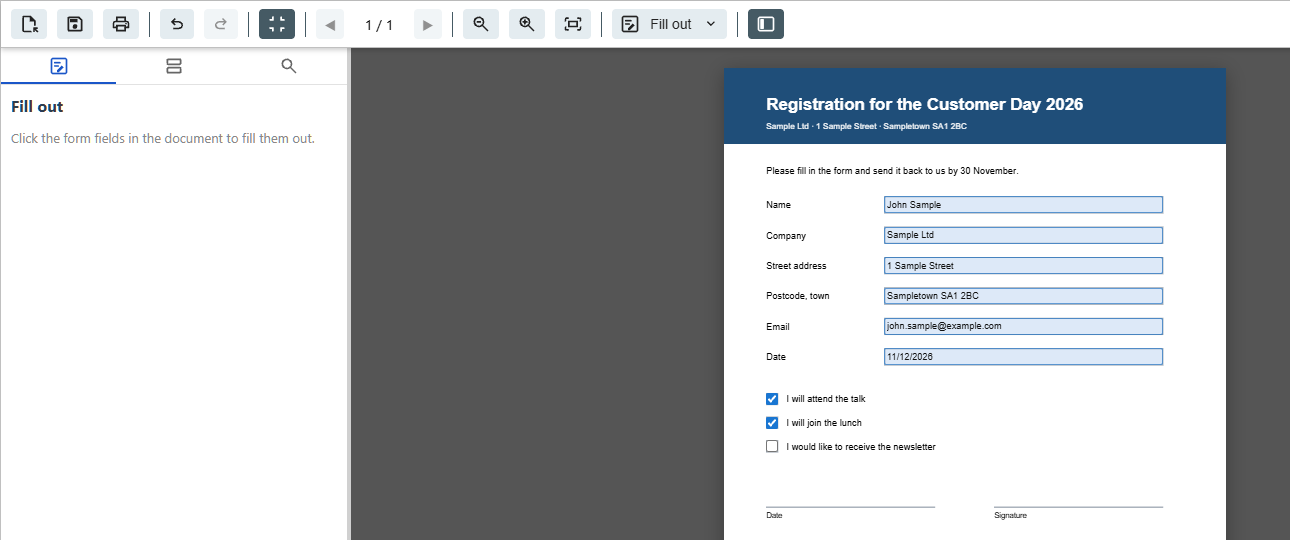
- Click "Choose file" or drag the PDF into the file box. It opens in the "Fill out" mode.
- Click into the fields and type, tick the boxes and pick from the lists. Clicking a date field opens a calendar; the Tab key takes you to the next field.
- Click "Save PDF". In the dialog you can change the "File name" and tick "Flatten (embed forms & annotations)" to lock your entries right away (more).
- Click "Save PDF" in the dialog. The filled-in PDF is downloaded.
Good to know:
- Simple calculated fields are calculated online while you fill in: sum, product, average, minimum and maximum, also via hidden helper fields. Amounts appear in the form's format, e.g. "$1,234.50" (more).
- If the form has other scripts, such as its own formulas, PDF24 shows the note "This form contains calculations or scripts that are not run here." Then check the calculated fields and enter the values yourself if needed, or fill in the form in PDF24 Reader.
- For a dynamic XFA form you see "This is a dynamic XFA form." It can't be filled in online (XFA).
The same modes exist in the editor Edit PDF: pick "Fill out" or "Make fillable" with the button at the top that shows the name of the current mode.
Forms without fields (scans, printouts)
Many forms are not fillable at all: a scan, a PDF printed from Word, or a form that was flattened. PDF24 then says "This document does not contain any fillable form fields." and switches to the "Insert" mode. There you place text, checkmarks and your signature anywhere on the page and save with "Save PDF" – see Add text to a PDF. If you need the form again, or others should fill it in, make it fillable once.
Fill out forms in PDF24 Reader (offline)
PDF24 Reader comes with PDF24 Creator, and your data stays on your PC.
- Open the PDF in PDF24 Reader (double-click if the Reader is your default PDF program, otherwise right-click › "Open with").
- Click into a field and type. Tab moves to the next field, Ctrl+Z undoes your typing.
- Click "Save": the Reader writes your entries into the open file. The arrow next to "Save" offers "Save as..." for a copy and "Save flattened" for a copy whose fields can no longer be changed.
- The Reader runs the form's scripts – calculations, checks, date formats. This is on by default; the switch is in the PDF24 Creator settings under "Reader" › "Enable JavaScript".
- If you close a PDF with unsaved entries, the Reader asks whether to save it. For XFA forms it asks from PDF24 Creator 11.35.0 on (XFA).
- To keep an empty form as a template, use "Save as..." or make the template read-only (in File Explorer, right-click › "Properties" › "Read-only"). The Reader then asks for a new name when saving, and the template stays empty.
- The "Form Fields" tab in the sidebar lists all fields of the document by page.
- Adding or changing fields is not possible in the Reader; use Make PDF fillable for that.
Save, flatten and send
A saved form stays fillable: anyone who receives the file can change your entries, bank details for example. Flattening merges the fields into the page. The PDF looks the same but can no longer be filled in or changed. Flatten when the form is finished and you send or archive it, and keep an unflattened copy in case you need to change something. If the recipient still has fields to fill in, send it unflattened.
- Online: open Flatten PDF, choose one or more PDFs, click "Flatten" and download the result – or tick "Flatten (embed forms & annotations)" in the "Save PDF" dialog while filling in.
- PDF24 Toolbox (offline): the tool "Flatten PDF", choose the files, "Flatten". Since version 11.34.0 it flattens the same way as the online tool.
- PDF24 Reader: arrow next to "Save" › "Save flattened".
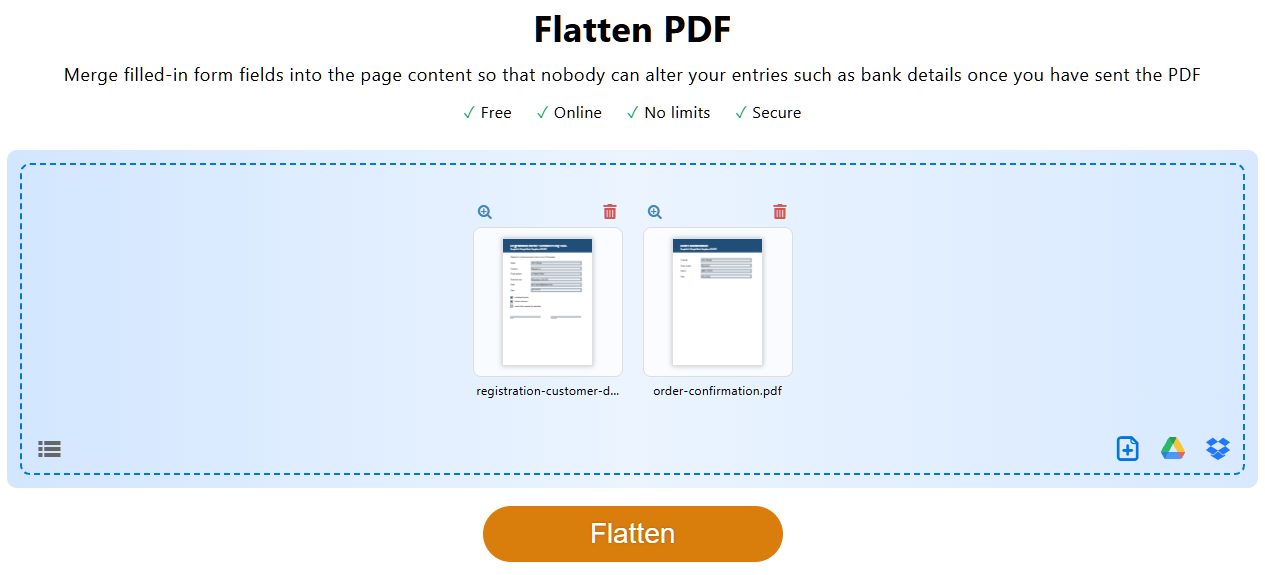
Flattening burns in form fields as well as comments, drawings, stamps and free text, exactly as they look on screen; links are kept. A PDF with nothing to flatten comes back unchanged from the online tool. Dynamic XFA forms cannot be flattened (XFA).
Make an existing PDF fillable
This turns any PDF into a form that anyone can fill in with a PDF program. You can also change, move or delete the fields of an existing form here.
- Open Make PDF fillable and choose the PDF. It opens in the "Make fillable" mode.
- The vertical bar on the left over the page has one button per field type: "Text field", "Checkbox", "Radio Button", "Button", "Dropdown", "Listbox" and "Signature". A click puts the field in the middle of the view, or drag it straight to its place on the page.
- Move the field and drag it to the right size.
- Click a field to see its properties on the right (see below).
- "Try out" opens the form as it will be saved, so you can test it with Tab and some entries. Nothing is saved.
- Click "Save PDF" and download the fillable PDF.
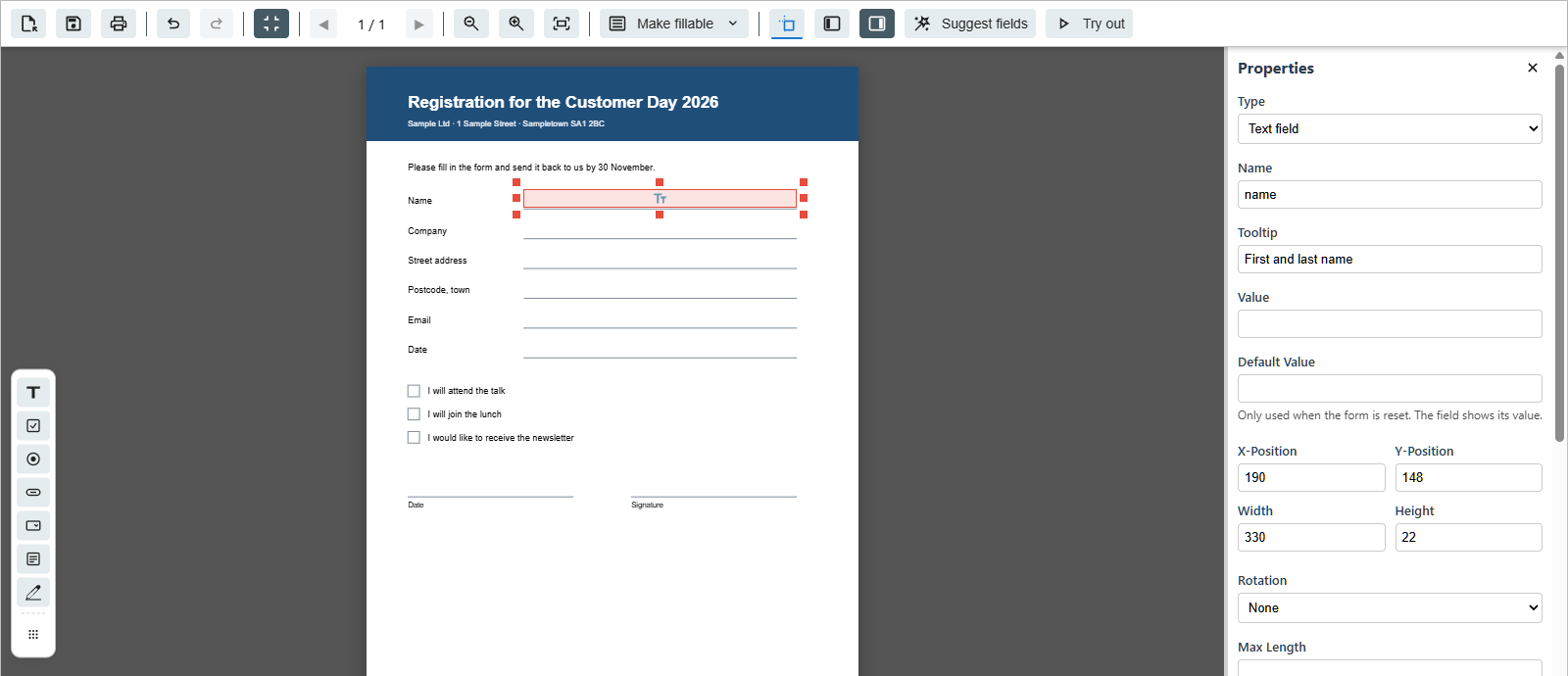
Let PDF24 suggest fields: "Suggest fields" looks for lines, empty boxes and underscores in the PDF and puts fields there, named after the label next to them. Suggestions have a dashed frame; "Keep all" and "Discard all" decide for all of them at once, single ones you delete like any field. On long forms this saves a lot of work.
Tab order: on the left under "All Fields in Document", "Tab order" shows the order in which Tab moves through the fields. Drag fields in the list to their place, or sort them with "By position".
Field types and properties
- "Text field": names, addresses, amounts. "Multiline" for longer text, "Comb" for one box per character (set a maximum length for it). Under "Format", choose "Number", "Currency", "Percent", "Date", "Time", "Postcode (digits only)", "Phone number" or "E-mail address" – the field then shows the value accordingly and accepts only matching input. A date field can "Fill with today's date when opened".
- "Checkbox": a box to tick, each on its own.
- "Radio Button": several choices of which exactly one can be picked. Radio buttons with the same "Group name" form a group; each needs its own "Value".
- "Dropdown" and "Listbox": choose from a list; enter the entries under "Options".
- "Button": for example to print, save or reset the form.
- "Signature": a field for a signature (more).
More properties: "Name", "Value" (filled in beforehand), "Default Value" (used when the form is reset), "Tooltip" (shown over the field and read out by screen readers), font and font size, "Background Color" and "Border Color" (untick both for a transparent field), "Rotation", and the switches "Required", "Read Only" and "Print".
Linked fields: fields with exactly the same name show the same content – type the name on page 1, and it appears in the header of every following page too. The quickest way is "Linked copy on pages" in the properties (enter pages such as "2-4, 6", then "Insert"), or Ctrl+C and Ctrl+Shift+V. The other way round, give different fields different names.
Protect form from changes: in the "Save PDF" dialog you can tick "Protect form from changes" and set an owner password. The form can still be filled in, but fields and pages can only be changed with the password – keep it safe.
In the PDF24 Toolbox (offline)
The PDF24 Toolbox tool "Make PDF fillable" works without internet. It has the same field types, "Linked copy on pages", field rotation and "Export form"/"Import form"; "Save PDF" asks for the folder and file name. "Suggest fields", "Try out", "Format", "Simple calculation" and "Protect form from changes" are online only.
Create a new form from scratch
If you have no PDF to start from, build the form from ready-made blocks with Create fillable PDF form. Pages break by themselves, and you get a fillable PDF for all common PDF programs.
- Under "New", pick a template such as "Registration", "Order form", "Leave request", "Power of attorney", "Timesheet" or "Travel expenses", or start with "Blank form".
- Add fields and text from "Blocks" (click, or drag onto the page). "Ready-made groups" include "Address", "Table with total" and "Place, date, signature".
- Type headings and labels straight onto the page. Click a block to see its settings on the right, such as "Label", "Required", "Help text" and "Width".
- "Page & design" sets the paper size, margins, colour, a header with your logo, a footer and page numbers.
- Test the form with "Try it out".
- Click "Create PDF".
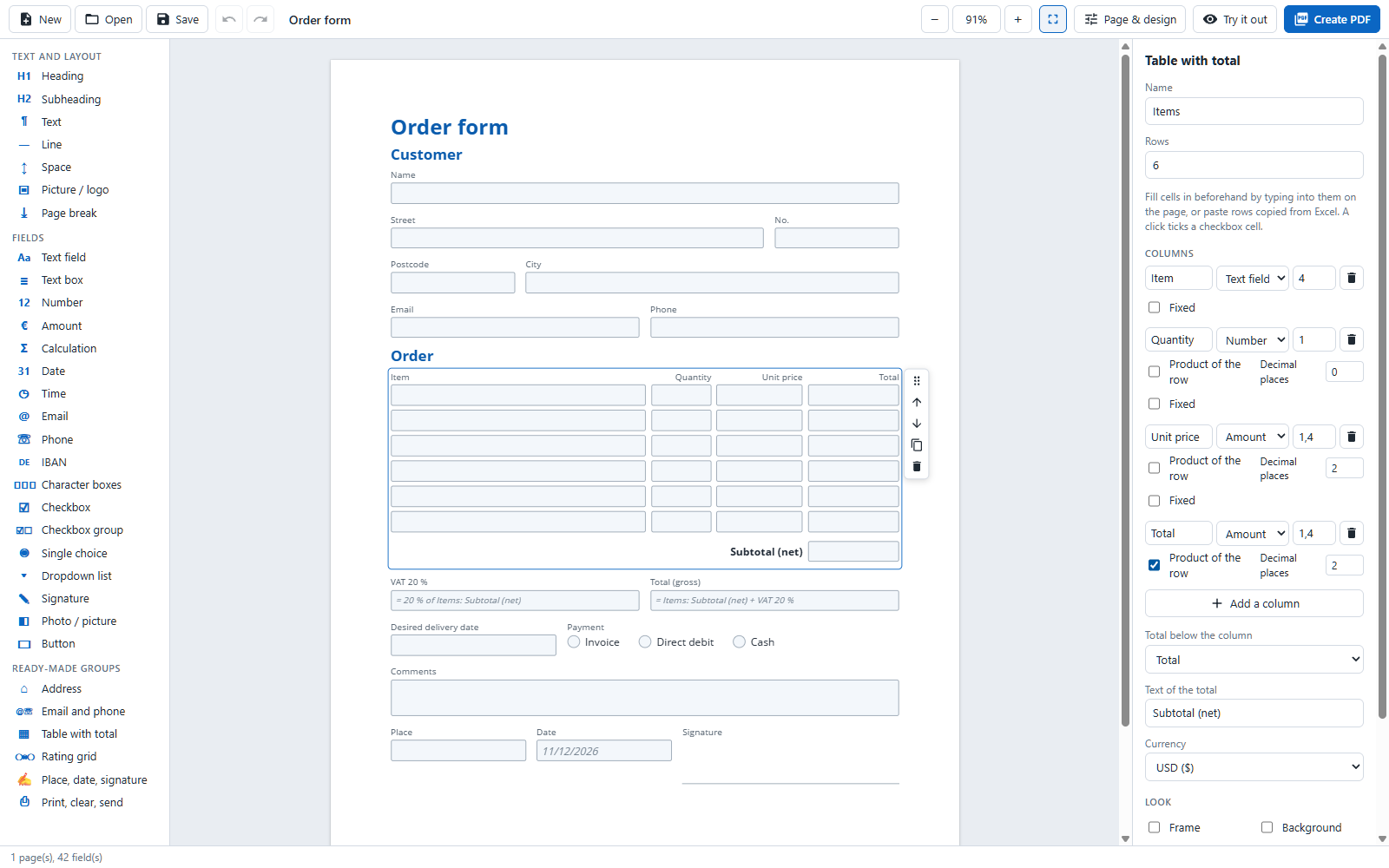
Fields you can use: "Text field", "Text box", "Number", "Amount", "Date", "Time", "Email", "Phone", "IBAN", "Character boxes", "Checkbox", "Checkbox group", "Single choice", "Dropdown list", "Rating grid", "Calculation", "Signature", "Photo / picture" and "Button" (print, clear the form, save as, send by e-mail, send to a web address), plus headings, text, lines, images and page breaks. A photo can be added to a "Photo / picture" field only in Adobe Acrobat and Adobe Acrobat Reader; other PDF programs just show the frame.
Forms that think along:
- Fields can be filled in beforehand, and a date field can enter today's date.
- Email, IBAN and time are checked while typing; for a text field, "Allowed" can be set to e.g. "Digits only (postcode, customer no. ...)".
- Required fields get a red asterisk.
- With "Show only if", a block or a row appears only when a box is ticked or a certain option is chosen. PDF programs without JavaScript always show it.
- Tables and calculations add up by themselves (more).
Save a draft and continue later: your draft is saved in this browser as you work. "Save" also downloads it as a file, which "Open" loads again – on another device too. You can also simply open the PDF you created: it contains the form, and you carry on where you left off. Other PDFs can't be opened here; use Make PDF fillable for those.
Languages: with "Automatic" under "Page & design" › "Font of the fields", people can type Latin, Greek, Cyrillic, Arabic and Hebrew, and Japanese, Korean and Chinese as soon as the form contains such text. If they are to type Japanese, Korean or Chinese into a form with, say, English labels, choose that language there (the PDF gets larger). "The PDF program's font (small PDF)" embeds no font: any language can be typed, but the look depends on the PDF program.
The form builder is online only; it is not part of the PDF24 Toolbox.
Totals and calculations
PDF forms calculate with JavaScript inside the PDF. The calculation happens while the form is filled in, and only in PDF programs that run this JavaScript, such as PDF24 Reader and Adobe Acrobat Reader. Fill out PDF online doesn't run JavaScript, but it calculates the most common cases itself: the "Simple calculation" (sum, product, average, minimum, maximum) and number and currency formats. So the totals and row products (quantity × price) of a "Table with total" from the form builder are calculated online as well. Other formulas – for example from the "Calculation" block or custom scripts – are not calculated by Fill out PDF. You then see a note, and such forms are best filled in with PDF24 Reader or Adobe Acrobat Reader.
- New form: the "Table with total" block adds up a column ("Total below the column") and multiplies quantity by price ("Product of the row"). The "Calculation" block gives the "Sum", "Difference", "Product", "Average" or "Percent of (e.g. VAT)" of the fields you tick under "From these fields". The "Order form" template shows net, VAT and gross.
- Prefilled tables: type services and prices straight into the cells or paste rows copied from Excel. Prefilled cells in a column set to "Fixed" can't be changed in the PDF; empty ones stay fillable. A dropdown column can fill in the price of the chosen service: enter lines such as "Consultation | 75.00", then pick the price column under "Price goes into".
- Existing PDF: in Make PDF fillable, click the result field and choose "Sum", "Product", "Average", "Minimum" or "Maximum" under "Simple calculation", then tick the fields to calculate from. The script appears below in "Calculate Action". In the Toolbox you write it into "Calculate Action" yourself, e.g. for a sum:
AFSimple_Calculate("SUM", new Array("Amount1", "Amount2", "Amount3"));Set result fields to "Read Only" and their "Format" to "Number" or "Currency".
Signature fields and signing
- Sign while filling in: in Fill out PDF, click the signature field and choose your signature; it is placed into the field. Without a signature field, place your signature anywhere in the "Insert" mode. Offline, add it after filling in with the PDF24 Toolbox tool "Sign PDF".
- Add a signature field: in Make PDF fillable with "Signature", in a new form with "Signature" or "Place, date, signature".
- Digital signature: always the very last step. Flattening or saving again with the PDF24 online editor (e.g. in "Fill out PDF") invalidates it (why). If several people are to sign one after another, see Several people sign one PDF.
Everything about signature images and digital signatures: Sign PDF.
Export and import a form
Online, Make PDF fillable has the buttons "Export form" and "Import form" on the left under "All Fields in Document"; in the PDF24 Toolbox they are in the toolbar at the top. The export saves the fields – names, positions and settings – as a JSON file, not the data typed into them. Use it to move your fields to a new version of the same document: open the new PDF, "Import form", check, save.
PDF24 cannot export or import form data on its own (e.g. as FDF or XFDF) and cannot fill forms with data from the command line.
Fillable forms from Word
Form fields from Word (content controls, checkboxes) do not become fillable PDF fields when the document is converted to PDF. This way you still get a fillable PDF:
- Design the form in Word with lines, underscores or empty boxes wherever something is to be entered.
- Convert it to PDF (Word to PDF).
- Open the PDF in Make PDF fillable and click "Suggest fields". Check the suggestions, add what is missing and save.
For a new form, the form builder is often quicker than going through Word.
XFA forms
Some official forms are XFA forms (made with Adobe LiveCycle Designer). Many PDF programs then show only a message such as "Please wait..." instead of the form.
- Fill in and save: in PDF24 Reader from PDF24 Creator 11.35.0 on, or in Adobe Acrobat Reader.
- PDF24 Reader shows XFA forms, and you can fill them in there. From PDF24 Creator 11.35.0 on, the Reader also saves the entries and asks when you close a form with unsaved entries. Older versions don't save the entries of XFA forms reliably – update PDF24 Creator or use Adobe Acrobat Reader to save them. The XFA display is on by default ("Enable XFA" in the settings under "Reader"). That the Reader hangs while opening some dynamic XFA forms with table calculations is fixed from PDF24 Creator 11.35.0 on.
- Online tools: dynamic XFA forms can't be filled in online. PDF24 then says "This is a dynamic XFA form." Open the file in PDF24 Reader (from PDF24 Creator 11.35.0 on) or in Adobe Acrobat Reader.
- Flattening: a dynamic XFA form can't be flattened online or in the Toolbox. Open it in Adobe Acrobat Reader and print it to the "PDF24" PDF printer to get a flattened copy.
Problems and solutions
I can't click into the fields
- The PDF has no form fields (scan, printed from Word, already flattened). Fill it in with the "Insert" mode (no fields) or make it fillable.
- The field is read-only, e.g. a calculated total.
- It is an XFA form: see XFA.
My entries are gone after saving
- Online: open the newly downloaded file, not the original. It is in your downloads folder, often with "(1)" after the name.
- PDF24 Reader: if you used "Save as...", your entries are in the copy, not in the original. Also update to the latest version – recent versions fixed several form-filling issues.
- Some other PDF programs don't save filled-in forms. Use the online tool or PDF24 Reader instead.
- XFA form: save it in PDF24 Reader from PDF24 Creator 11.35.0 on, or in Adobe Acrobat Reader (XFA).
The total doesn't calculate, or is wrong
- Online, Fill out PDF only calculates the simple calculations (sum, product, average, minimum, maximum). If PDF24 shows the note "This form contains calculations or scripts that are not run here.", fill in the form in PDF24 Reader or Adobe Acrobat Reader and check that "Enable JavaScript" is ticked for the Reader (calculations).
- PDF24 Reader: in forms that use a decimal comma (e.g. "12,50", common in European forms), totals used to drop the decimals ("12,50" + "7,25" gave "19,00"). This also affects forms you created with PDF24. It has been fixed; the fix comes with the next version. Until then, fill in such forms with Adobe Acrobat Reader. Chrome and Edge get these totals wrong as well.
- Your own form: check that all fields are ticked under "Simple calculation" or "From these fields".
Characters are missing, garbled or the font changes
- Fields made with Make PDF fillable start with Helvetica. For Cyrillic, Greek or other scripts, upload a suitable TTF font with "Add a new font" and assign it to the fields. In a new form, choose the "Font of the fields".
- PDF24 Reader: since version 11.34.0, filled-in fields in forms with their own embedded font (e.g. Thai) keep that font after saving. Garbled characters instead of your entry after saving and reopening – in Thai forms and other scripts the Reader shows with a substitute font – have been fixed; the fix comes with the next version.
The form is no longer fillable after merging or splitting
Merging keeps forms fillable: online with Merge PDF, in the PDF24 Toolbox (page mode included) and in PDF24 Creator (save with the output profile "Just assemble" there). Fields with the same name from different files are renamed, so that entries don't show up in both forms (more). In PDF24 Creator, deleting and reordering pages keeps forms too. Versions before 11.32.0 lost the form in PDF24 Creator and in the Toolbox page mode; if that happens to you, update PDF24 Creator.
To split a form, use "Split PDF" in the Toolbox (more). "Split page by page" from the right-click menu in File Explorer turns form fields into fixed text; this has been fixed, and the fix comes with the next version.
A field doesn't print
Open the PDF in Make PDF fillable, click the field and tick "Print". Buttons are meant to show on screen only.
Fields have a grey or blue background
Many PDF programs highlight fields in colour – that is not part of the file. For a field that is transparent in itself, untick "Background Color" and "Border Color" in its properties.
"Required" doesn't stop anyone from saving
That's normal for PDF forms: "Required" marks the field, but PDF programs don't block saving or printing because of it. Say on the form which entries are mandatory; in a new form the red asterisk shows it.
Missing a feature or something doesn't work? Write to team@pdf24.org or ask in the PDF24 forum.