Only have the PDF left and want to keep working on the text in Word, recalculate a table in Excel or send pages as images? PDF24 converts PDFs for free: online in your browser or offline with PDF24 Creator for Windows.
This page starts from the PDF. For the other direction, see How to convert Word to PDF.
Contents
- Which way suits you?
- Convert PDF to Word: step by step
- The mode: Auto, Fixed, Flow or Text only
- What carries over to Word – and what doesn't?
- Scanned PDF to Word: recognize the text first (OCR)
- Offline: PDF to Word with the PDF24 Toolbox
- Convert PDF to Excel
- Convert PDF to PowerPoint
- Convert PDF to JPG, PNG or TIFF
- Choosing the resolution (DPI)
- Convert PDF to text (TXT)
- More formats: ODT, RTF, HTML, EPUB, Markdown
- From the command line
- Alternative: open the PDF in Word
- Problems and solutions
Which way suits you?
There is an online tool for each target format:
- Word (.docx): PDF to Word → how to
- Excel (.xlsx): PDF to Excel → Excel
- PowerPoint (.pptx): PDF to PowerPoint → PowerPoint
- Images: PDF to JPG, PDF to PNG, PDF to TIFF or PDF to Images → images
- Just the text: PDF to Text → text
Convert PDF to ... offers all formats on one page. The online tools work on Windows, Mac, Linux, iPhone and Android. Files are transferred encrypted and deleted from the server after one hour.
If your files must not leave your PC, use the PDF24 Toolbox that comes with the free PDF24 Creator: its tool "Convert from PDF" converts to Word, Excel, PowerPoint, text and more, and "PDF to images" turns pages into JPG, PNG or TIFF images (offline).
Good to know first: a PDF is made for viewing and printing, not for editing. It stores where each character sits, but not which lines form a paragraph or which cells form a table – the conversion has to work that out. With simple documents this works very well; elaborately designed pages need some touching up. If you still have the original Word file, keep working with that.
Convert PDF to Word: step by step
- Open PDF to Word.
- Click "Choose files" or drag the PDF into the file box. Several PDFs are converted one by one, each into its own Word file.
- Leave "Mode" at "Auto" if you are unsure (the modes).
- Click "Convert".
- Download the Word file. It has the name of the PDF with the extension .docx.
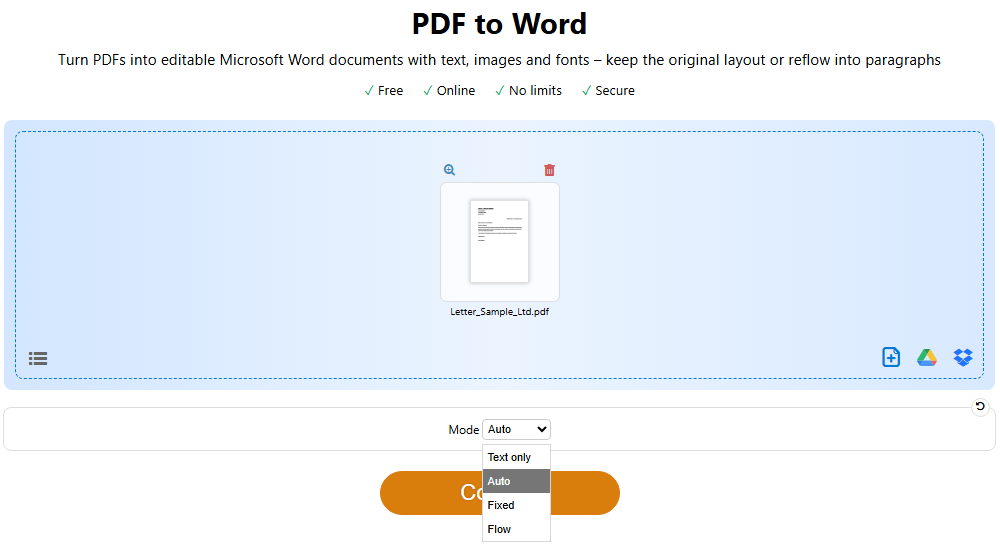
Open the result in Microsoft Word, LibreOffice Writer or another word processor, check it briefly and save it from there.
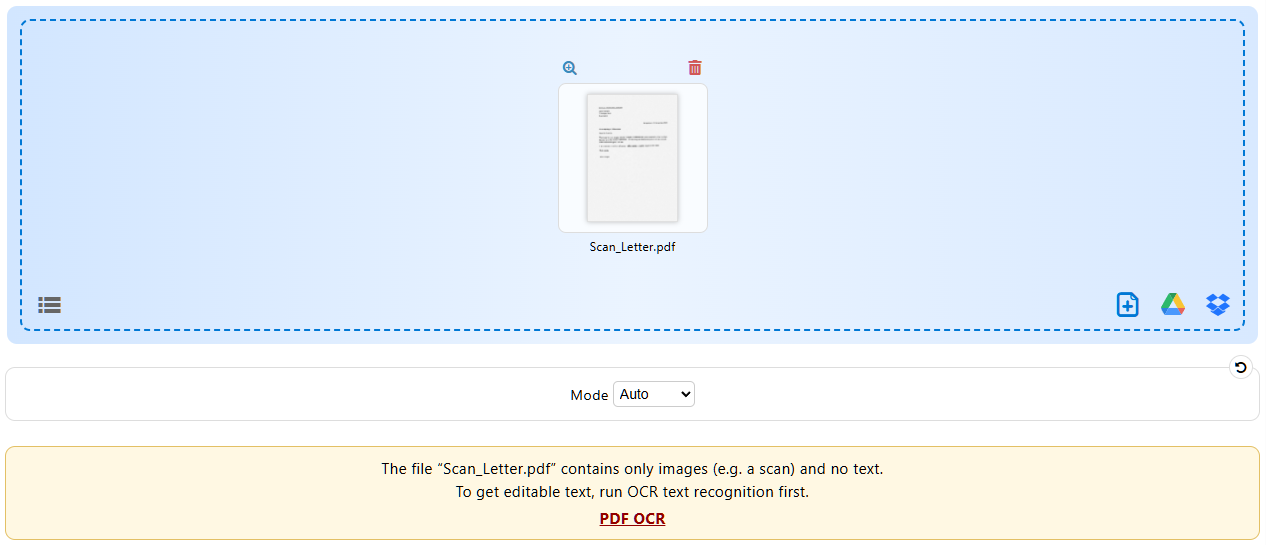
Is the PDF a scan? Then the tool shows a note right after the upload – "The file … contains only images (e.g. a scan) and no text." – with a link to "PDF OCR". See Scanned PDF to Word.
The mode: Auto, Fixed, Flow or Text only
"Mode" decides how PDF24 builds the pages in Word:
- "Auto" (default): PDF24 decides page by page. Pages of normal text become flowing text with paragraphs, headings, lists and tables. Pages with a lot of graphics – brochures, title pages, plans – get their text in text frames where it sits in the original.
- "Fixed": every page looks like the PDF. Graphics and lines are in the background of the page, the text sits editable on top in frames of a fixed size, usually one line per frame. Good for viewing and small corrections; what you add does not push the rest on and is cut off at the frame edge. Pages that are just a table still become a Word table.
- "Flow": all pages with text become flowing text. Easiest to write and reformat, but the layout only roughly matches.
- "Text only" (online only): just the text, without images, tables and layout – handy if you want to put the text into a document of your own.
Rule of thumb: to write or rearrange a lot, choose "Flow"; to keep the original look, choose "Fixed". With a difficult file, simply try two modes. The tool remembers your choice for your next visit.
What carries over to Word – and what doesn't?
This usually works well:
- Text stays text, with font, size, bold, italic and color. The PDF's fonts are embedded in the Word file as far as the PDF contains them, so the text looks right even on a PC without that font.
- Headings become Word headings (styles "Heading 1", "Heading 2" …), bulleted and numbered items become Word lists.
- Tables with recognizable rows and columns become Word tables.
- Images are taken over as images.
- Recurring headers and footers become Word headers and footers.
Expect some touching up here:
- Elaborate layout: columns, text boxes, text on top of images and graphics. In "Auto" and "Fixed" such pages use text frames; for writing on, "Flow" is better.
- Fonts: usually only the characters that occur in the PDF are embedded. If you type new letters, Word may use a substitute font for them. Select the text and choose a font installed on your PC.
- Tables without lines or with merged cells are not always recognized as tables.
- Forms: fillable PDF fields do not become Word form fields; what was filled in comes along as text or as part of the page. To fill in a PDF form or create your own, do it in the PDF: Fill in and create PDF forms.
- Scanned pages contain no text, only a picture (scans).
If you only want to change a few words in the PDF, you may not need Word at all: Edit PDF shows how to replace text in the PDF itself.
Scanned PDF to Word: recognize the text first (OCR)
A scan or a photographed document is a PDF with pictures of the pages. There is no text in it that Word could take over. Converted directly, the Word file contains only the page images. PDF to Word never runs text recognition by itself, but it tells you: before converting with "The file … contains only images", and in the result with "No text was found in the PDF …" or "The PDF consists of scanned pages …". The second note appears for scans with a few words of text, such as a scanner app's watermark, page numbers or the note of an electronic signature; before converting, such files often get no note.
To get editable text:
- Recognize the text: online with PDF OCR (the link in the note takes you there), offline with "PDF OCR" in the PDF24 Toolbox. Choose the language of the document.
- Convert the recognized PDF with PDF to Word, mode "Auto" or "Flow".
The recognized text then becomes normal, editable text. Logos, stamps and signatures stay as images. Pages where the look matters – forms, title pages, two-column pages or tables with multi-line cells – keep the scanned image on purpose, in "Auto" as well as in "Flow". If you want the original look for all pages, choose "Fixed": every page then stays the scanned image, with the recognized text only as hidden text in it (searchable, but not for editing).
Expect recognition errors, especially with blurry scans, small print, handwriting and tables. Scanned tables usually arrive as lines of text after OCR, not as a table. So proofread the result. Everything about text recognition, languages and options is on the page Recognize PDF text (OCR).
Offline: PDF to Word with the PDF24 Toolbox
- Open the PDF24 Toolbox (Start menu or the PDF24 icon) and choose "Convert from PDF".
- Drag the PDF in or click "Choose files".
- Under "Format" choose "Word (.docx)". Note: the preset is "Text (.txt)".
- Choose the "Mode": "Auto", "Fixed" or "Flow" (as online; there is no "Text only" here – choose the format "Text (.txt)" instead).
- Click "Convert" and save the result.
Quicker: type "PDF to Word" into the search field at the top of the Toolbox (Ctrl+K) – the tool opens with Word already chosen. "PDF to Excel" and "PDF to PowerPoint" work the same way.
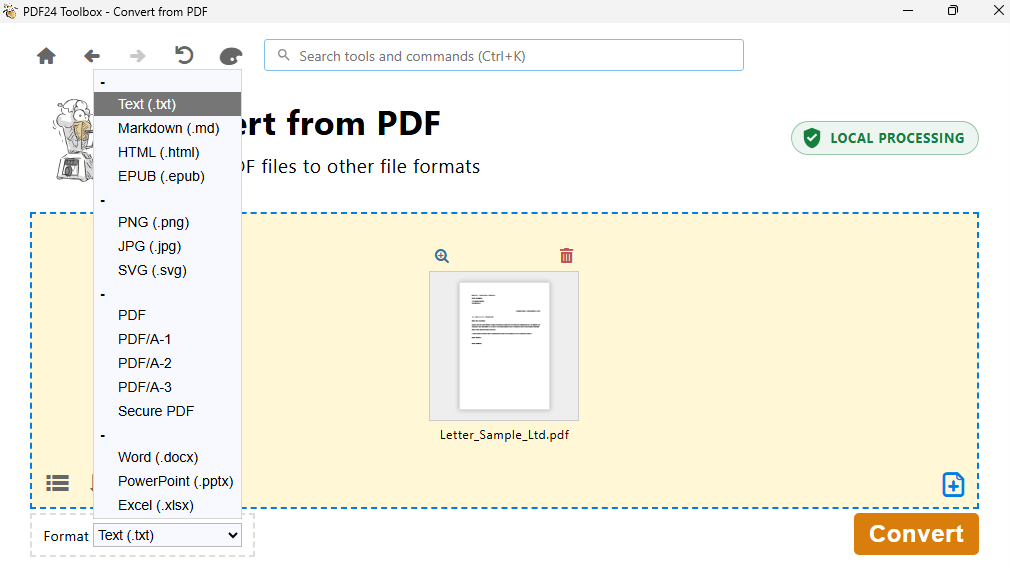
For Word, Excel and PowerPoint the Toolbox uses the same converter as the online tools, just on your PC. You need neither Microsoft Office nor LibreOffice for it, but you do need the component "OpenJDK (GPL)", which is normally installed. Scans get the note about text recognition here too, with the link "PDF OCR".
Not here: "Convert to ..." in the PDF24 file tools (right-click › "PDF24" in File Explorer) offers no Word. It saves the PDF as images, text or PostScript (images).
Convert PDF to Excel
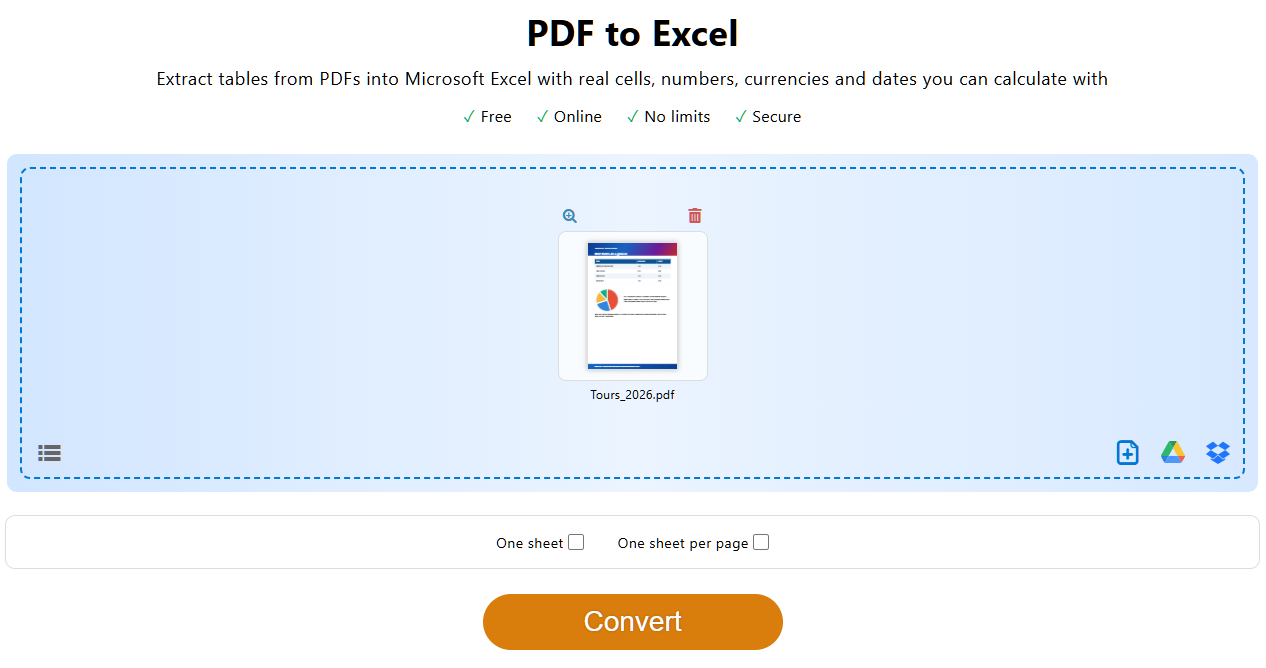
- Open PDF to Excel and load the PDF.
- If needed, choose how the tables are spread over the worksheets (see below).
- Click "Convert" and download the Excel file (.xlsx).
PDF to Excel finds the tables in the PDF and turns them into real cells. Numbers, amounts of money, percentages and dates arrive as values Excel can calculate with. Running text comes along too, but line by line in single cells – if the text is what you need, PDF to Word is the better choice.
The worksheets:
- Default: one sheet per table. If a table continues over several pages with the same columns, it is joined into one sheet and the repeated header row is dropped.
- "One sheet": all tables one below the other on one sheet, e.g. for many invoices of the same layout in one PDF.
- "One sheet per page": each page of the PDF on a sheet of its own.
Offline in the Toolbox: "Convert from PDF", "Format" "Excel (.xlsx)", "Worksheets" "One per table" or "One per page". All tables on one sheet is not available there.
Need CSV? PDF24 has no CSV format of its own. Open the Excel file and save the sheet you need as CSV with "Save As" in Excel.
Scanned tables: recognize the text first (scans), but expect the table structure of a scan often not to be recognized, with the rows arriving as text.
Convert PDF to PowerPoint
PDF to PowerPoint turns each page into a slide. Text becomes editable text boxes, images become pictures, lines and areas become PowerPoint shapes. What cannot be rebuilt, such as color gradients, is a background image on the slide with the text still editable on top. There are no settings: load the PDF, "Convert", download. Offline: "Convert from PDF", "Format" "PowerPoint (.pptx)".
The typical case is a presentation that only exists as a PDF. A PDF contains no animations or slide transitions, so the result has none either.
Convert PDF to JPG, PNG or TIFF
When converting to images, each page becomes an image of its own, as it looks on screen. The text in it can no longer be edited.
Online:
- PDF to JPG: "DPI" (default 144, 72 to 600) and "Image quality" (default 85 %).
- PDF to PNG: "DPI", lossless.
- PDF to TIFF: "DPI", "Color depth" (color, grayscale or black and white, e.g. "G4 Fax Encoding" for very small black-and-white files) and "Multi-page": all pages in one TIFF file (default) or one file per page.
- PDF to Images: JPG or PNG, "Color" or "Gray", "DPI" and "Quality". With several PDFs, "All images in one folder" stores the images without a subfolder per PDF.
Several images are downloaded together as a ZIP file. The images are named by page number.
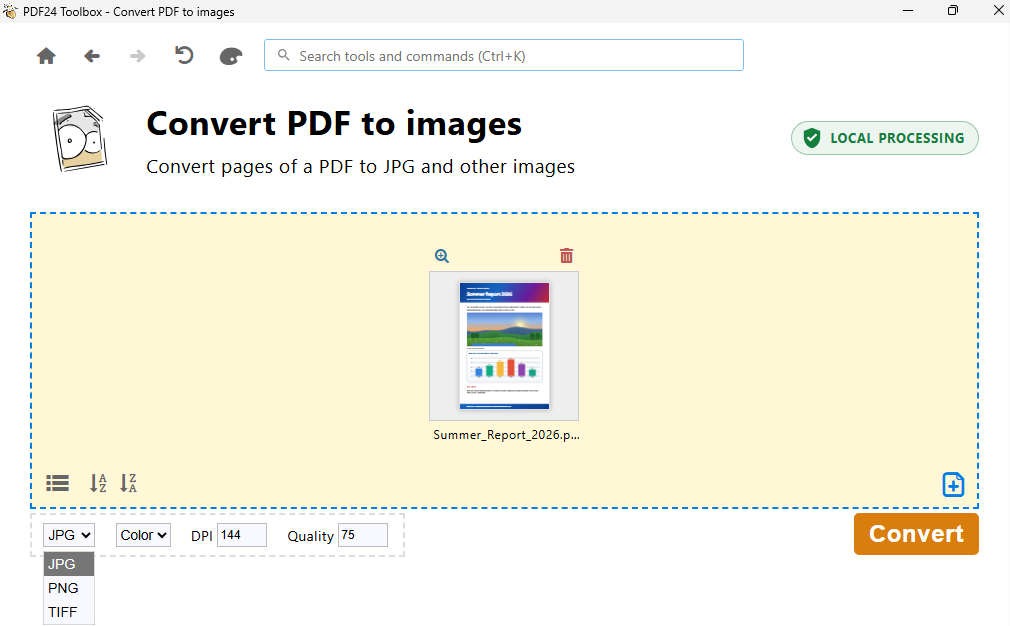
Offline in the PDF24 Toolbox: tool "PDF to images", format "JPG", "PNG" or "TIFF", "Color" or "Gray", "DPI" (default 144) and, for JPG, "Quality" (default 75). Each PDF gets a subfolder of its own when saving, unless you tick "All images in one folder" (shown with several PDFs). TIFF is created as one file per page here.
Other image formats such as BMP, and a multi-page TIFF offline: right-click the PDF and choose "PDF24" (in Windows 11 in the new context menu or under "Show more options"), then "Convert to ..." in the file tools window. Depending on the installation the command is directly in the "PDF24" submenu; in the Toolbox you reach the window with "Open file tools". On the left choose the format, e.g. TIFF with "Multipage TIFF" or BMP, and set the "Resolution". For many files, a multi-page TIFF also works from the command line.
All pages in a single image? A JPG or PNG always holds one page. To get several pages on one image, first put them on one sheet with pages per sheet and convert that. For all pages in one file, use a multi-page TIFF.
Only the photos from the PDF? Then don't convert the pages – extract the embedded images in their original resolution: Extract PDF images, offline in the Toolbox "Extract PDF images".
Choosing the resolution (DPI)
DPI (dots per inch) sets how many pixels the image gets: width in inches times DPI. An A4 page gives about 2480 × 3508 pixels at 300 DPI. Double the DPI means roughly four times the file size.
- For screen, website, e-mail, messengers: 96 to 150 DPI.
- For printing, or small print that must stay legible: 300 DPI.
- JPG is small and good for photos; with text and lines, low quality shows as blur. PNG is lossless and sharp for text, plans and graphics, but larger. TIFF is common for archives and fax.
With scans, going above the resolution of the original does not help: a document scanned at 200 DPI only gets bigger at 600 DPI, not sharper.
Convert PDF to text (TXT)
PDF to Text takes the plain text out of the PDF, without images and formatting, as a text file (UTF-8) any program can open. Online, two-column pages are read column by column. Offline: "Convert from PDF" with "Format" "Text (.txt)"; there the lines of both columns run into each other on two-column pages – for such documents use the online tool or PDF to Word.
With scans the result is empty because the PDF has no text: recognize the text first, then convert. In the program PDF24 OCR you can skip the second step: right-click the recognized file in the list › "Show recognized text" opens the text in your editor; save it there with "Save As" before you close PDF24 OCR. Online, the PDF editor can do it too with "Save as TXT" (see Recognize PDF text (OCR)).
More formats: ODT, RTF, HTML, EPUB, Markdown
Convert PDF to ... also offers Writer (.odt), Impress (.odp) and Calc (.ods) for LibreOffice/OpenOffice, Rich Text (.rtf), HTML, EPUB for e-book readers, Markdown, SVG and PDF/A. For Markdown, e.g. to feed the content to an AI tool or a wiki, there is PDF to Markdown with the checkbox "Embed images"; unticked, you get the text only. The Toolbox's "Convert from PDF" offers Markdown, HTML, EPUB and SVG as well; ODT, ODP, ODS and RTF are online only.
From the command line
Images and text with the DocTool: -convertTo with the target format in -param outputFormat (jpg, png, tiff, bmp, txt and more) runs without a dialog, -silent suppresses all windows:
"C:\Program Files\PDF24\pdf24-DocTool.exe" -convertTo -param outputFormat jpg -param jpg-resolution 300 -silent -outputDir "C:\Images" "C:\Docs\report.pdf"Without further parameters, 150 DPI and quality 75 apply. A PDF with several pages gives a folder "report.jpg" with one image per page. All pages in one TIFF file: -param outputFormat tiff -param tiff-multipage true (resolution with -param tiff-resolution 300); without tiff-multipage, TIFF also gives a folder with one file per page.
Word, Excel, PowerPoint with the Toolbox: the DocTool cannot create these formats. The PDF24 Toolbox runs its tool "Convert from PDF" without a window when you give it a job file, e.g. C:\Data\job.json:
{ "action": "convertPdfTo", "outputFileType": "docx", "conversionMode": "flow", "fileInfos": [ { "file": "C:\\Data\\report.pdf", "name": "report.pdf" } ] }start "" /wait "C:\Program Files\PDF24\pdf24-Toolbox.exe" -processJob C:\Data\job.json C:\Data\result.jsonThe Toolbox and the DocTool are window programs: in a batch file, Windows waits for them only with start "" /wait before the call. Without it, the next line reads result.json or the images before they exist, and %ERRORLEVEL% does not hold the exit code. The same applies to the DocTool example above.
outputFileType can be docx, xlsx, pptx, txt, md and more, conversionMode auto, fixed or flow. The result is written to the folder %TEMP%\PDF24; its path is in result.json under outputFiles. Copy it from there to its destination. All switches are in the manual, job files under Process a job.
Alternative: open the PDF in Word
Newer versions of Microsoft Word (Word 2013 and later) open PDFs themselves: in Word, "File" › "Open" and choose the PDF. Word converts it into a Word document. The limits above apply there too, and scans need text recognition first. If one way gives a poor result with a difficult file, try the other.
Problems and solutions
Word shows only an image, the text cannot be edited
- The PDF is a scan or contains the text only as an image: run text recognition first.
- The PDF has already been through OCR but the result still shows the scanned image: set "Mode" to "Auto" or "Flow", not "Fixed". Form, table and title pages as well as two-column pages keep the scanned image on purpose, though, in "Auto" and in "Flow".
- The text sits in text frames and can only be changed piece by piece: convert with "Flow".
The layout shifts or looks different from the PDF
Choose "Fixed" if the look matters. If lines or graphics are missing, try the other mode. If none works, send us the file (see below).
Boxes or gibberish instead of letters
Some PDFs do not store which character each glyph of their fonts stands for. The text looks right in the PDF, but cannot be copied properly there either. PDF to Word, Excel and PowerPoint still read many such files correctly – so first simply convert (in the Toolbox from version 11.33.0).
If the PDF consists of scanned pages whose text comes from an earlier text recognition, the online tool points this out in the result: gibberish then usually comes from a recognition in another language. The button in the note takes you straight to text recognition.
If you still get gibberish, text recognition helps: in PDF OCR behind the gear icon ("Additional options") choose "Force OCR"; offline in PDF24 OCR untick "Skip pages with text", in both cases with the right language. Then convert the result to Word; as text (TXT) it may contain words twice, because the old text stays in the file.
The Excel table is empty, incomplete or all in one column
- PDF to Excel does not always recognize tables without lines and without clear column gaps. Try "One sheet per page".
- With scans, run text recognition first; even then, scanned tables are often recognized as lines of text only.
The PDF is password protected
PDF24 asks for the password to open it. Without that password the file cannot be converted.
The file is very large
Online, a file may be up to 1,000 MB and, for Word, Excel and PowerPoint, have at most 10,000 pages. Split larger files first with Split PDF and convert the parts one by one.
The Toolbox reports an error or produces no result
- Update PDF24 Creator. Since version 11.34.0 the Toolbox names the reason when a file cannot be converted, e.g. a damaged file (Repair PDF).
- Word, Excel, PowerPoint and text need the component "OpenJDK (GPL)". If it was deselected during installation, run the setup again and select it.
- If memory runs out, see PDF24 Creator troubleshooting.
If a conversion does not work as expected, write to us at team@pdf24.org or ask in the PDF24 forum, ideally with the PDF so that we can reproduce it.